
Sometimes, for different reasons, you may need to cancel a meeting or any event that your clients have scheduled. You can easily cancel a meeting from the TuCalendi control panel.
You can also cancel a meeting from the TuCalendi App.
Once you have logged in with your TuCalendi username and password, click on the "Scheduled Events" option.
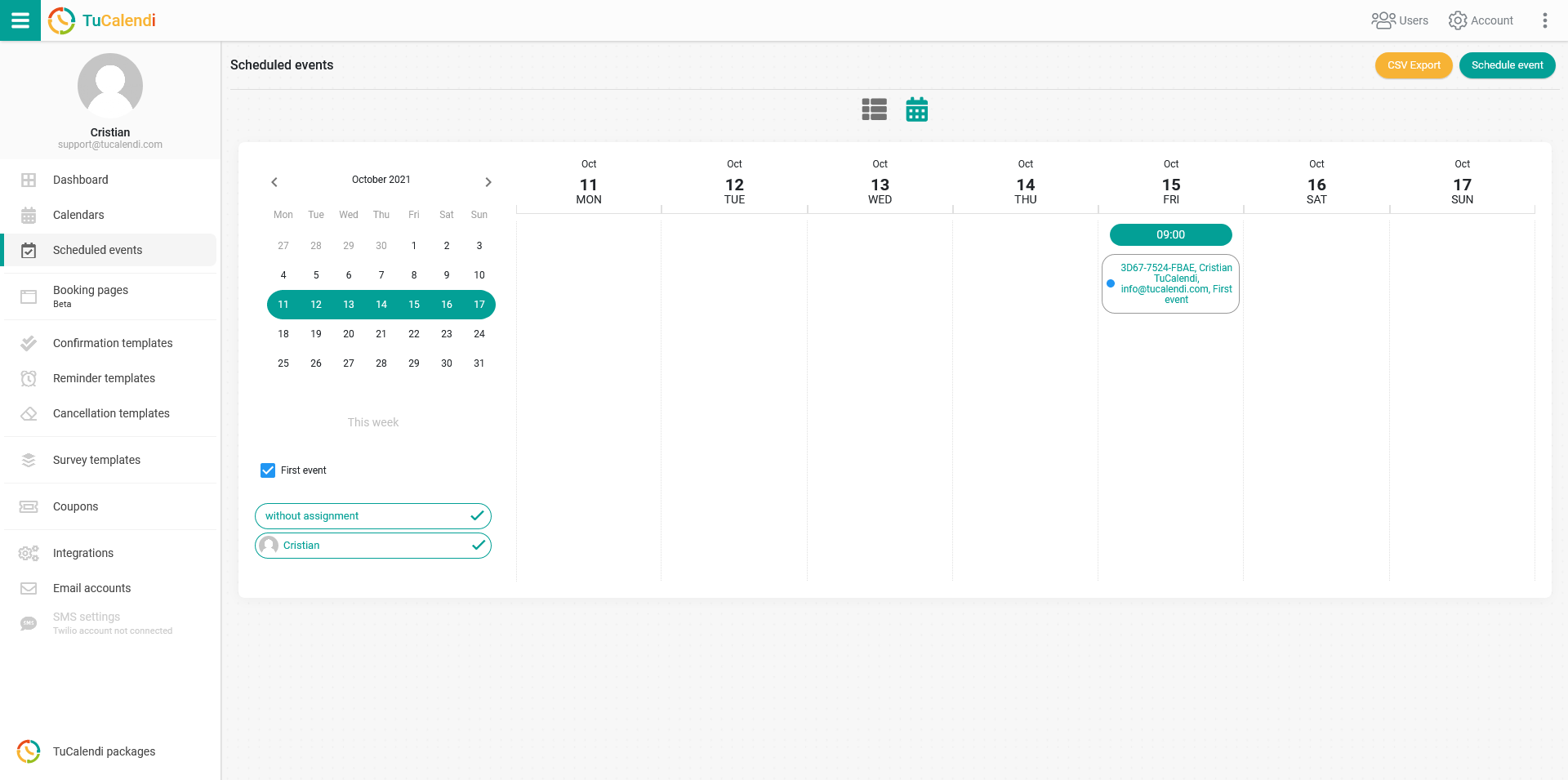
Find the event you need to cancel and click on it to open the event detail:
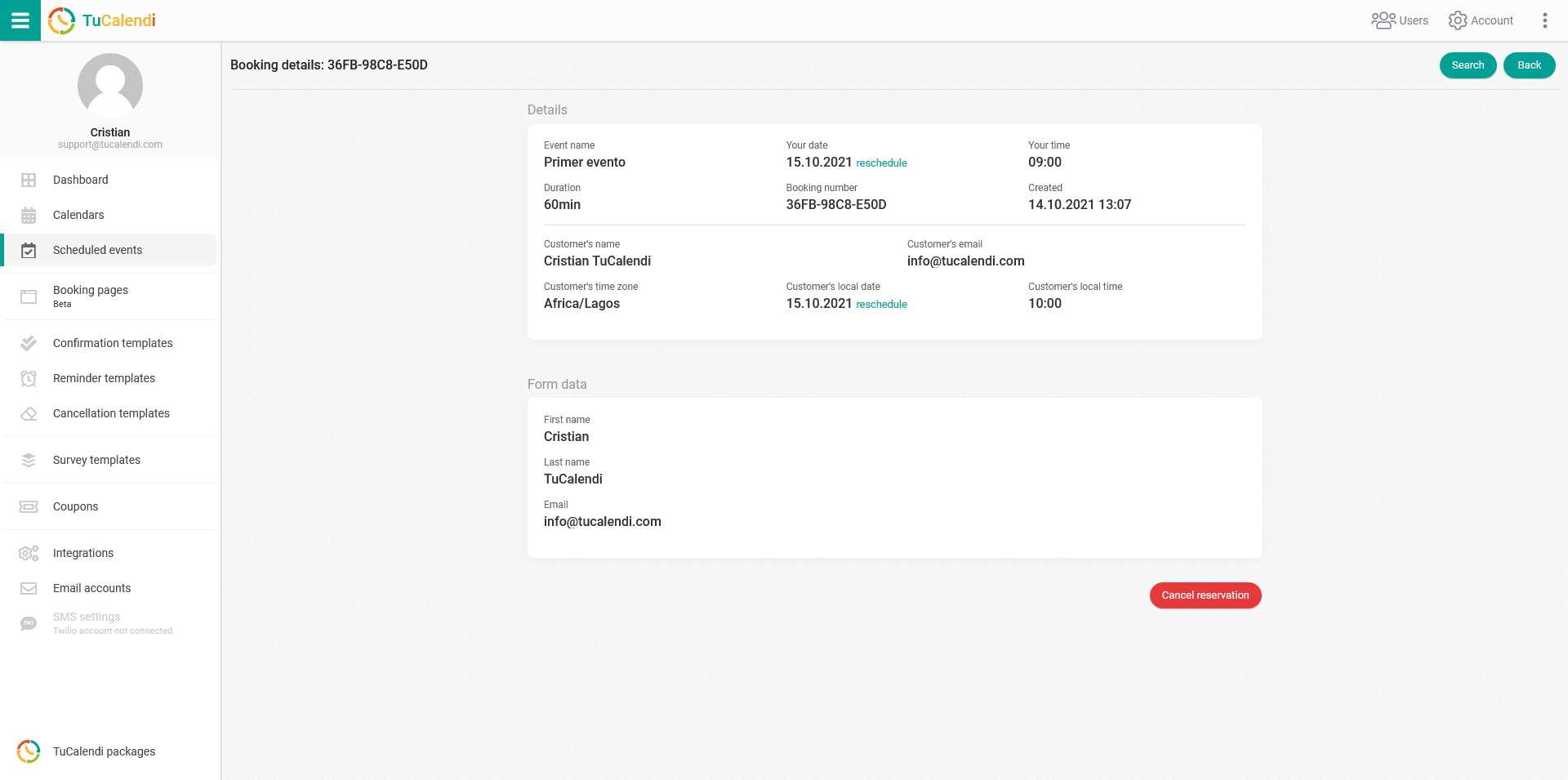
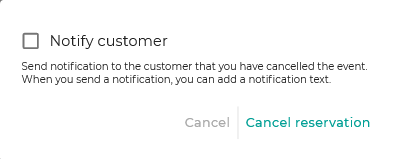
Click on the "Cancel Event" button. A confirmation message will appear, and you can choose whether or not to send the customer a notification of the cancellation.
If you check the "Notify customer" box, you can select the cancellation template that will be sent to the customer:
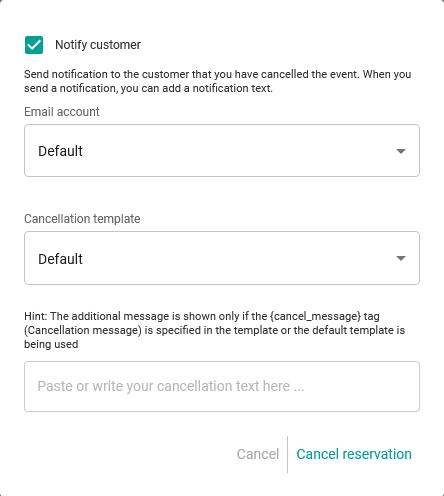
You can also write an additional message in the cancellation email your customer will receive, as long as you have included the {cancel_message} tag in the cancellation template you created previously.
Click on "Cancel reservation". This action will cancel the scheduled event, and it will appear as a cancelled event in the calendar.
NOTE: This action cannot be undone.