
Knowing which meetings, appointments or any other type of events have been canceled directly by customers from the confirmation emails, or which cancellations were made manually from the TuCalendi control panel, is very easy and intuitive.
Once you have logged in with your username and password, click on the "Scheduled events" option:
You will see a list with all the events that have been scheduled, where you can filter by dates or search by the different fields.
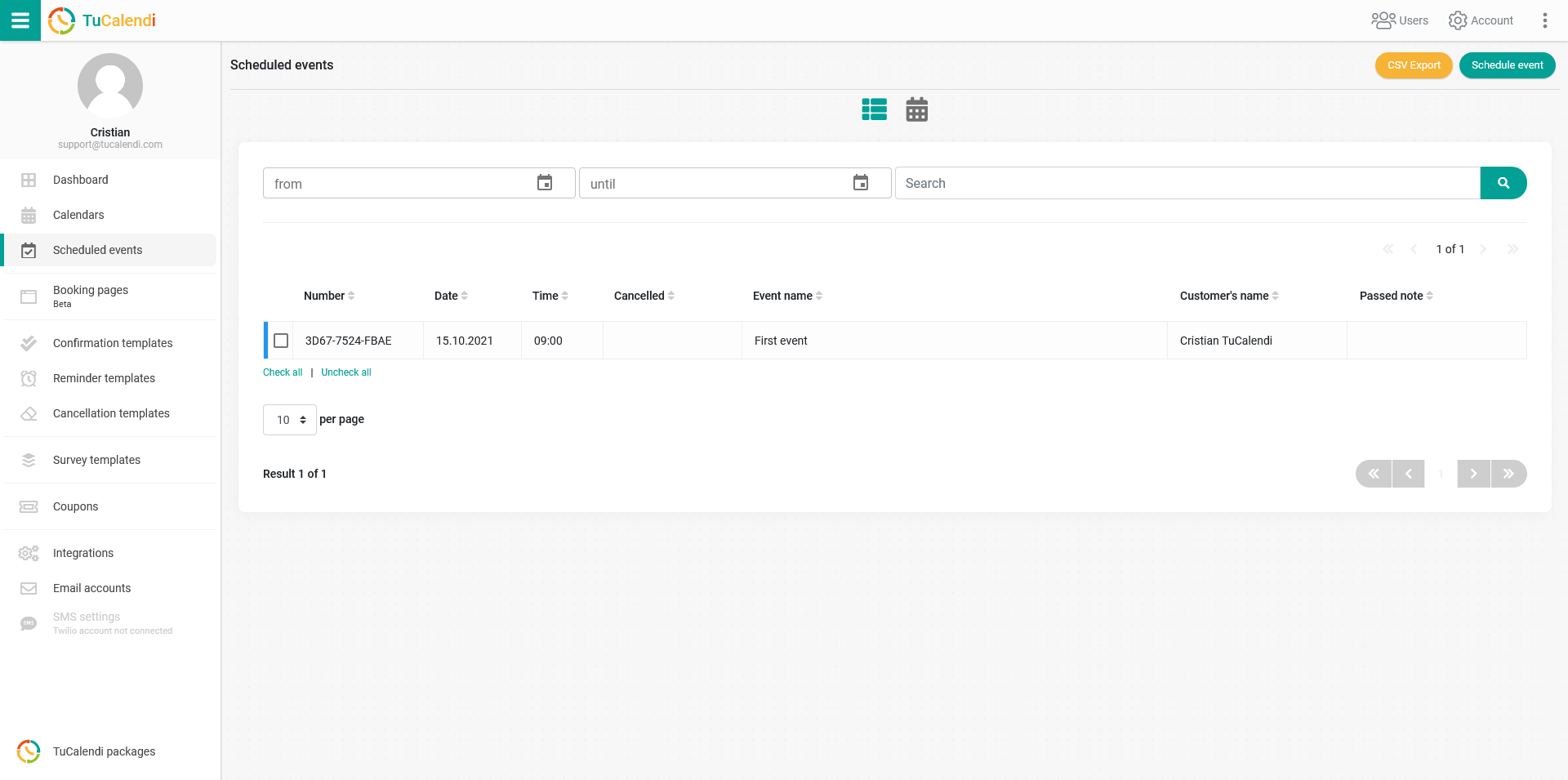
In the listing above, you can see only one scheduled event and the "Cancelled" column is blank.
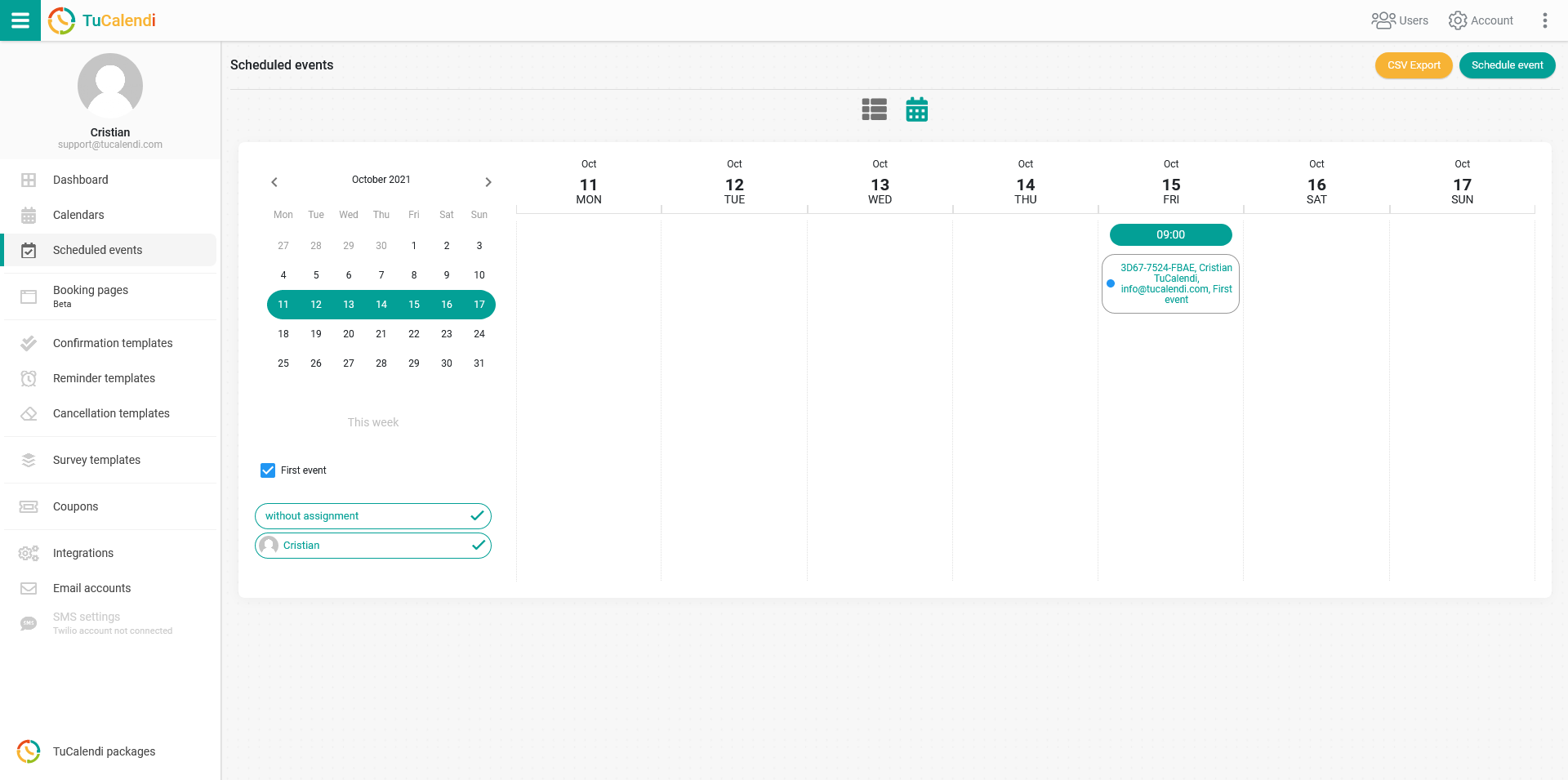
There is also a view of scheduled events in the weekly calendar format. Just click on the calendar icon and it will be displayed like this:
When the event is canceled directly by the user or manually from the TuCalendi control panel, it appears in the list view as follows:
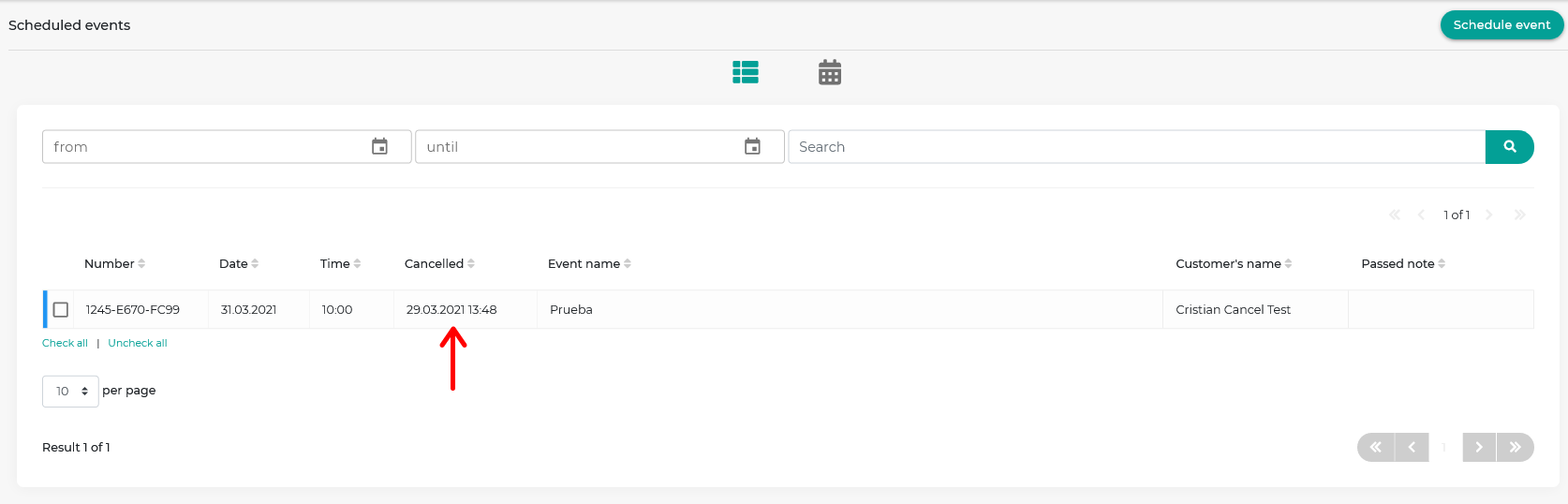
The "Cancelled" column shows the date and time when the event was cancelled.
And in the calendar view it looks like this:
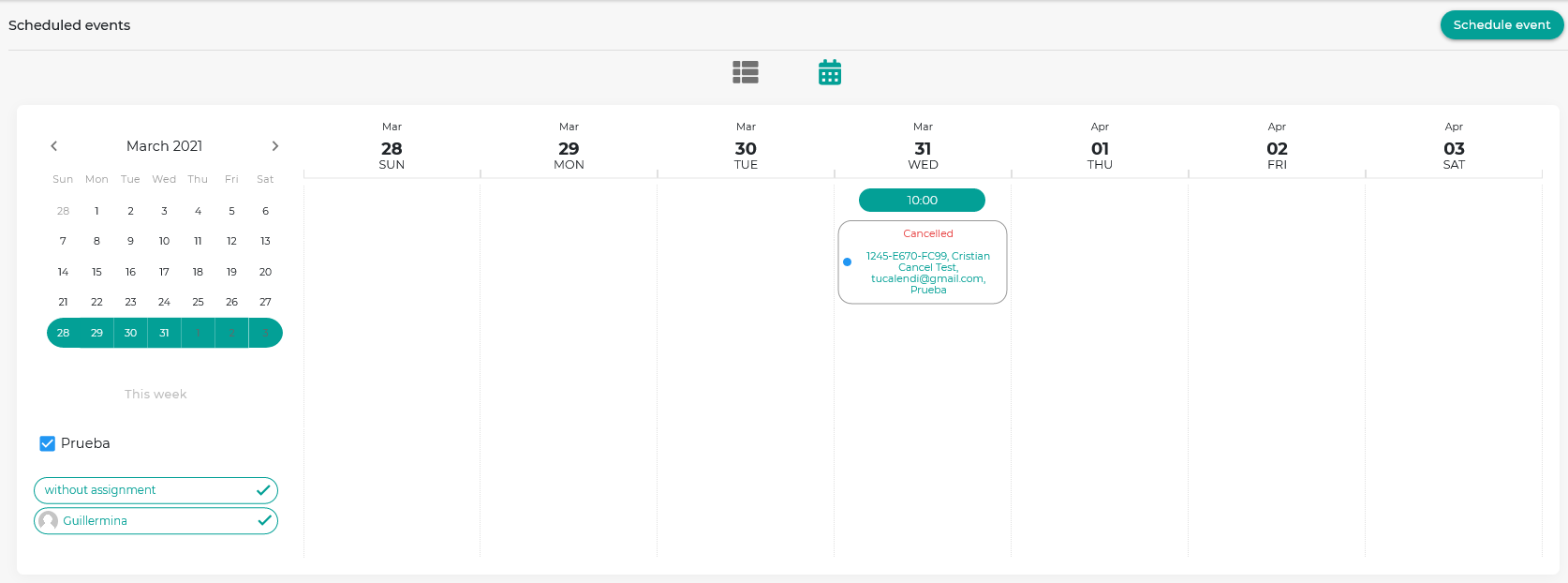
In the event summary, it is indicated in red that the event was cancelled.
In both views, when you open the event you will see the event details and a message informing you "This booking was cancelled".
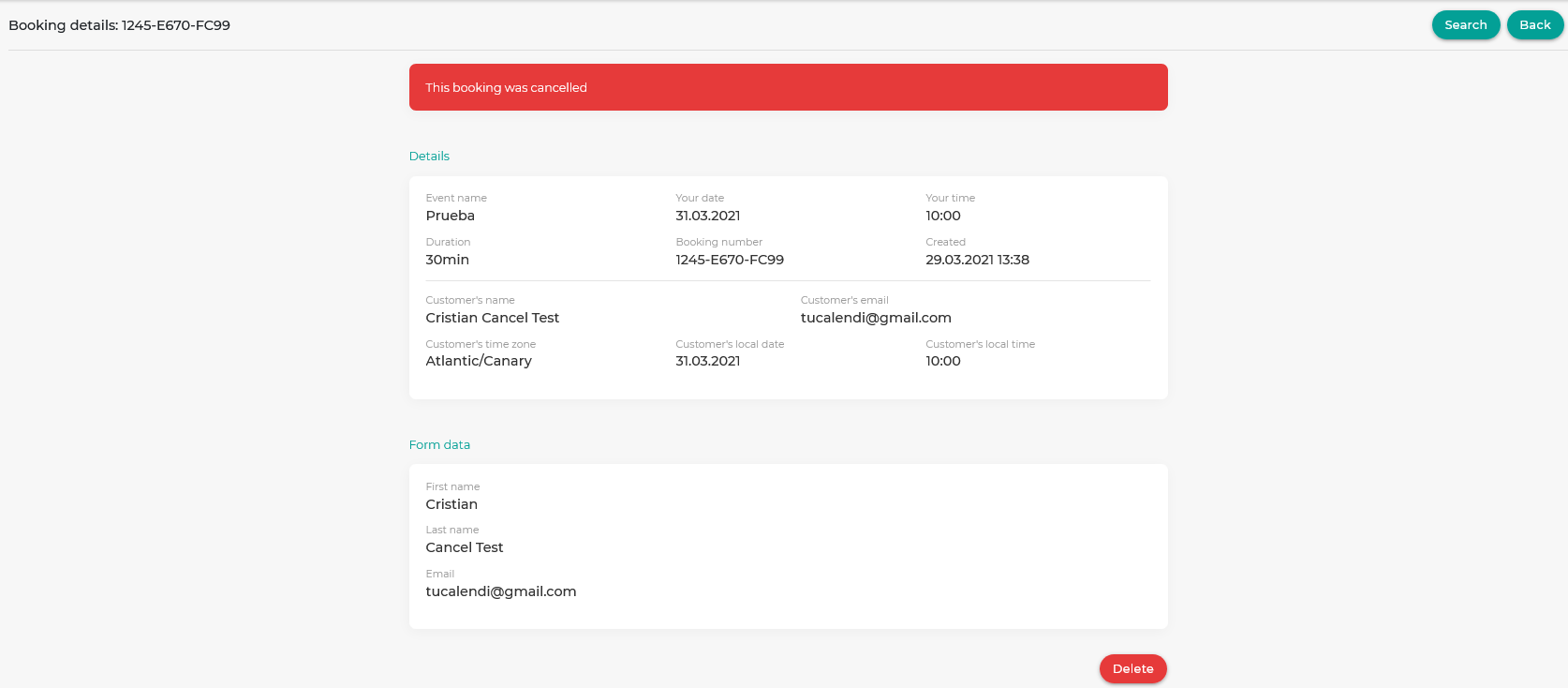
If you want the cancelled event to be removed from the calendar, just click "Delete".
Cancelled events will continue to appear in the scheduled events calendar until they are manually deleted.