
Occasionally, you may need to schedule meetings regardless of the availability set in your event. In TuCalendi, you can manually schedule a meeting regardless of time availability.
Manually scheduling a meeting without checking the time availability set in the event is very easy.
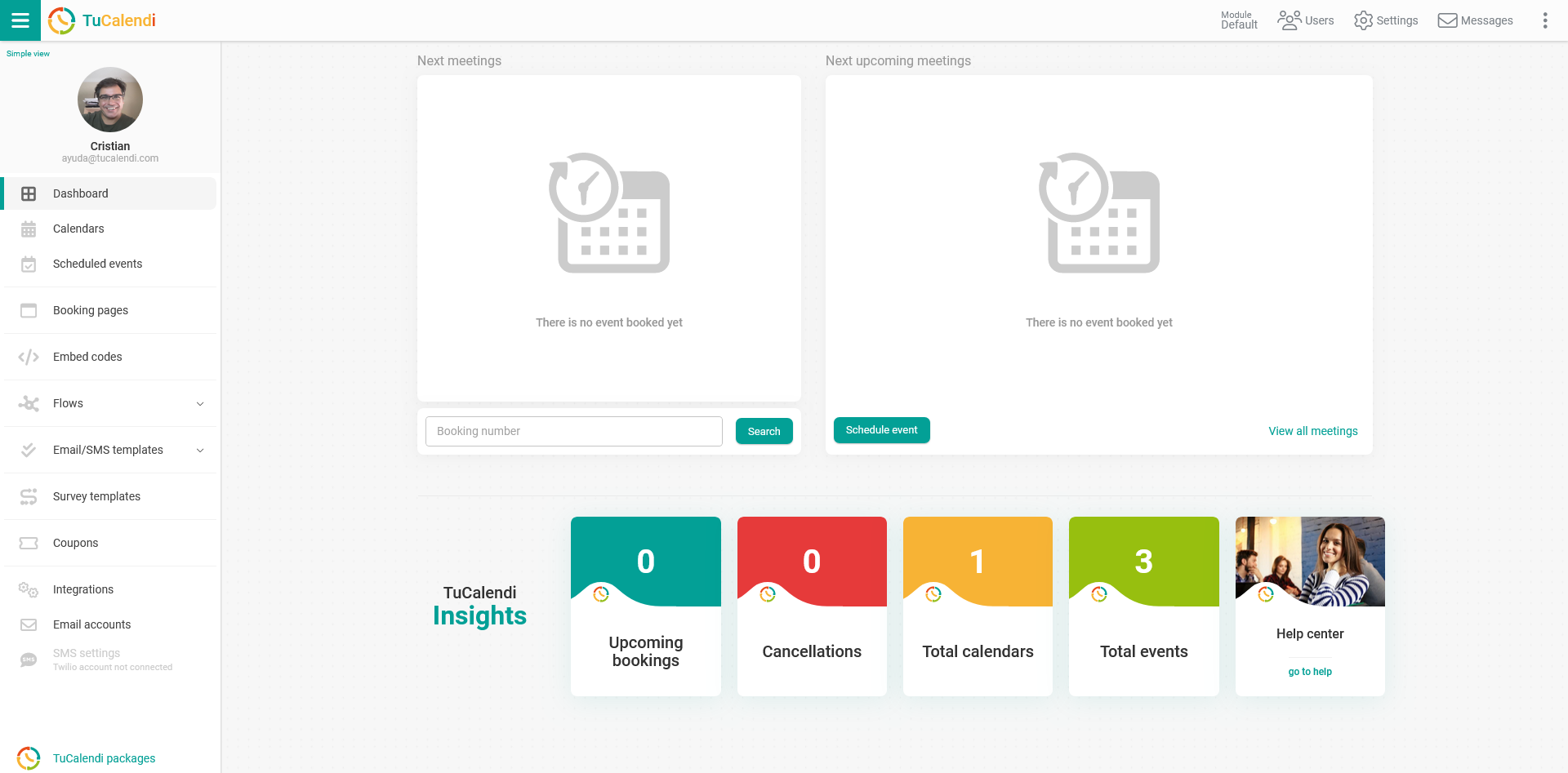
Once you have logged in with your username and password, you will enter the TuCalendi dashboard. In the "Upcoming booked events" block, you will find the "Schedule event" button.
Click the "Schedule event" button to make a booking manually.
You will be taken to the option to manually schedule a meeting.
First, select the event you want to schedule:

Once you have selected the event, you can schedule the meeting:
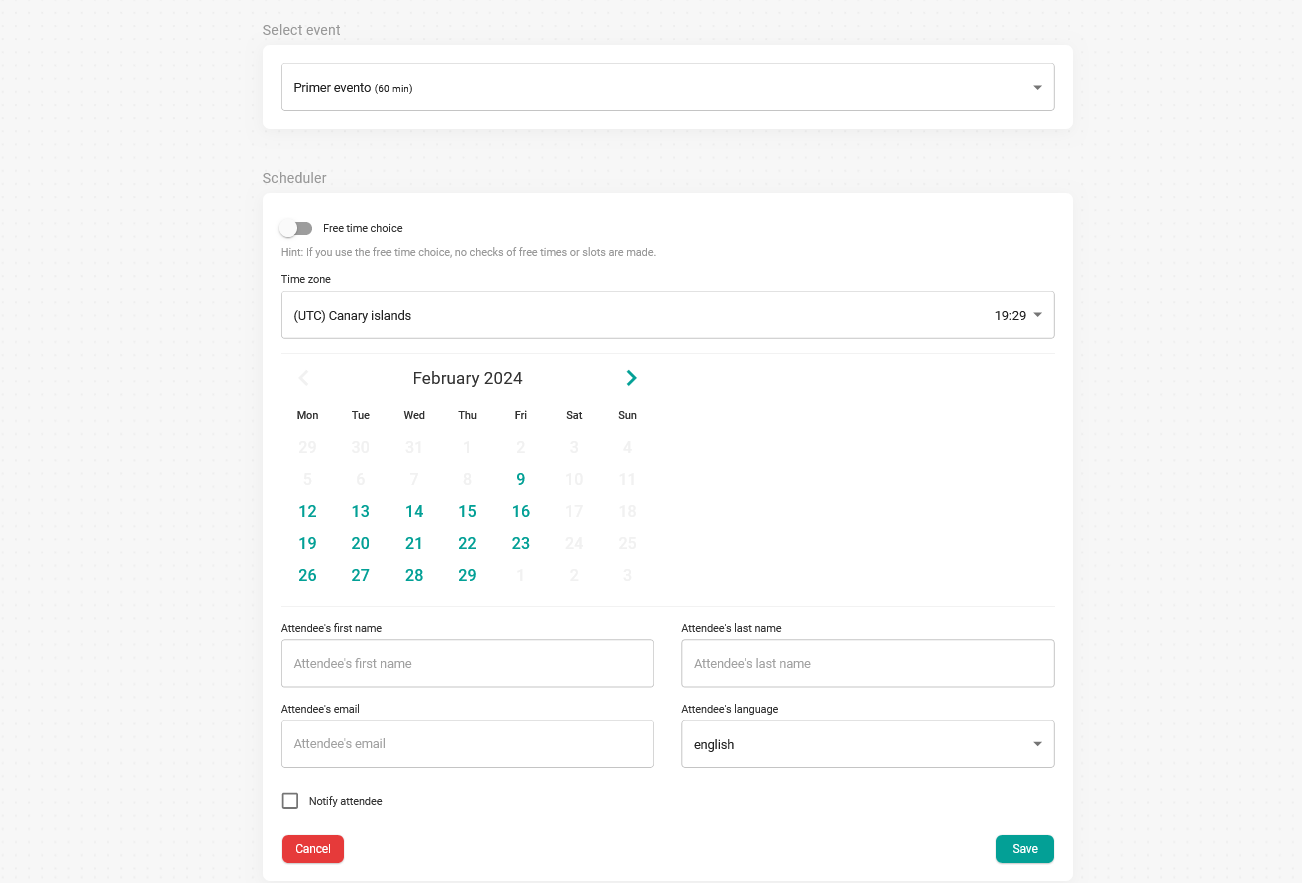
If you check the "Free time choice" option, neither the free times nor the established time slots will be taken into account.
This option is very useful if you want to schedule last minute meetings. That is, when a client calls you and needs to have a meeting with you as soon as possible.
You can choose the day and time you want to have the meeting.
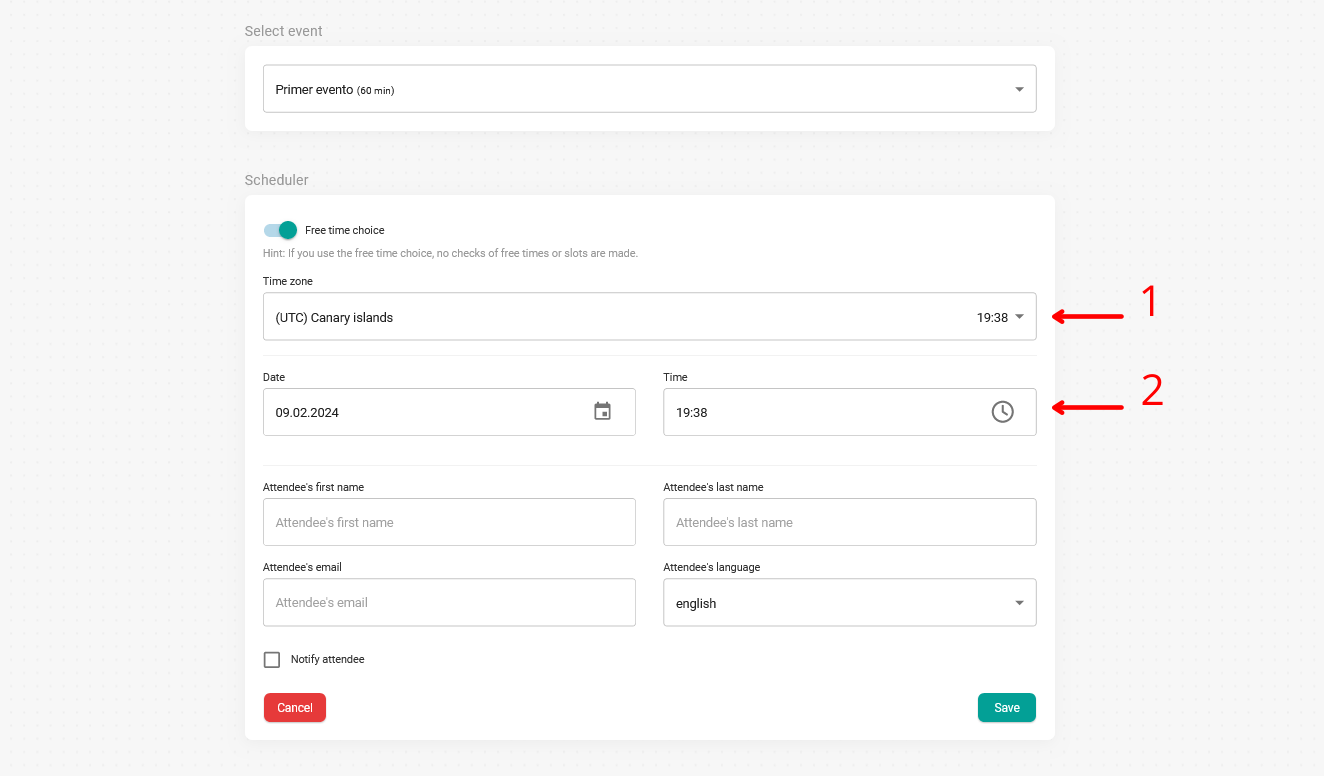
The "Time zone" field, marked in the image with the arrow and the number 1, refers to the client's time zone. By default, it shows the time zone you have specified in the event configuration.
The "Date" and "Time" fields, marked in the image with the arrow and the number 2, are the date and time when you, the person scheduling the event, want to have the meeting. If the client is in a different time zone than yours and you have indicated it in the "Time zone" field, TuCalendi will calculate the time difference between you and your client.
Enter the basic data to schedule the meeting:
- Attendee's first name.
- Attendee's last name.
- Attendee's email address.
- Attendee's language. This is used to send the confirmation email in the language of the person you are booking the meeting for manually.
Check the "Notify customer" box to send the meeting confirmation to the customer by email, then click "Save".
That's it: you have manually scheduled a meeting regardless of the time availability set in the event.
In the Scheduled events option, you will also find the "Schedule event" button.