
In addition to sending email reminders for an upcoming meeting, you can also add SMS reminders in a workflow.
Let's see how to include SMS reminders in a workflow to send text messages to the cell phones of people who have made a booking and remind them of their next appointment.
To send SMS, you must have your own Twilio account and set up the integration between TuCalendi and Twilio.
We will edit an existing workflow and add the option to send SMS reminders.
The current workflow has three automations:
- Send confirmation email.
- Send two reminder emails.
- Send cancellation email.
Log in to TuCalendi. Go to the "Workflows" menu:
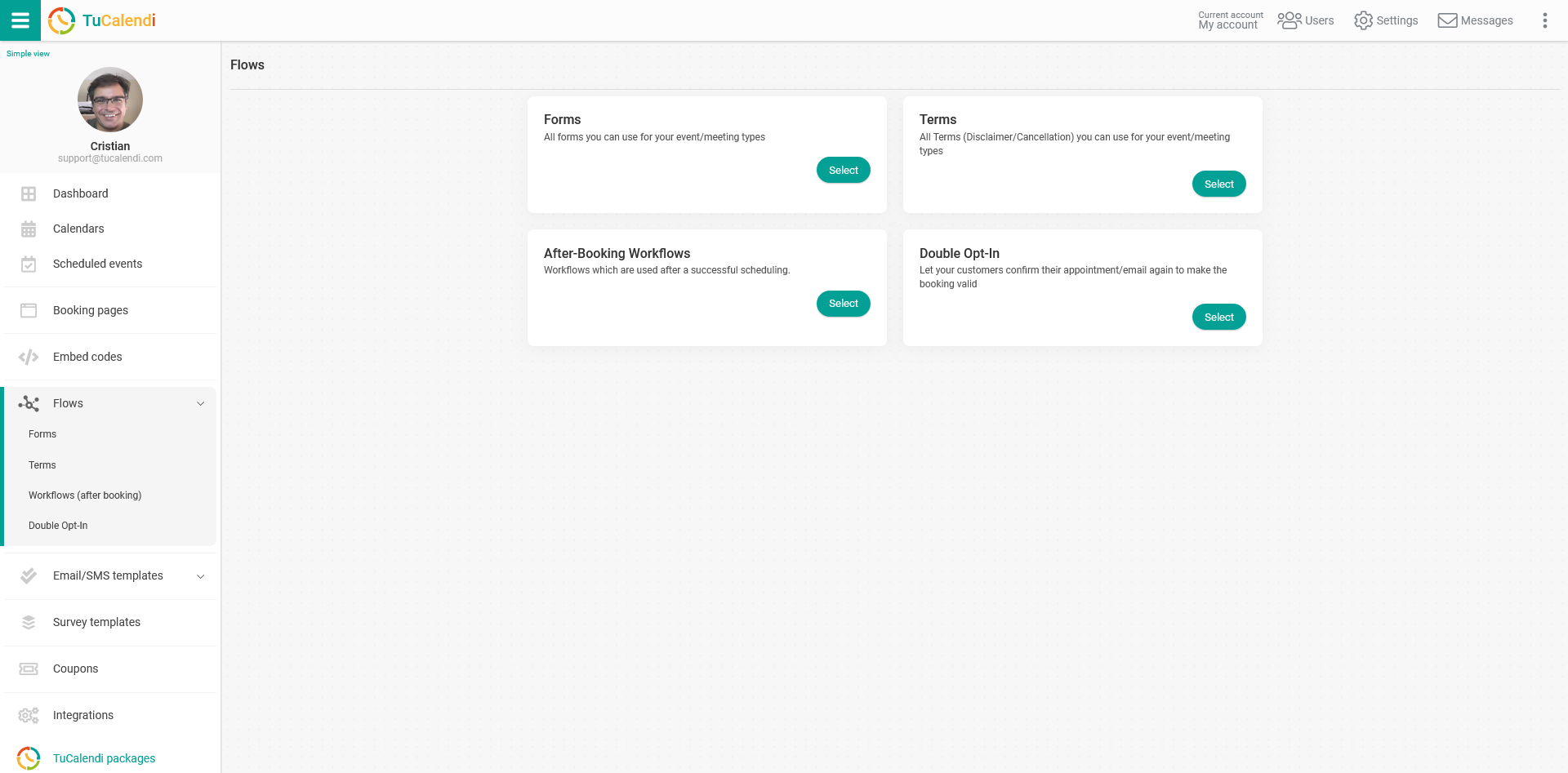
Under the "Workflows (after booking)" option, click "Select" and your available workflows will be displayed:
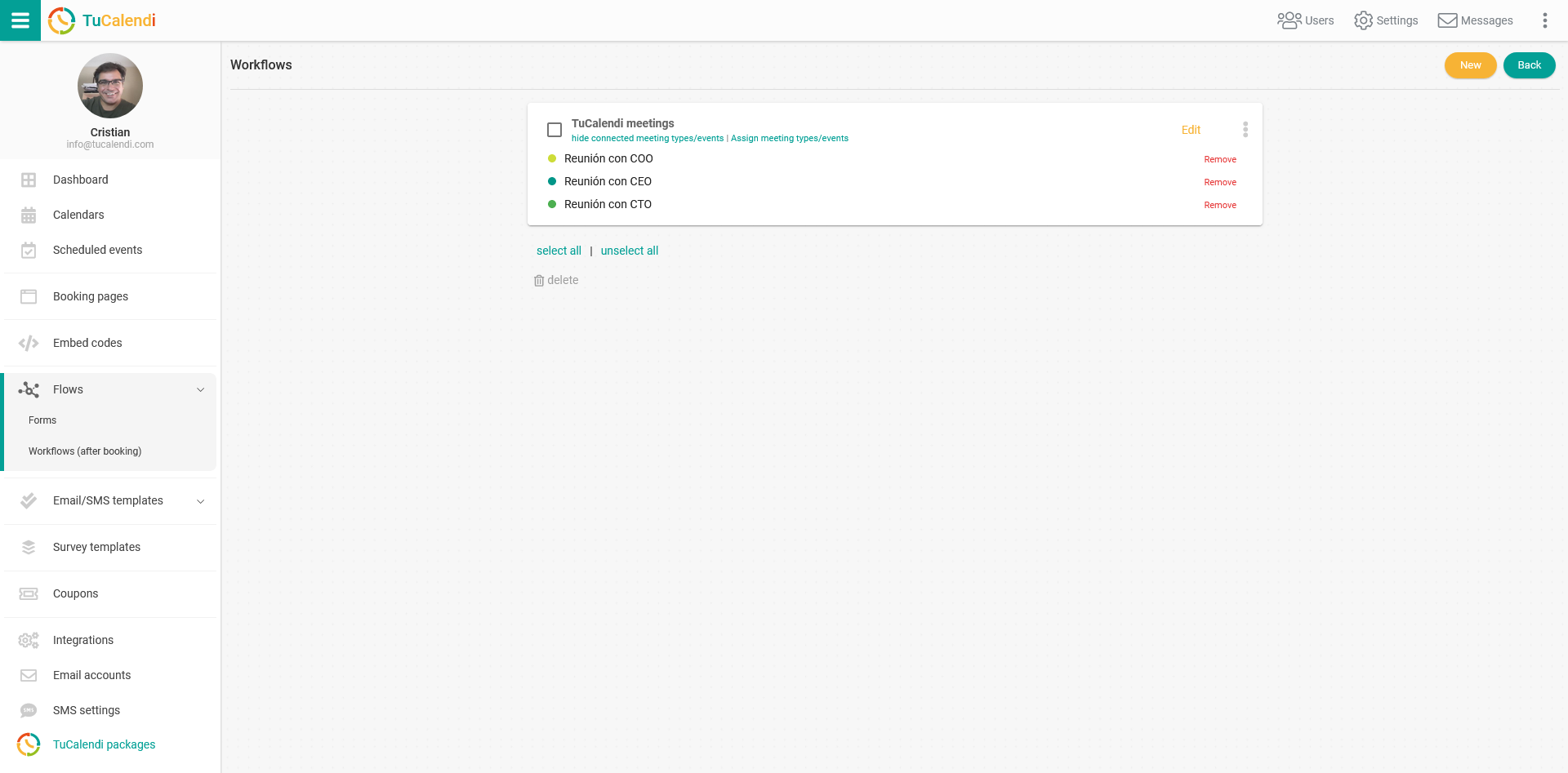
Click "Edit" on the workflow you want to modify by adding the option to send SMS reminders.
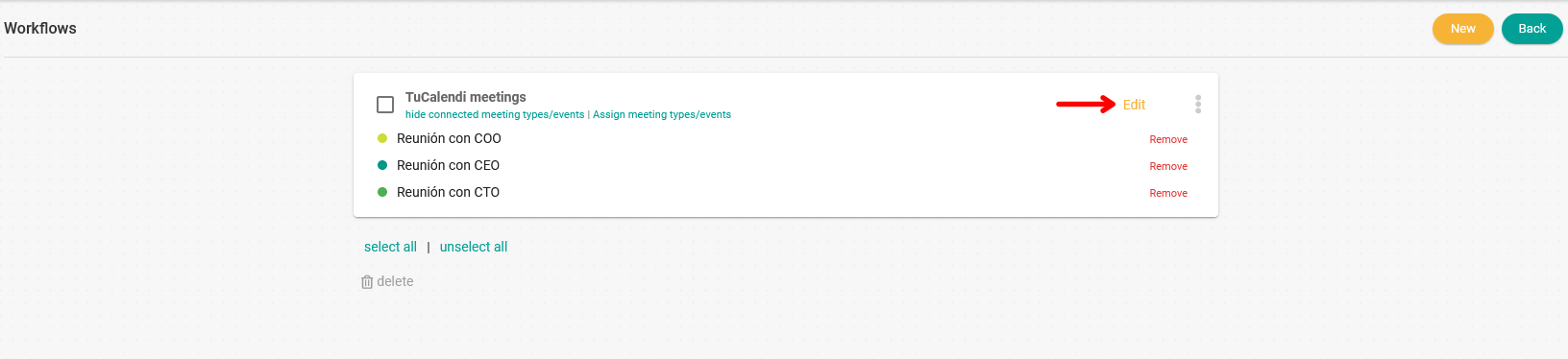
The workflow will be displayed in its current state:
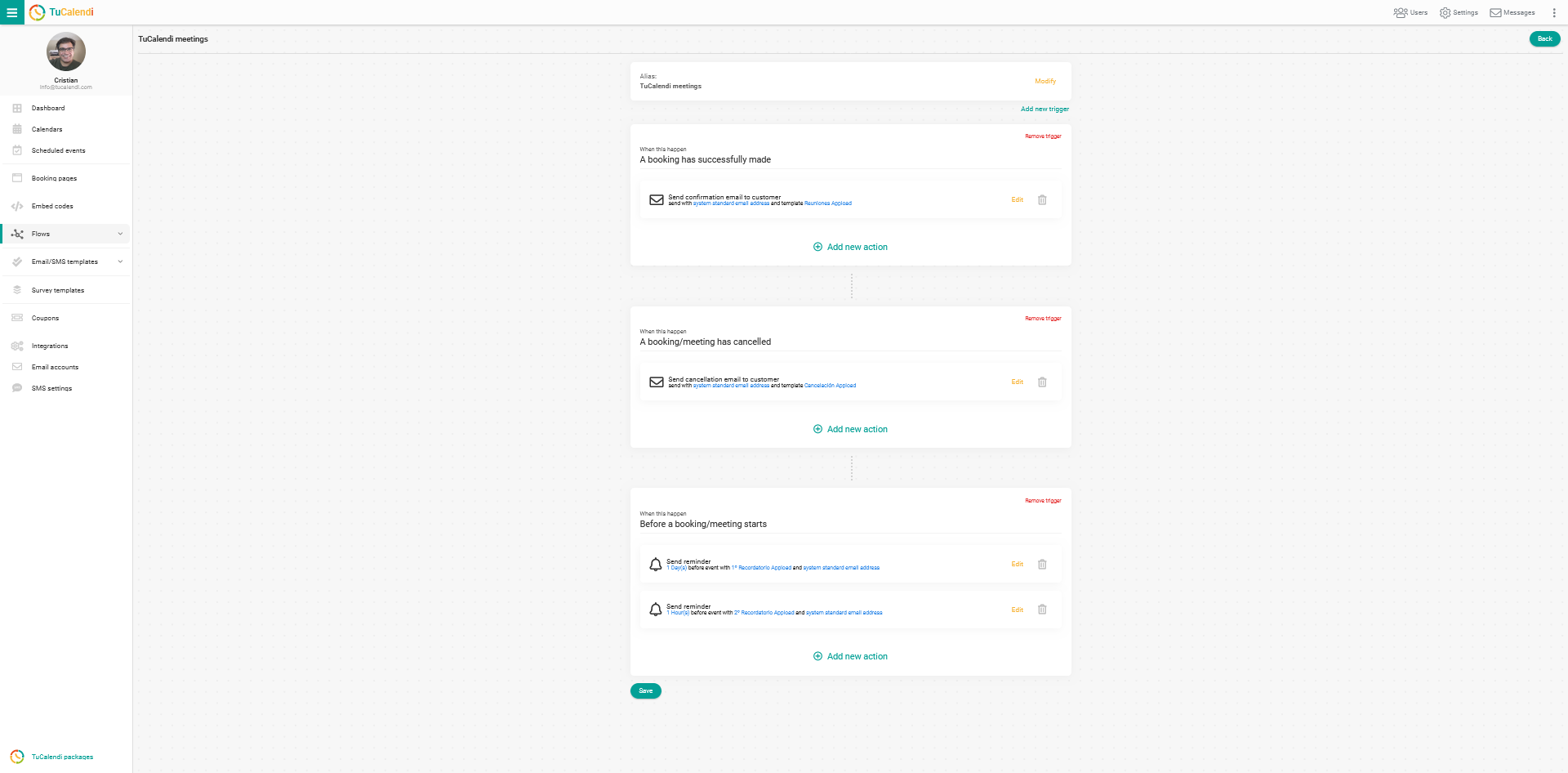
Look at the "Before a booking/meeting starts" trigger, because this is where we want to include the option to send SMS reminders.
Click "Add new action" to include a new reminder or "Edit" to update existing reminders:
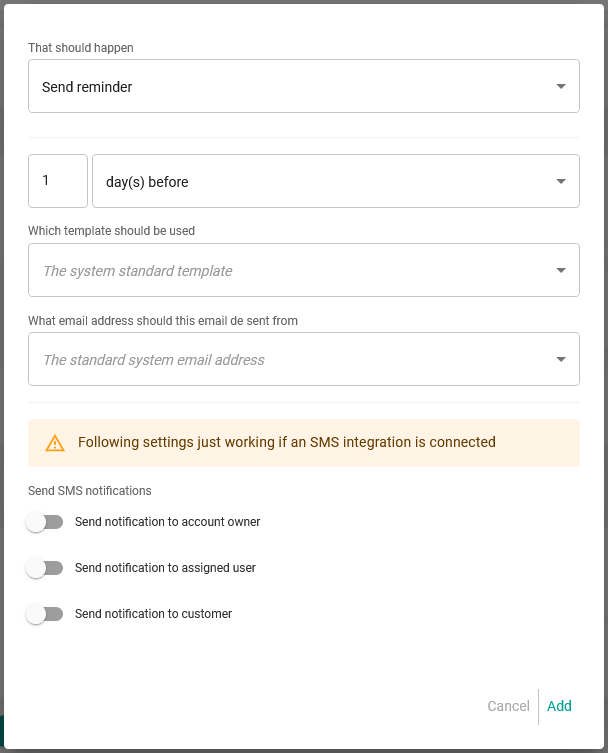
Set when you want the reminder to be sent, the reminder template you want to send and the email account it will be sent from. Then, in the "Send SMS notifications" field, activate the appropriate option, e.g. "Send notification to customer".
Please note that reminders will always be sent by email. The SMS reminder is optional.
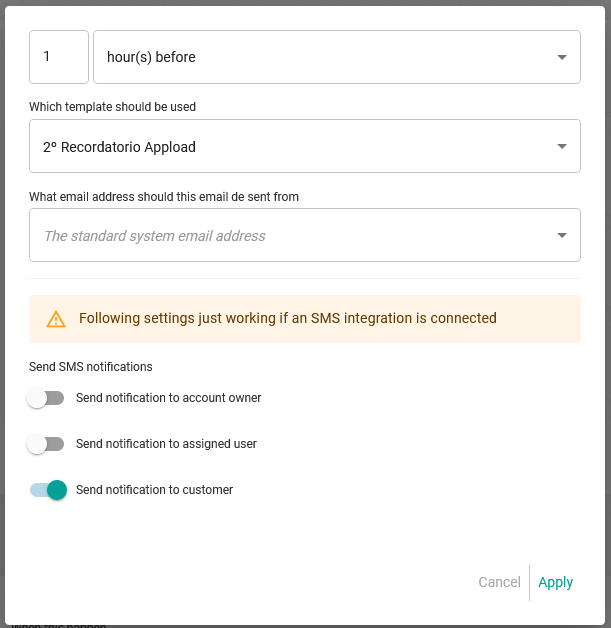
When you have configured the reminder, click "Apply".
In our case, we want to send two reminders as follows:
- One day before the booking, only an email reminder.
- One hour before the booking, the reminder will be sent by email and SMS.
To do this, we need to add two actions to the trigger.
First, add the reminder for 1 day before. Once it's added, click "Add new action" and include the second reminder for 1 hour before the meeting.
The reminders will now appear in the workflow with the settings you have made. All you have to do is click "Save" to apply the changes.