
With TuCalendi flows, creating forms with the information you want to request from your customers when they book an appointment with you is much more flexible and faster. In addition, we have added a new feature that allows you to specify the formatting of the text fields you add to the form.
Let's see how you can include formatting in the text fields of your forms.
Log in to TuCalendi with your username and password. In the side menu, click on "Flows":
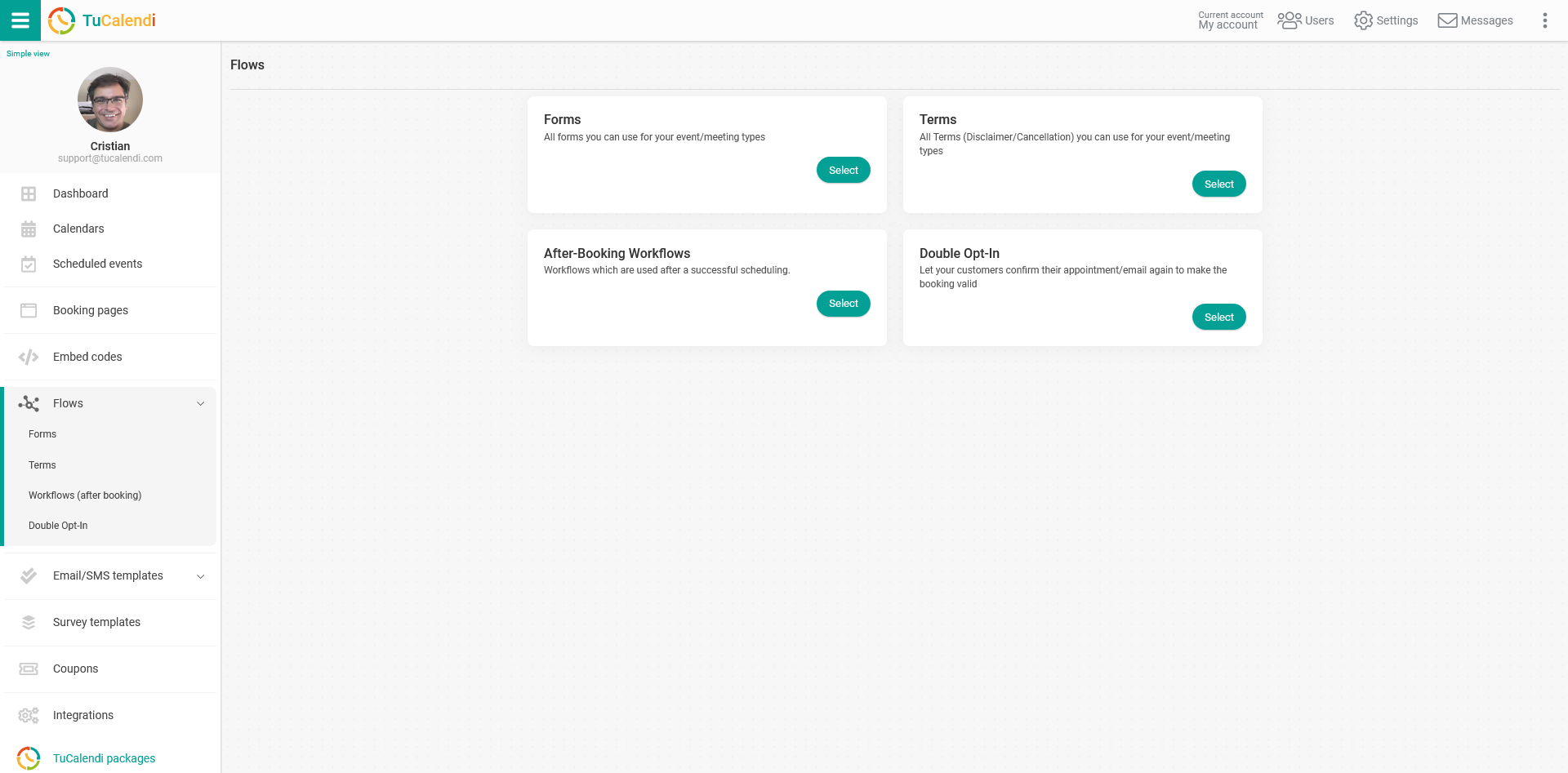
In the "Forms" option, click on "Select".
If you have not yet created a form flow, you can create a form flow from scratch:
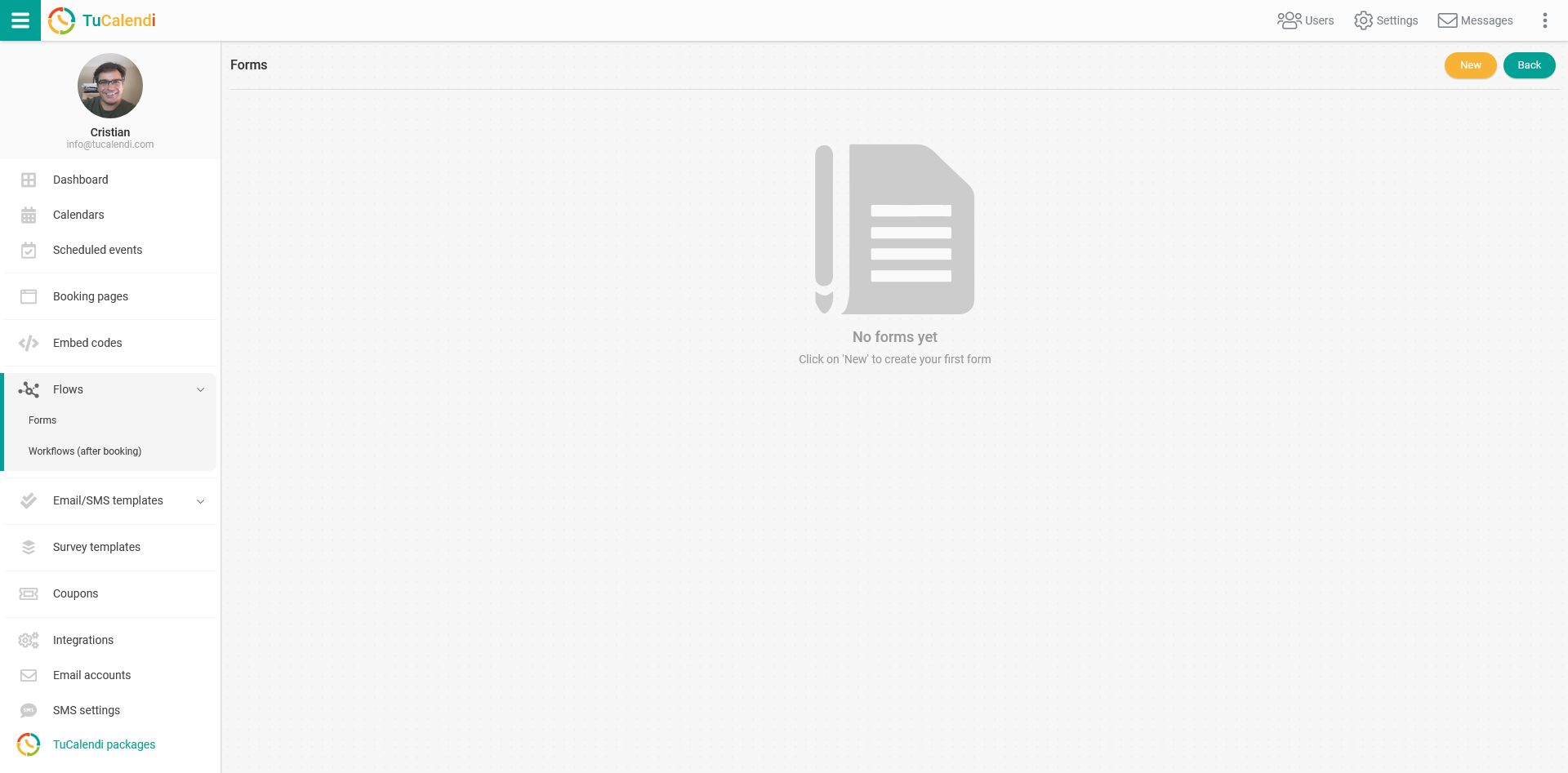
Click "New" to start creating a new form flow.
Or, on a form flow you have previously created:
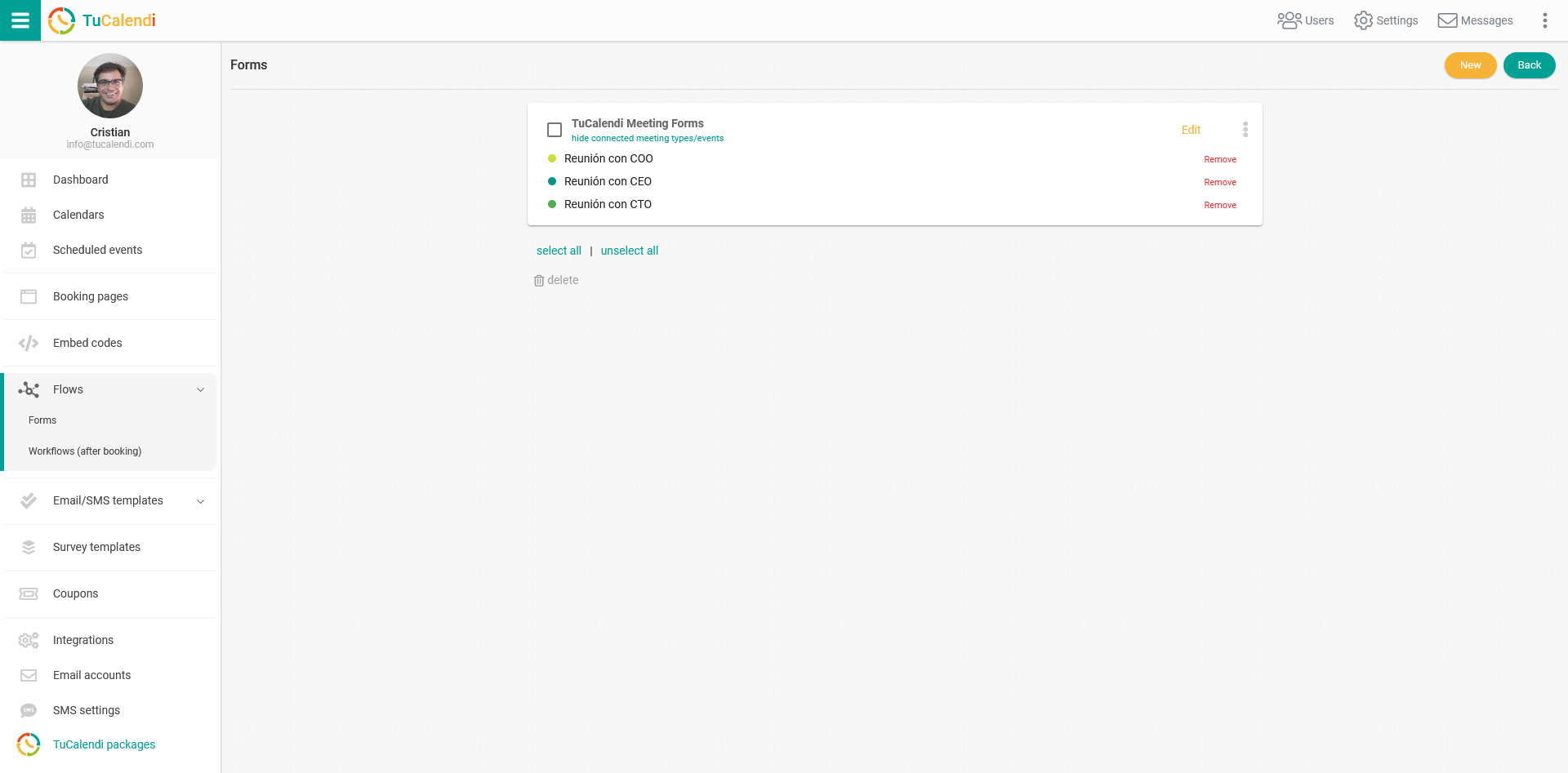
Click "Edit" to modify the form flow, adding new fields to the flow or deleting the fields you want.
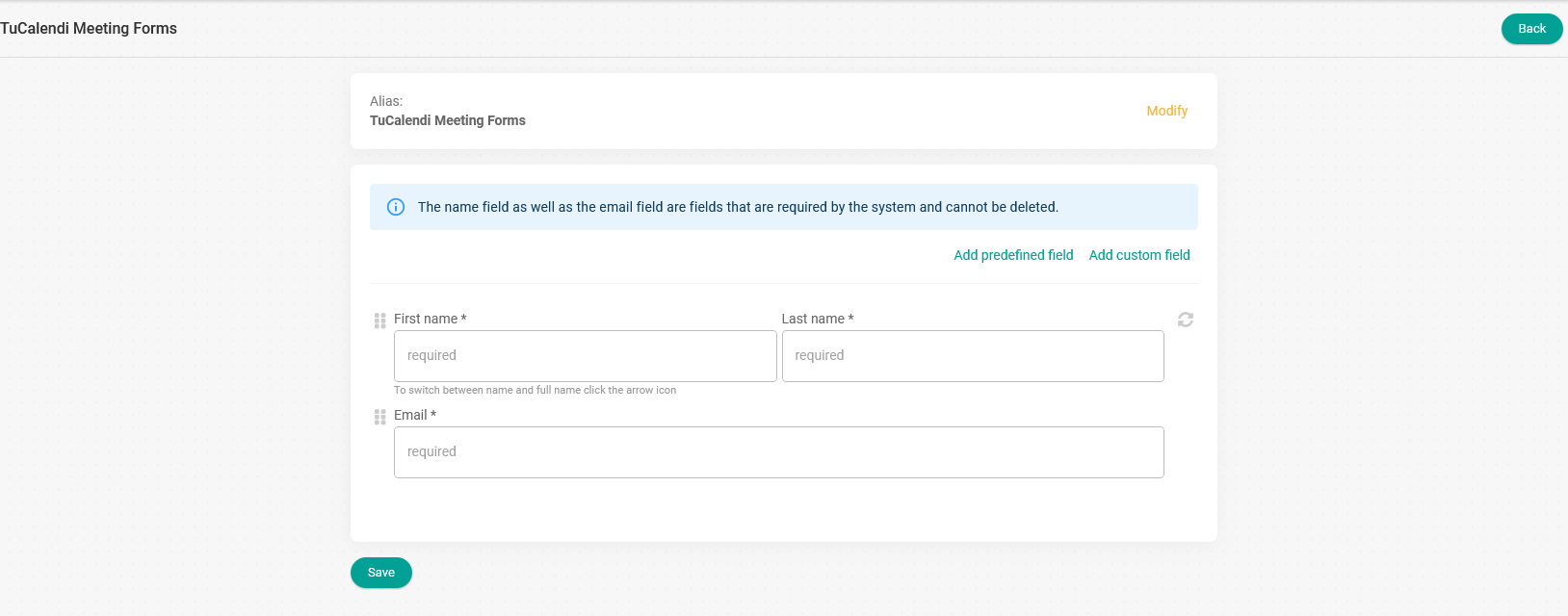
Clicking on "Add Custom Field" will display a menu with the various custom field options:
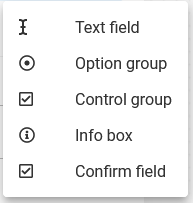
Click on "Text field" to add a text field to the form:
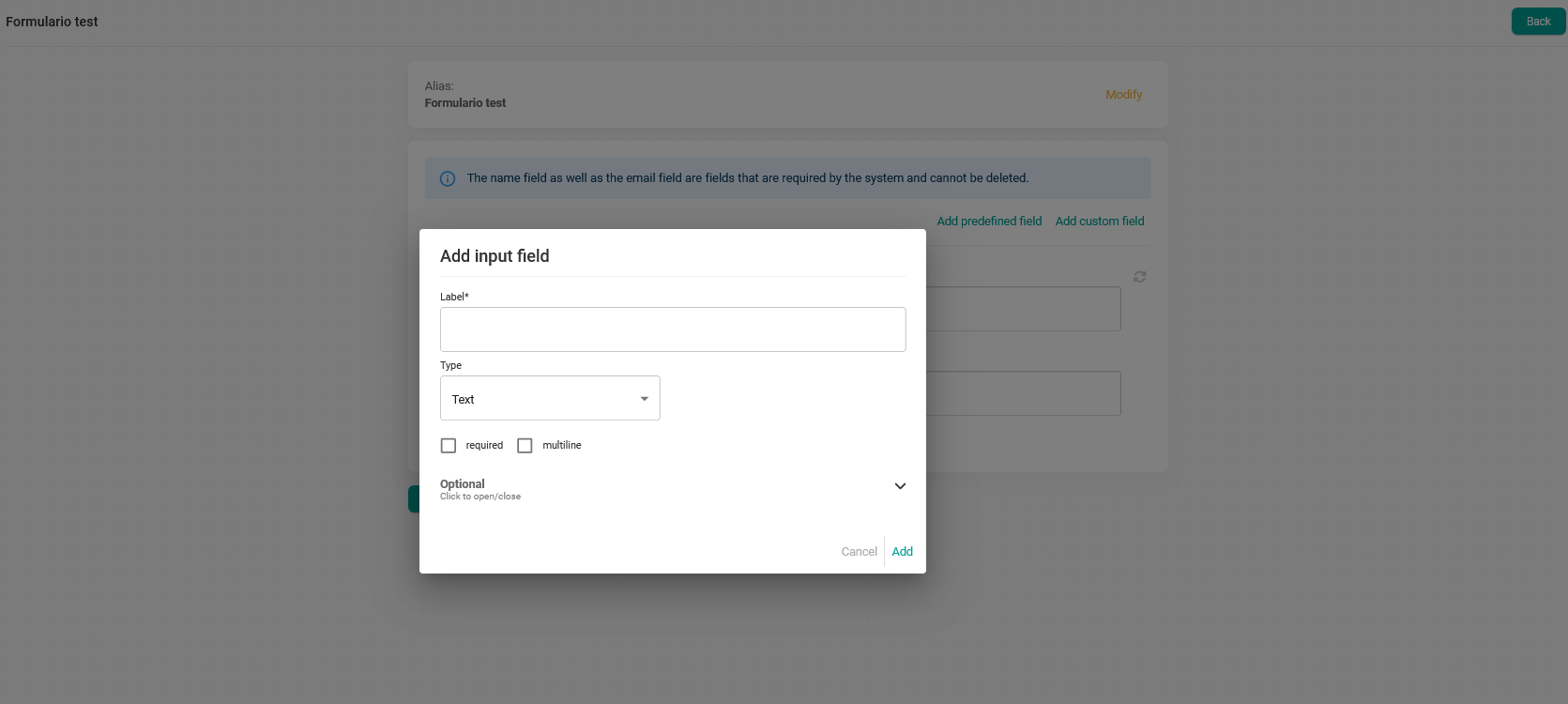
Click on "Type" to select the type of text field you want to add:
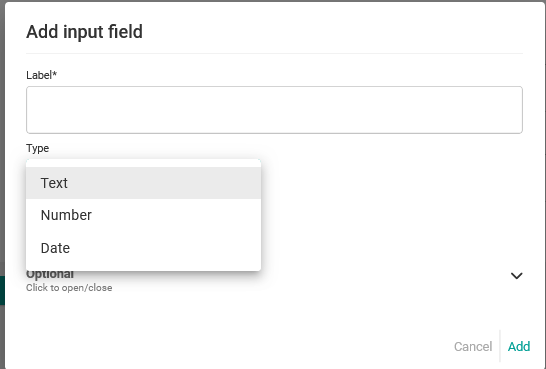
Text type
In this type of field, customers will be able to type text, letters or numbers, without any specific formatting.
Number type
By selecting the number type, customers will only be able to enter numbers in the format you have chosen.

Date type
When the date type is chosen, customers will only be able to enter a date in the format you have chosen.

When you have added the fields:
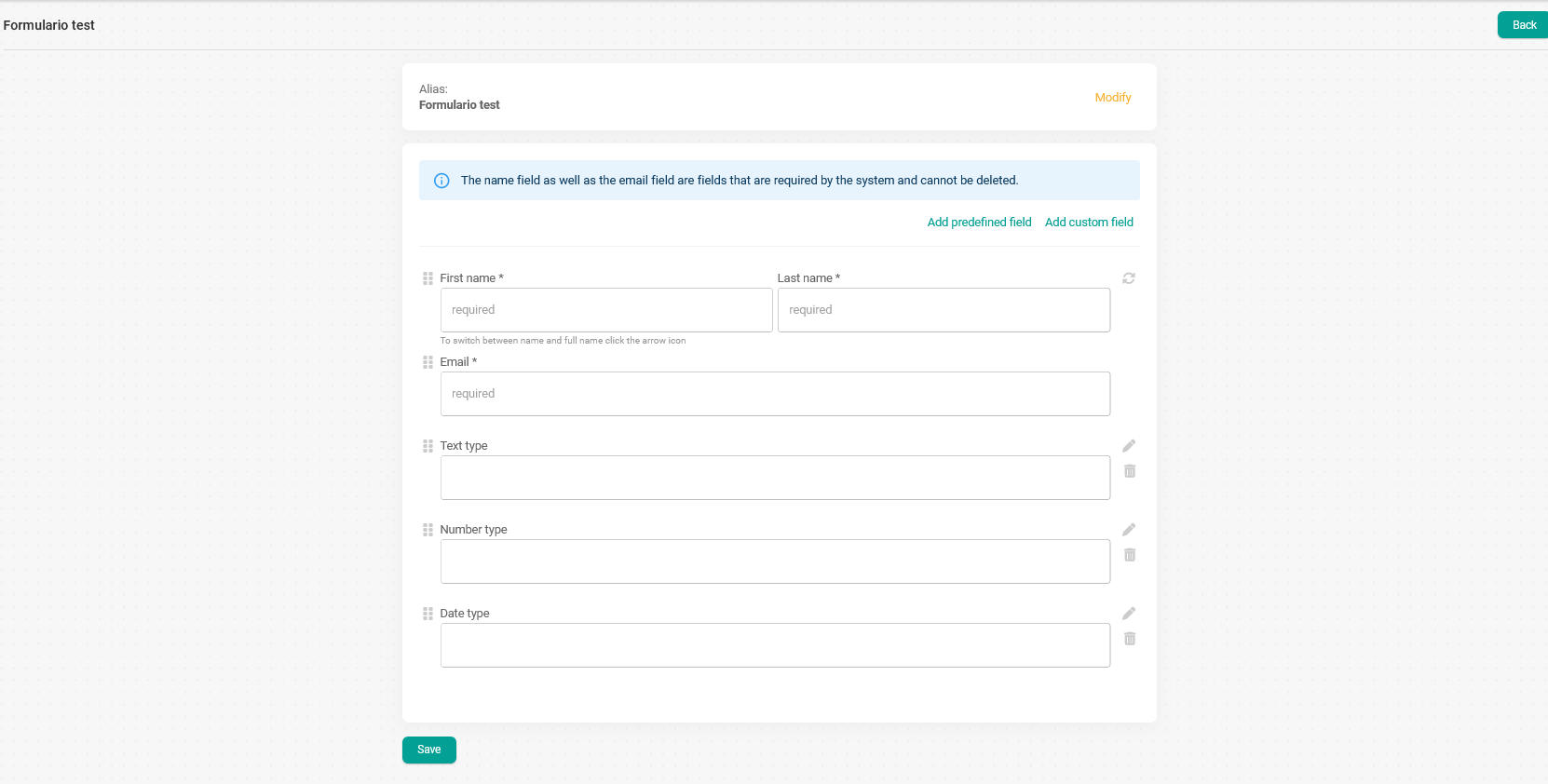
Click "Save" so that the form will display the fields you have added.
Remember that after creating the form flow you must assign the events where you want the form flow to appear.