
Just as a workflow lets you send email notifications when a client makes a new booking with you, reminds them of the next appointment, or tells them they have rescheduled or cancelled the booking, you can also include sending SMS in a workflow to send text messages to people's cell phones.
To send SMS you need your own Twilio account and must set up the integration between TuCalendi and Twilio.
In this tutorial you'll see how to include sending an SMS booking confirmation in a workflow.
We'll edit an existing workflow and add a new action that sends an SMS confirmation.
Log in to TuCalendi. Go to the "Flows" menu:
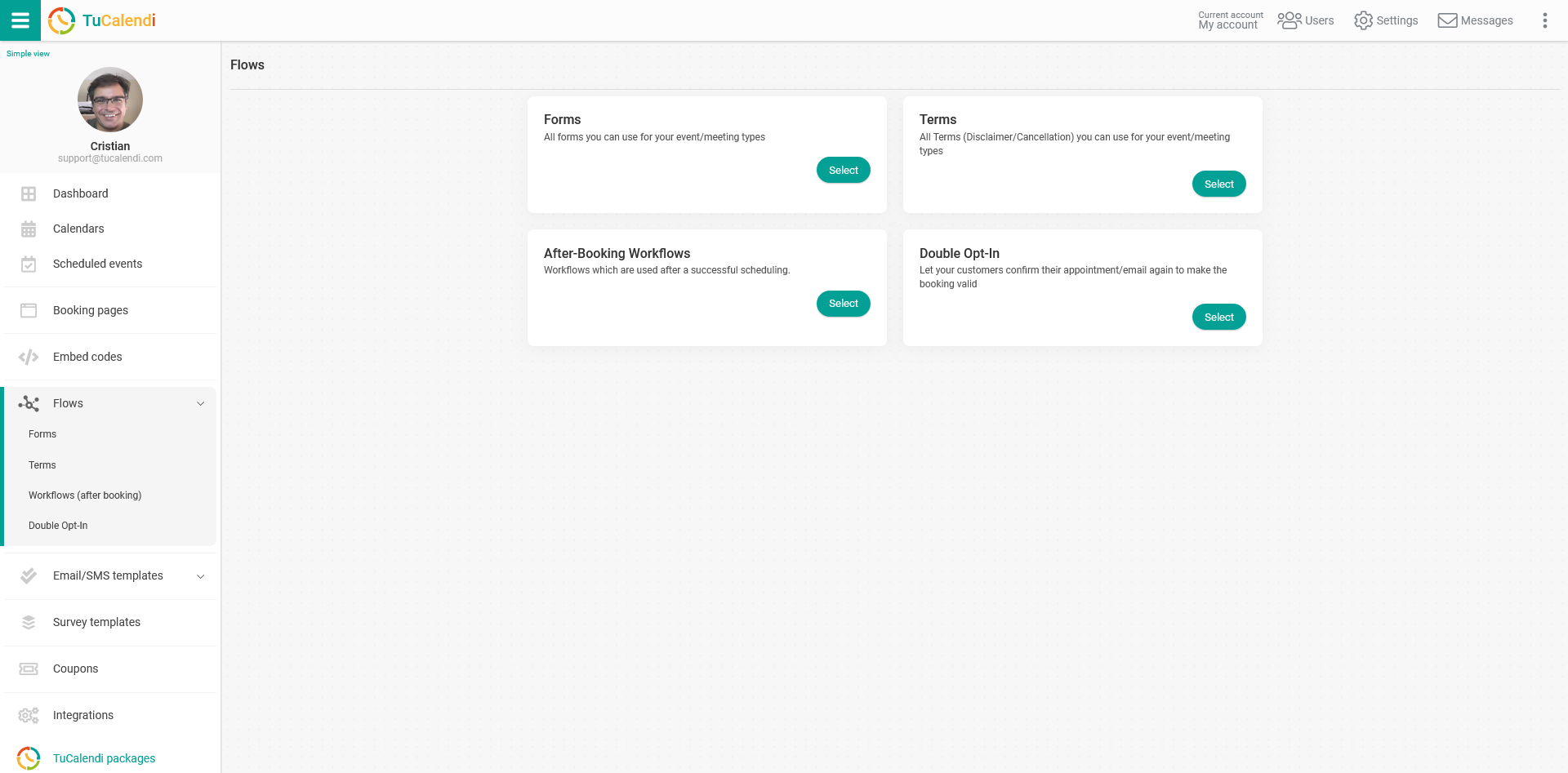
Under the "Workflows (after booking)" option, click "Select" to display the workflows you have available:
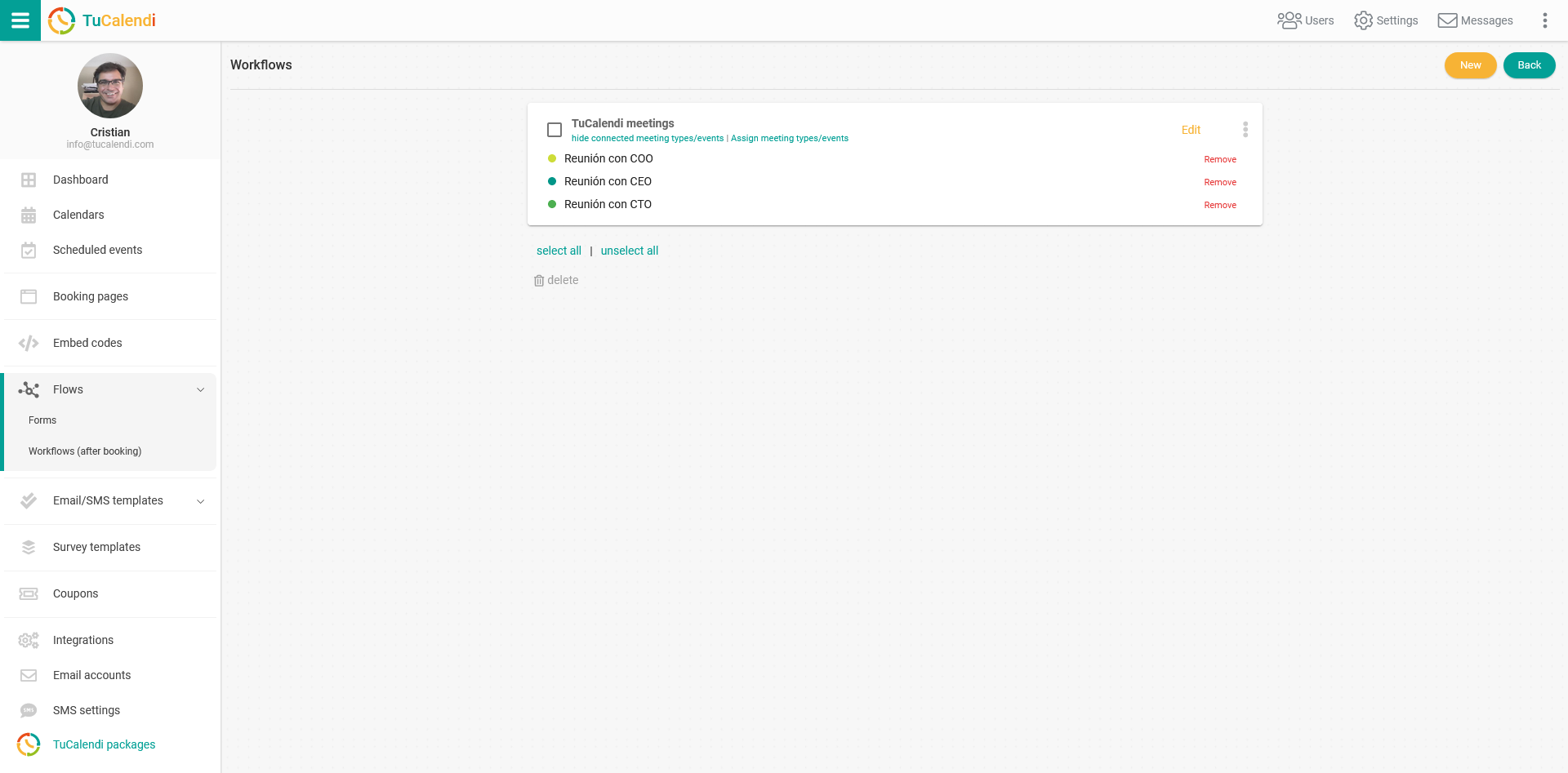
Click "Edit" on the workflow you want to modify by adding the action to send a confirmation SMS.
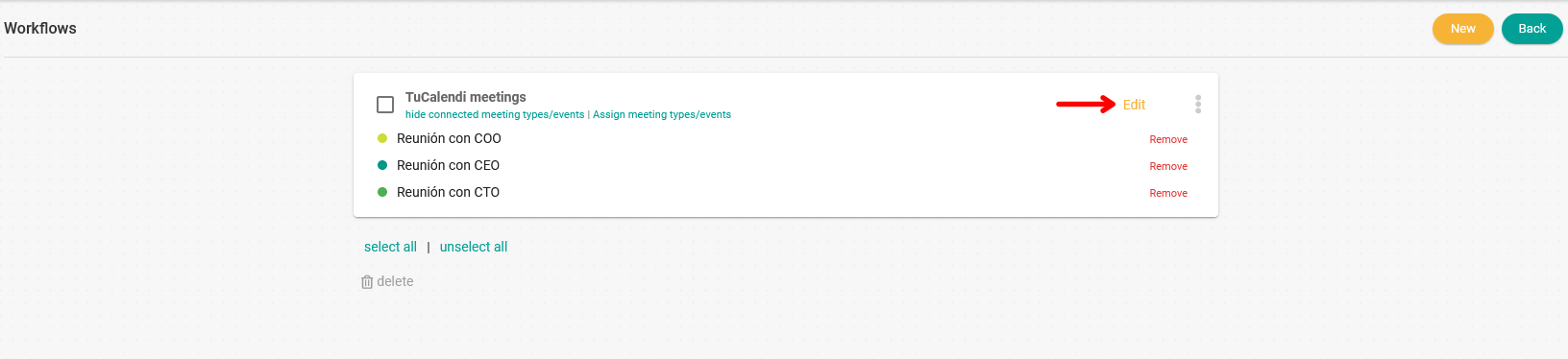
The workflow is displayed in its current state, and you can add the new action you want.
In the trigger "A booking has successfully made", we'll add a new action that sends a confirmation SMS.
Click "Add new action" in the corresponding trigger:
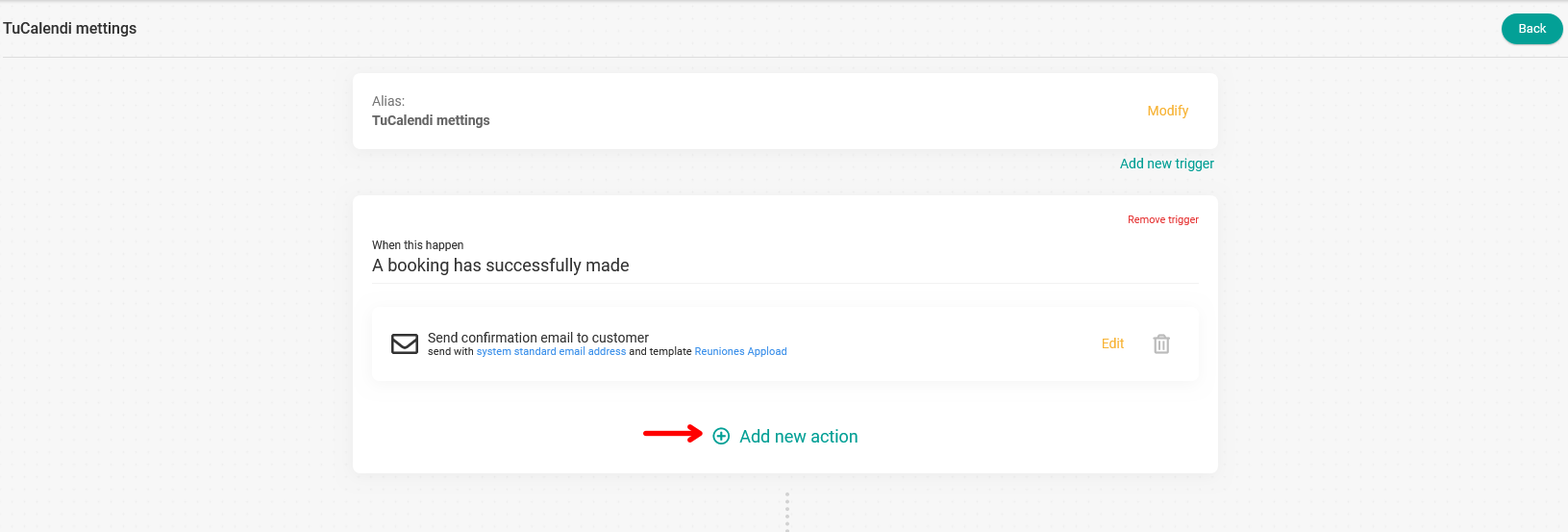
This lets you choose what should happen:
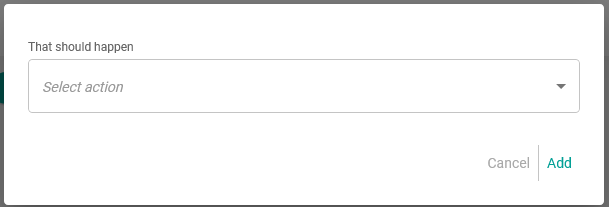
Select the action from the drop-down menu:
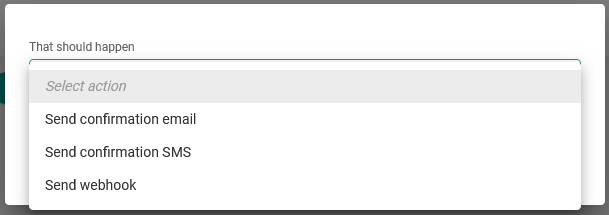
Since you want an SMS to be sent when the customer has made the booking, select the action "Send confirmation SMS":
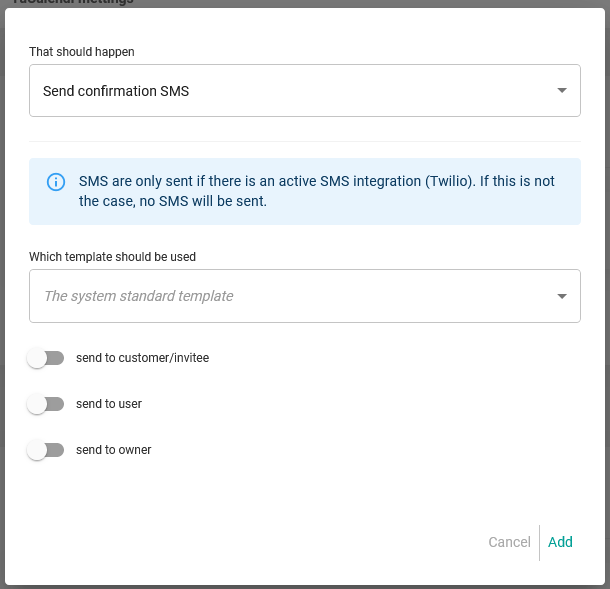
Choose the confirmation template you want to send, activate the recipients you want the SMS to go to, and click "Add":
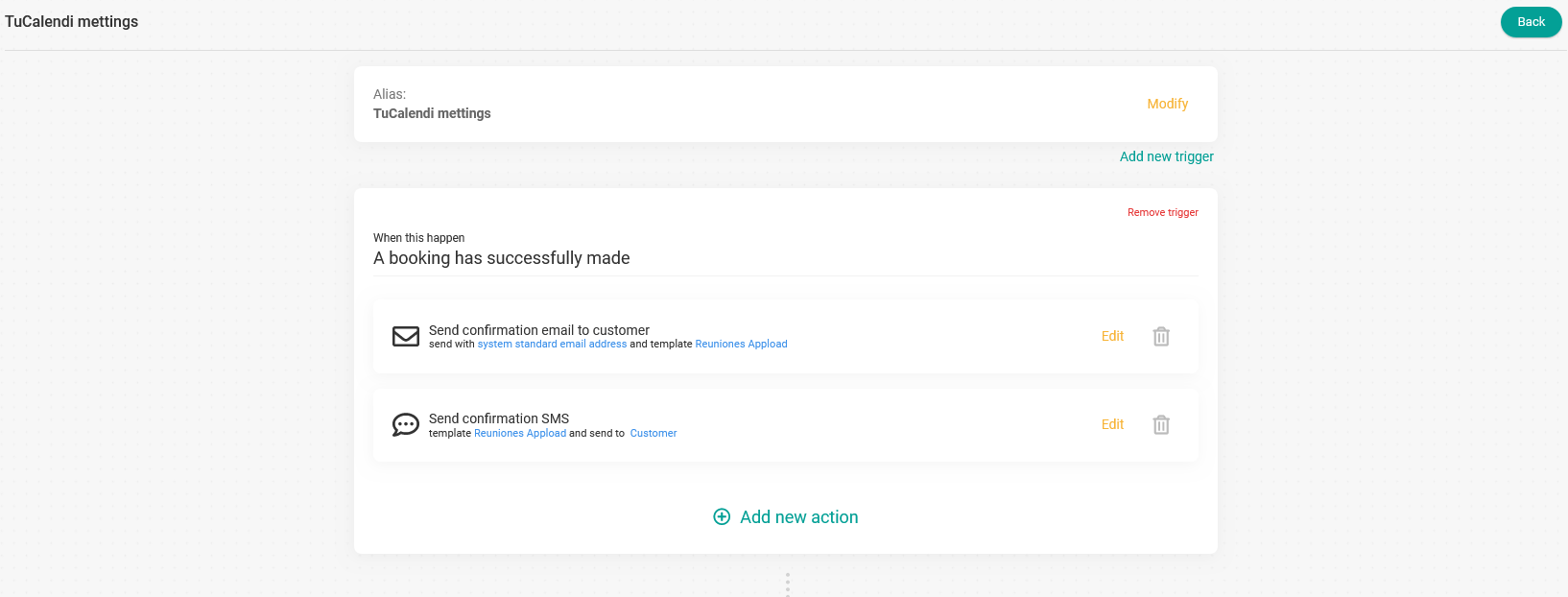
You've now added a second action to the trigger "A booking has successfully made". When a customer makes a booking with you, two actions will occur:
- The confirmation email is sent to the customer's email address.
- A confirmation SMS is sent to the customer's cell phone.
When you're done with the workflow changes, click "Save" so that your changes to the workflow become active.