
With the SMS confirmation templates you can customize the confirmation notifications that arrive by SMS on your customers' cell phones when they book events.
Creating the SMS that is sent to your customers when they book a meeting, appointment or any other event you organize is very easy. It is stored in TuCalendi as a custom template, and by using the replacement tags, the SMS arrives tailored to each customer.
NOTE: Due to the limitation of SMS to 160 characters, some replacement tags cannot be used in SMS. Information such as the link to the video conference room or the option to cancel a meeting must be included in the confirmation email templates.
Log in with your TuCalendi username and password. Go to the "Email/SMS Templates" option.
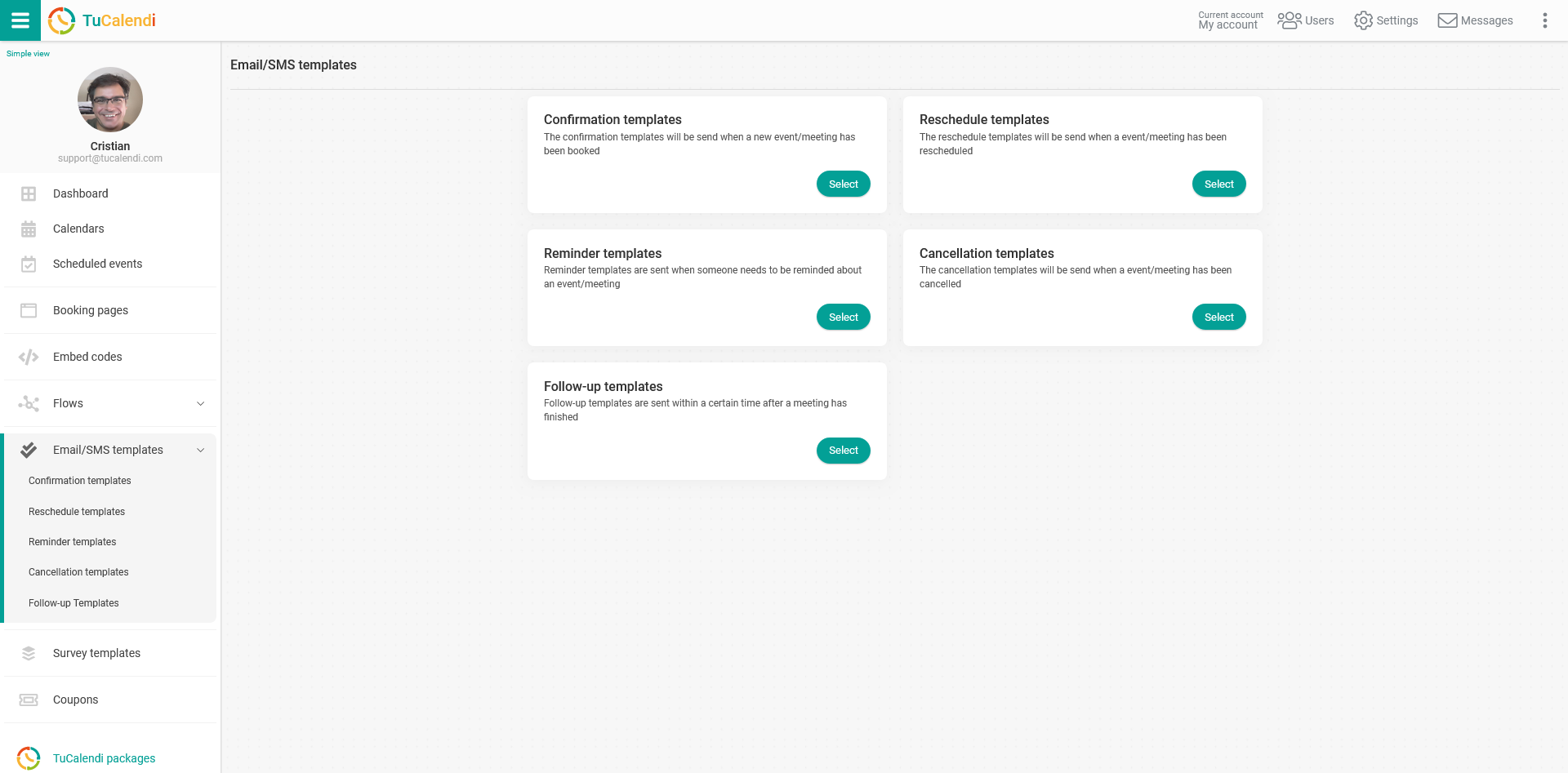
In the "Confirmation templates" option, click on "Select":
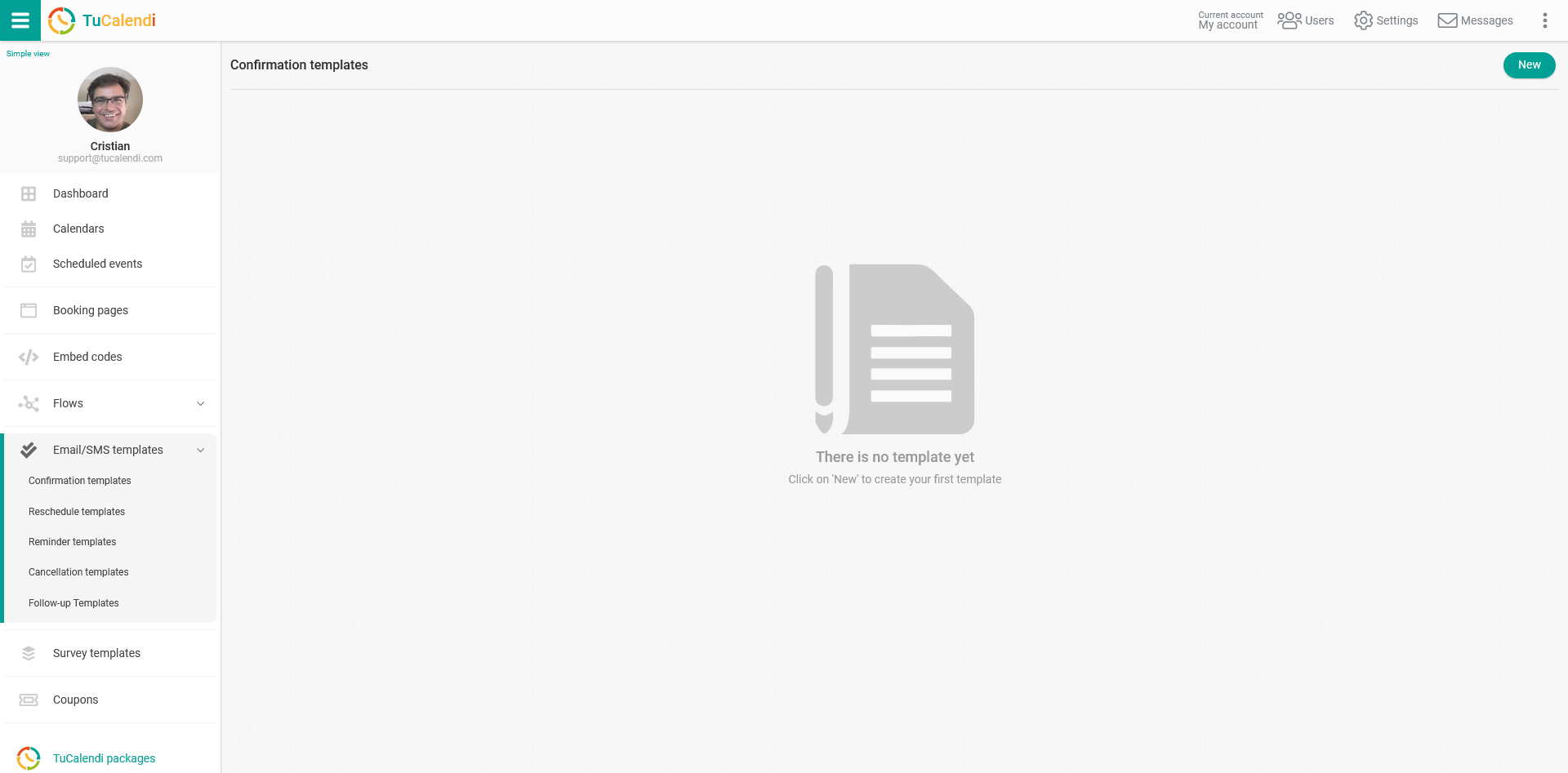
Click on the "New" button and enter the name of the new template you are going to create:
If you have previously created any confirmation templates, just select the one you want to edit.
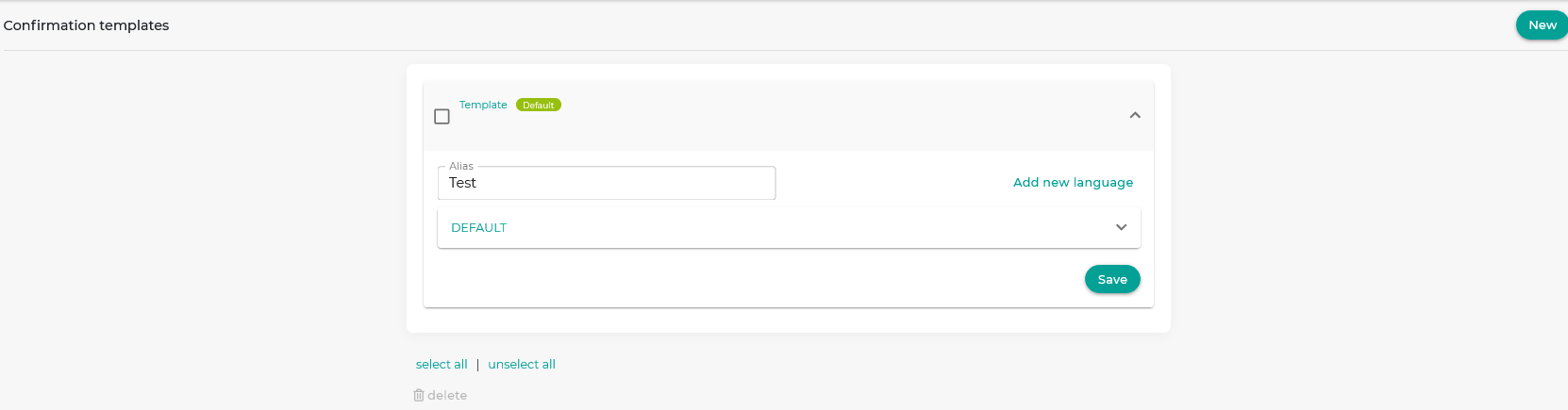
Initially the template is empty, so you can fully customize it. Click on the field called "DEFAULT":
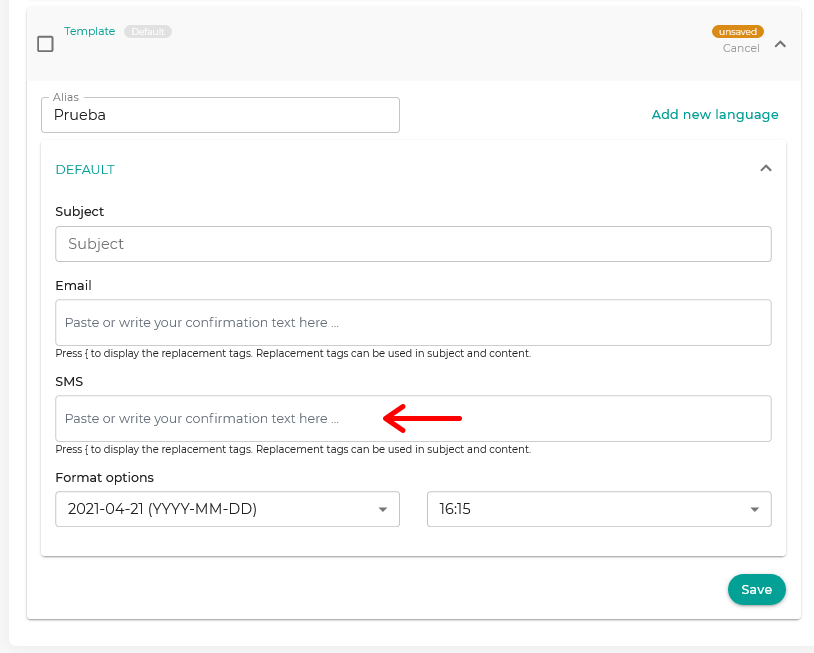
In the "SMS" block, start writing the text. Clicking on it opens a simple editor that lets you write the confirmation SMS and use the replacement tags.
To include the tags, just click on the "Tags" drop-down in the SMS editor and choose the tags you want to include.
Remember that the SMS can have a maximum of 160 characters, and the text displayed once the tag values are filled in may exceed the maximum number of characters allowed.
When you are finished, click "Save". Your SMS template is now stored, so you can start using it in your online calendar event confirmations.
Once you have created the SMS confirmation, you can associate the SMS confirmations with your events.