
For coupons to be displayed, they must be associated with a survey you create. The process of associating a coupon with a survey is very simple with TuCalendi.
Log in with your TuCalendi username and password.
Once you have created your coupons, they will appear in the coupons list:
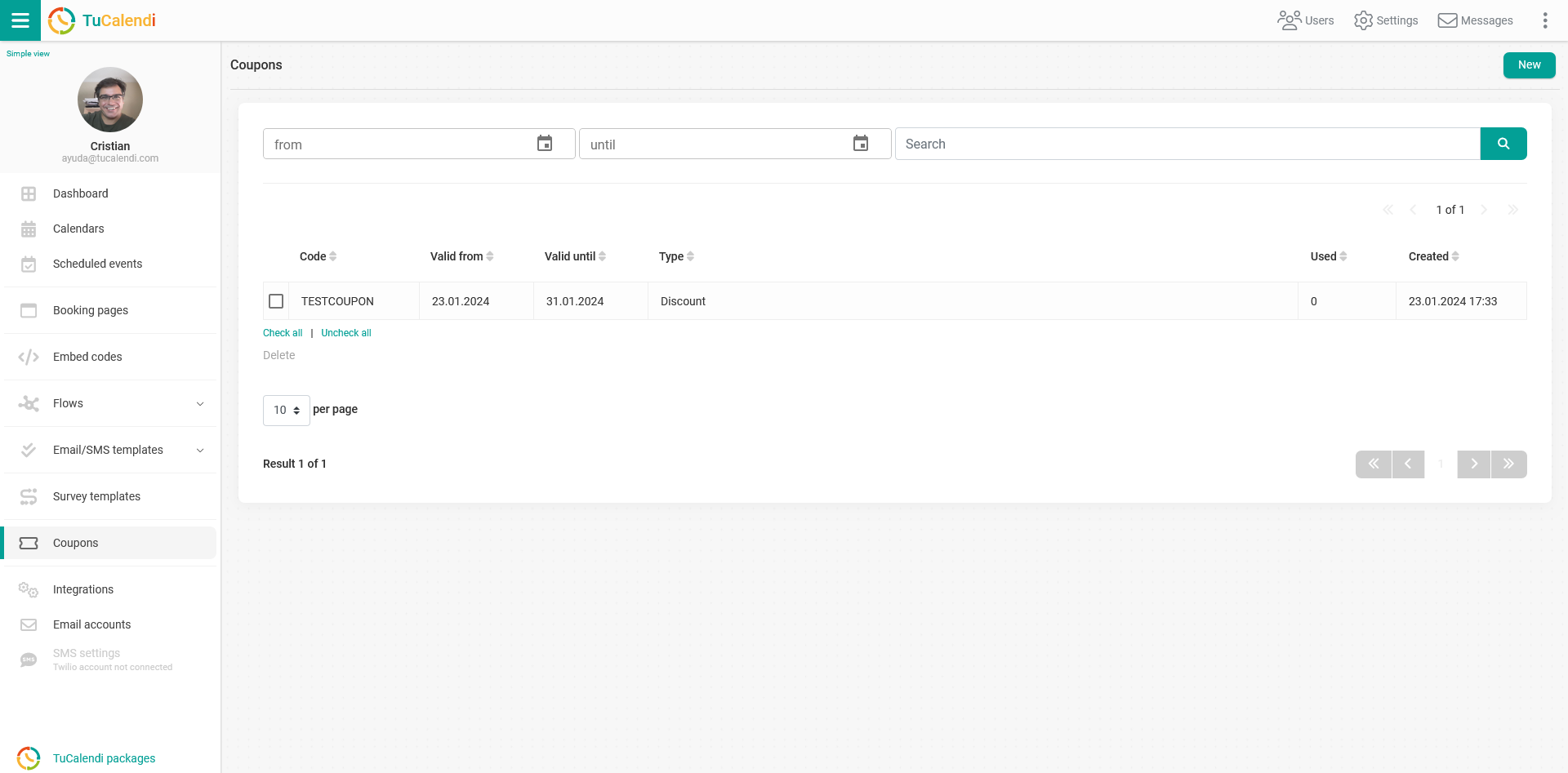
You can create as many coupons as you need for the promotions you want to run.
Once you have the coupon, you must create a survey where it will be displayed. You can have a survey with multiple steps where one of them requests a coupon, or, as in this case, a survey that only contains the coupon request.
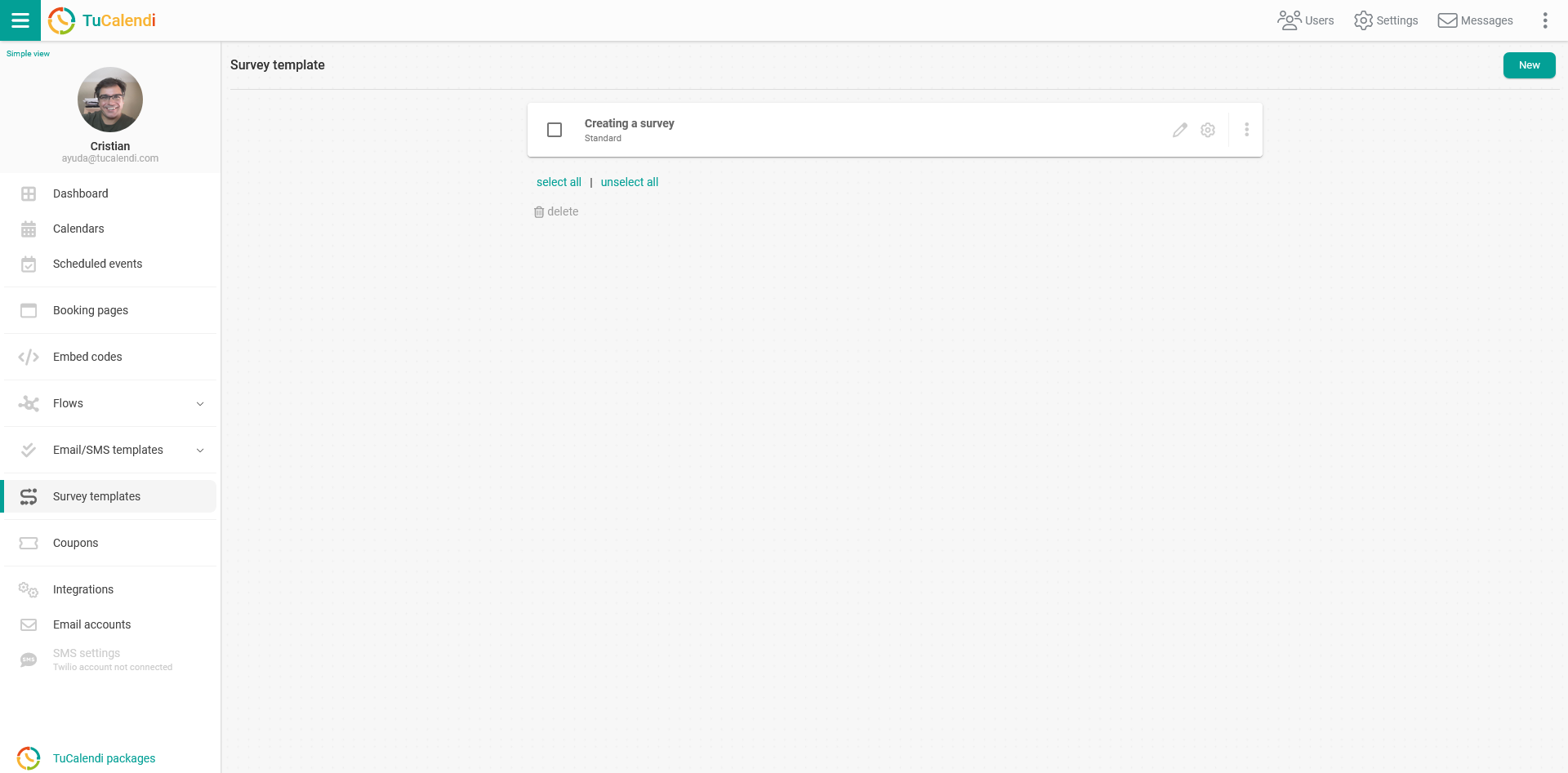
Go to the "Survey Templates" option:
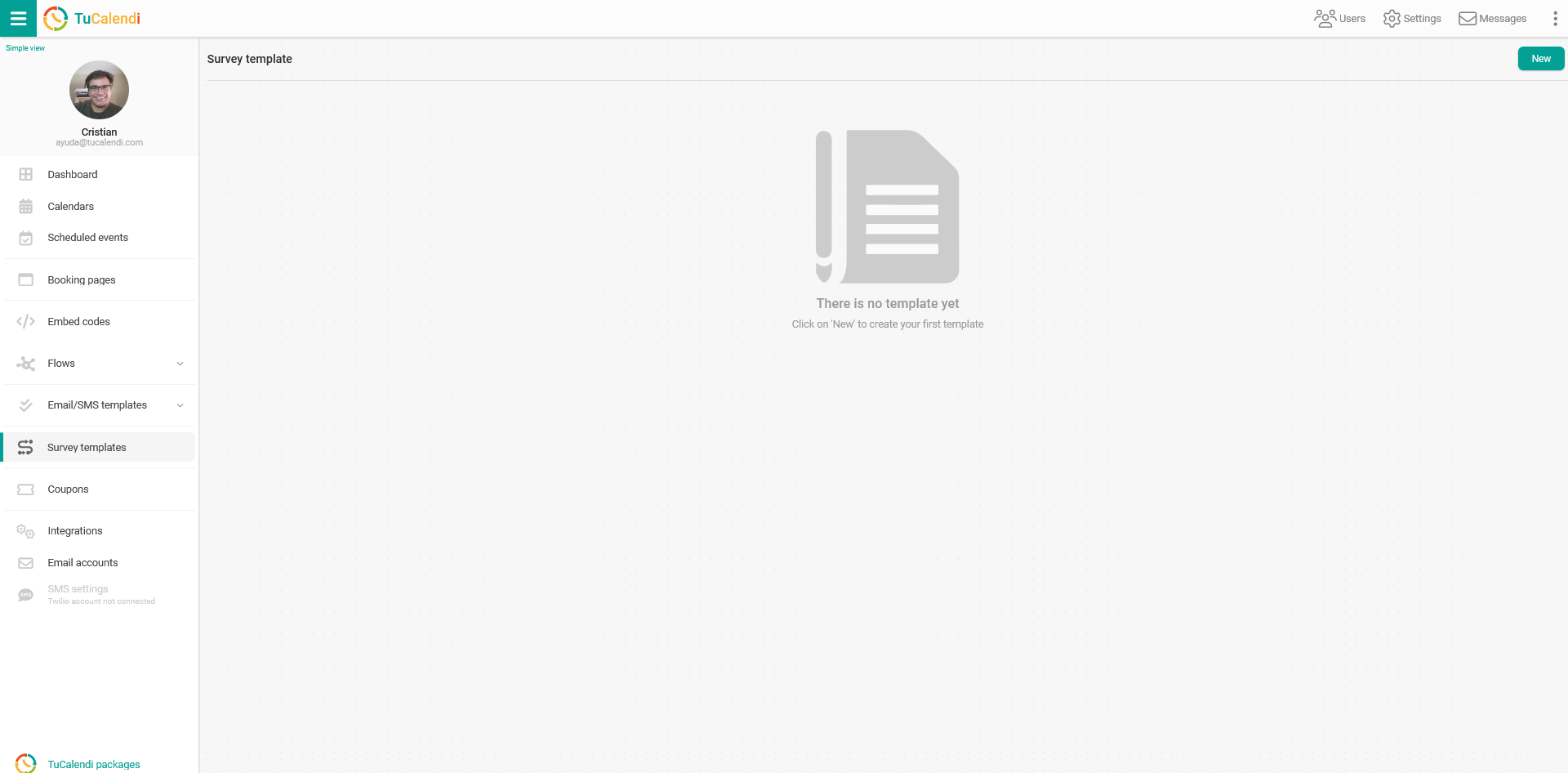
To create a new survey, click on "New".
There are two types of surveys available:
- Standard. This is a new survey that can be assigned to each event type.
- Standalone. This is a new survey that can be used as a standalone widget and with routing to different event types.
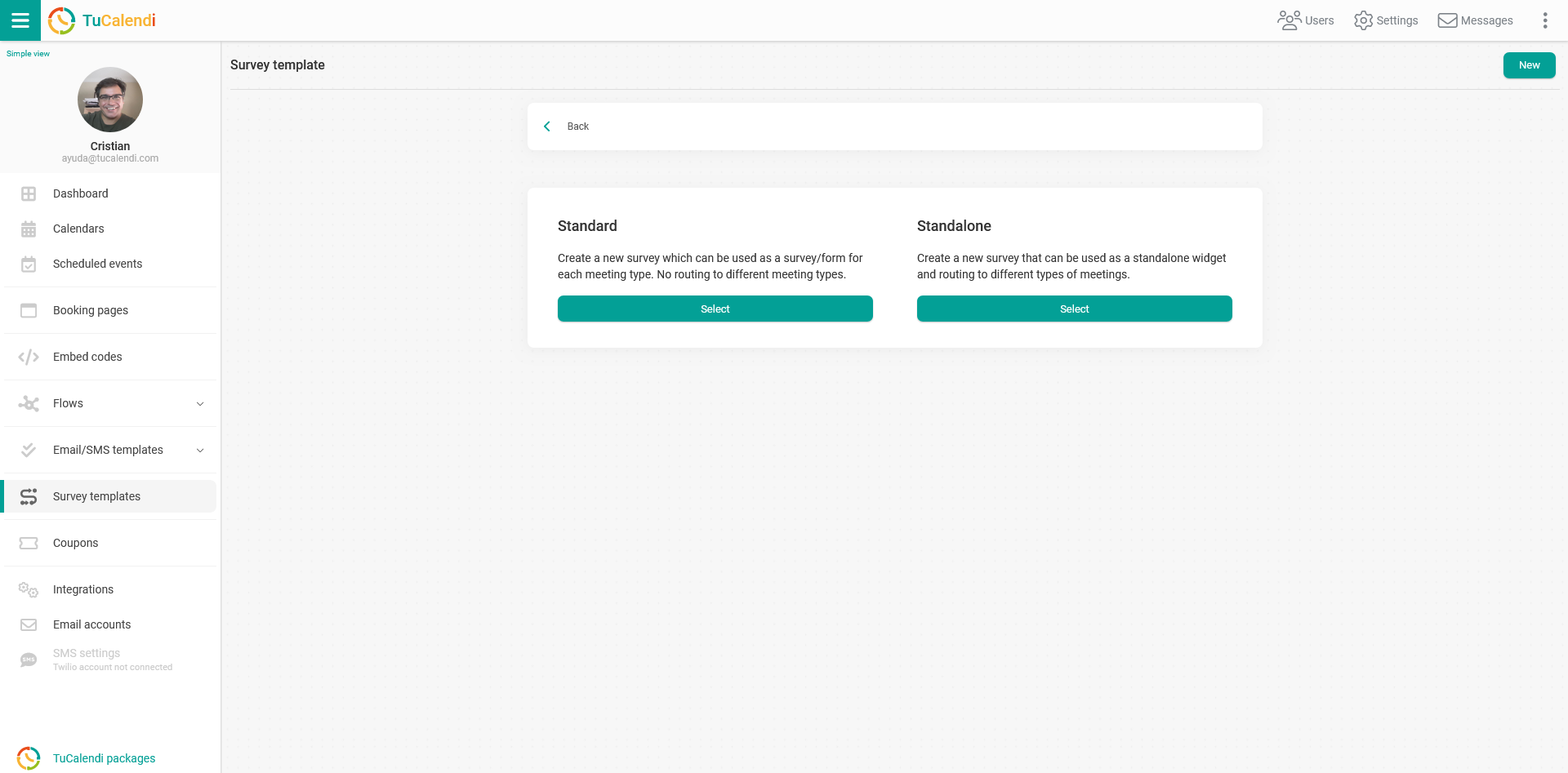
Select the "Standard" type.
If you have already created a survey, you can open it and edit it to add or remove options.
Click on the "Elements" button:
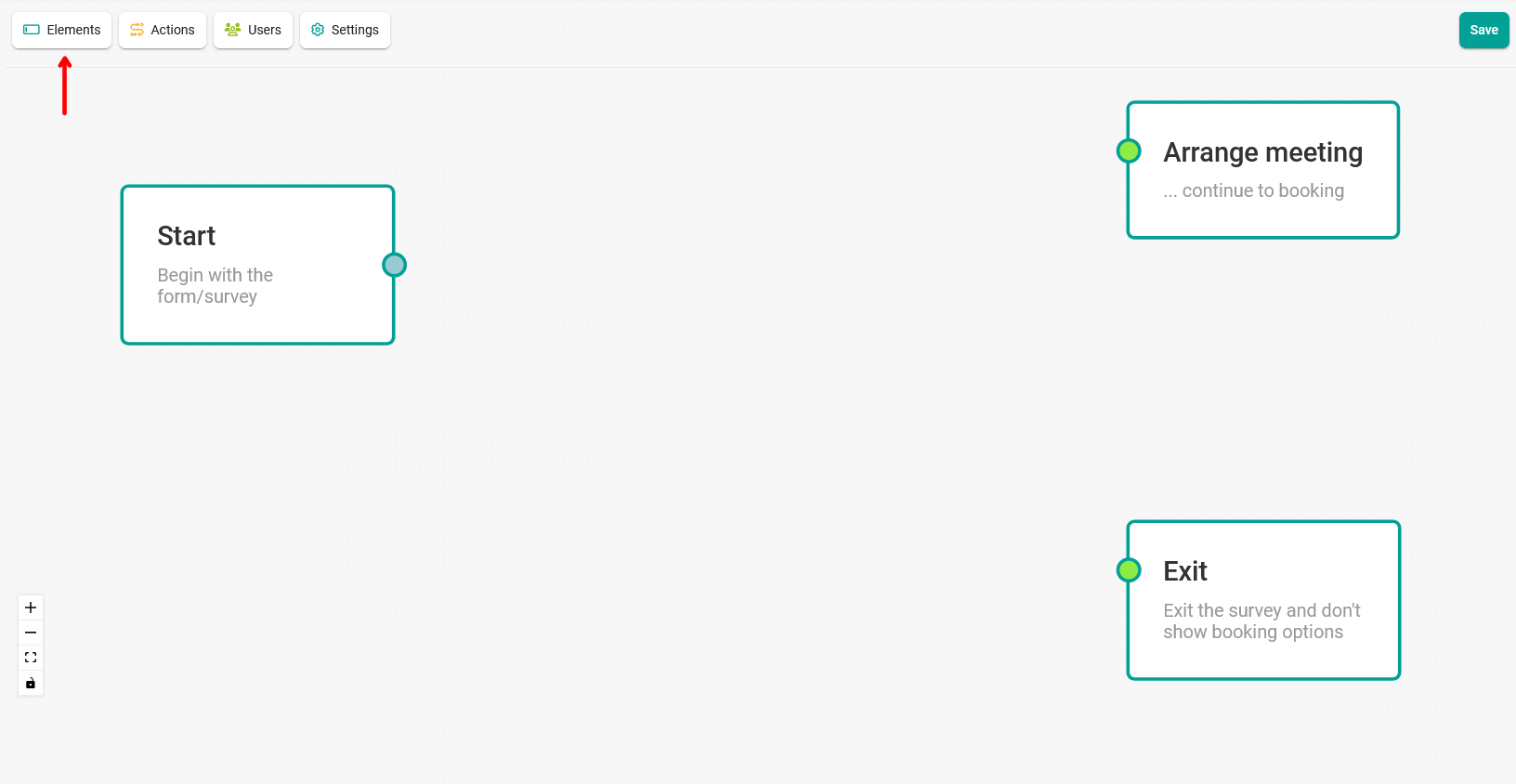
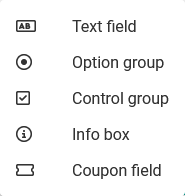
In the menu, select the "Coupon field" option:
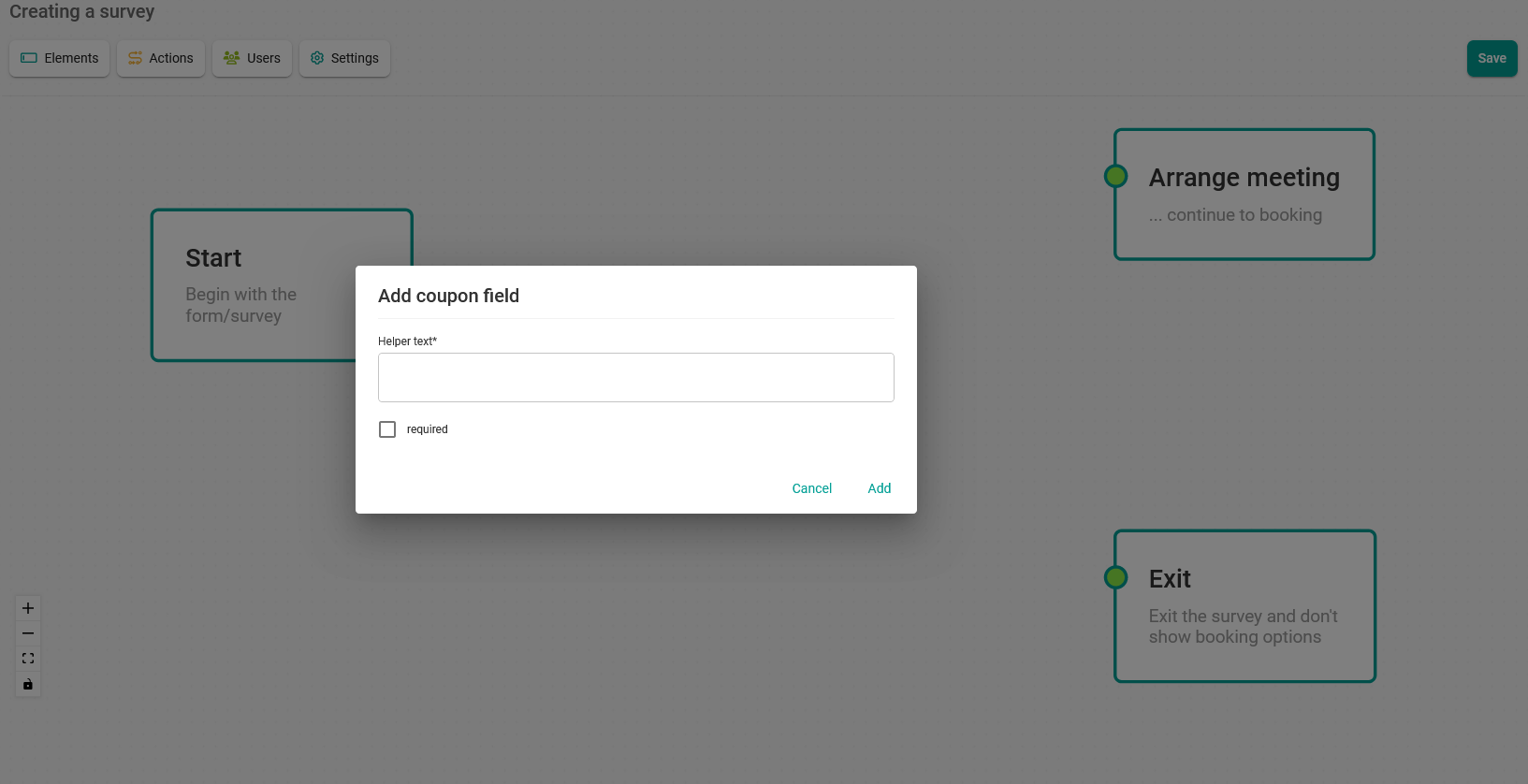
When creating the coupon field, you must enter a description in the "Helper text" field and click on "Add".
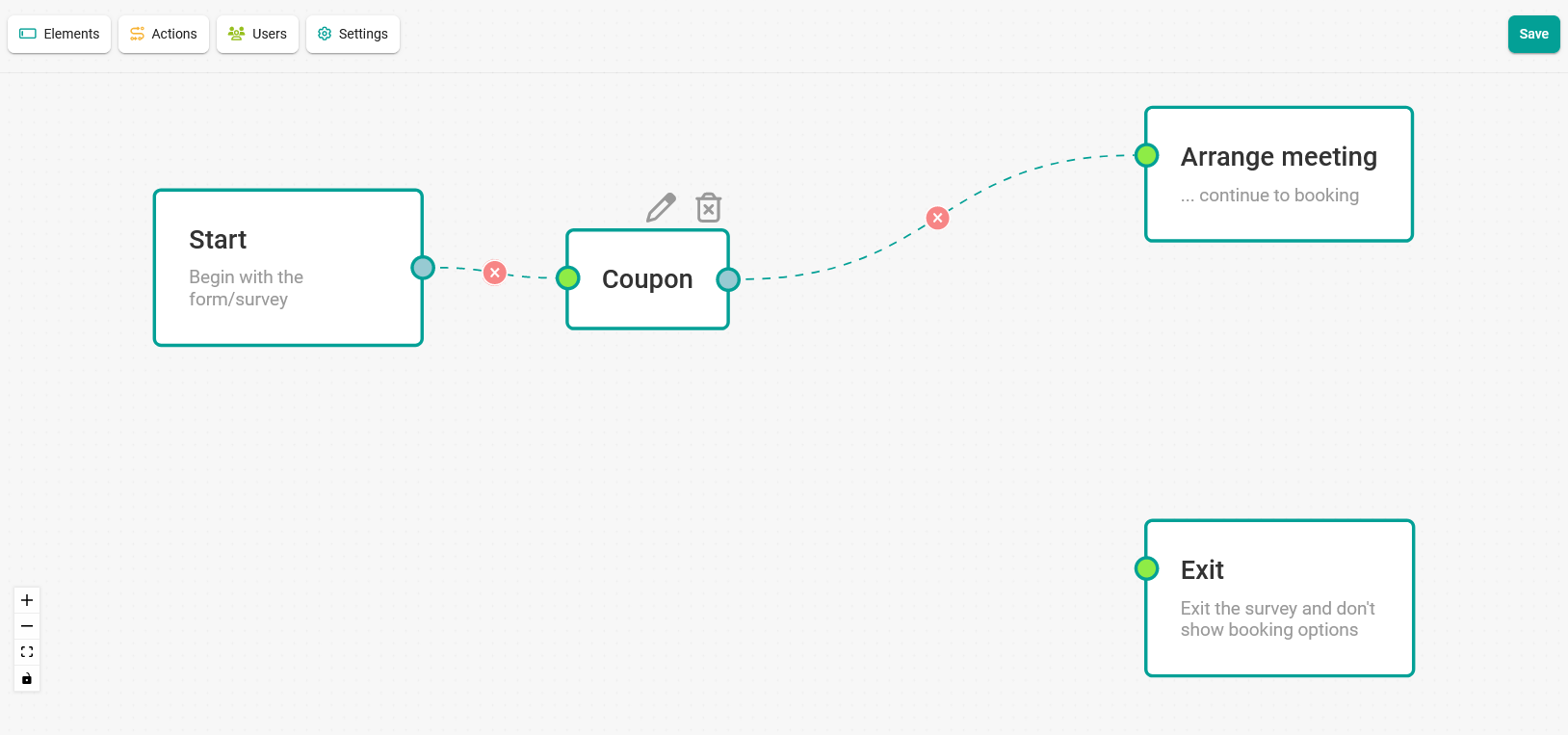
Once you have added it and completed the flow by joining the boxes, click "Save".
To join the boxes, click on the point to the right of the initial box, keep the mouse button pressed and draw the line to the point to the left of the box you want to join.
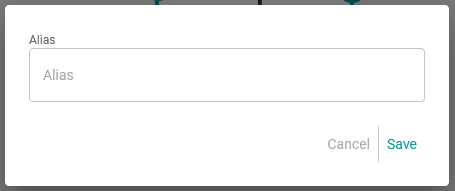
In the pop-up window that appears, enter an alias to name the survey template you have created.
When you click on "Save", the survey template for requesting the coupon will be created and will appear in your list of survey templates.
For the survey to be visible, you must choose the event you want to associate the template with. This way, your users and customers can enter the coupon you have created and shared with them.