
After you have integrated Microsoft Teams with TuCalendi, you need to connect the events that require a virtual meeting with Microsoft Teams. This way, the link to the virtual meeting or event is created automatically when your customers make a booking with you from the TuCalendi online calendar.
Log in to TuCalendi with your username and password. Go to the "Calendars" option.
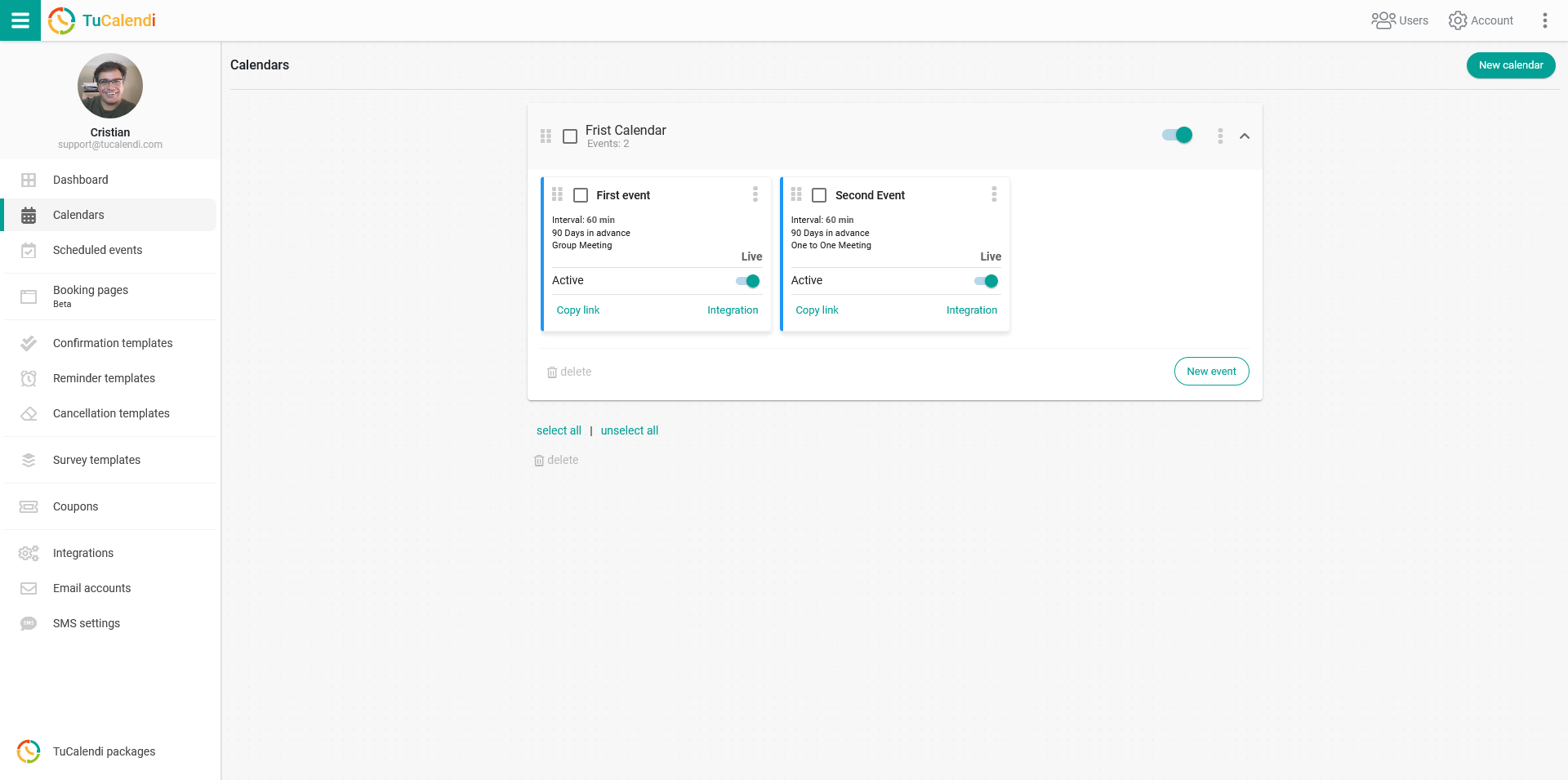
Find the event you want to connect to Microsoft Teams for the virtual meetings your customers book with you. Click on the event name.
All the event configuration options appear in the horizontal menu.
Click on the "Integrations" block.
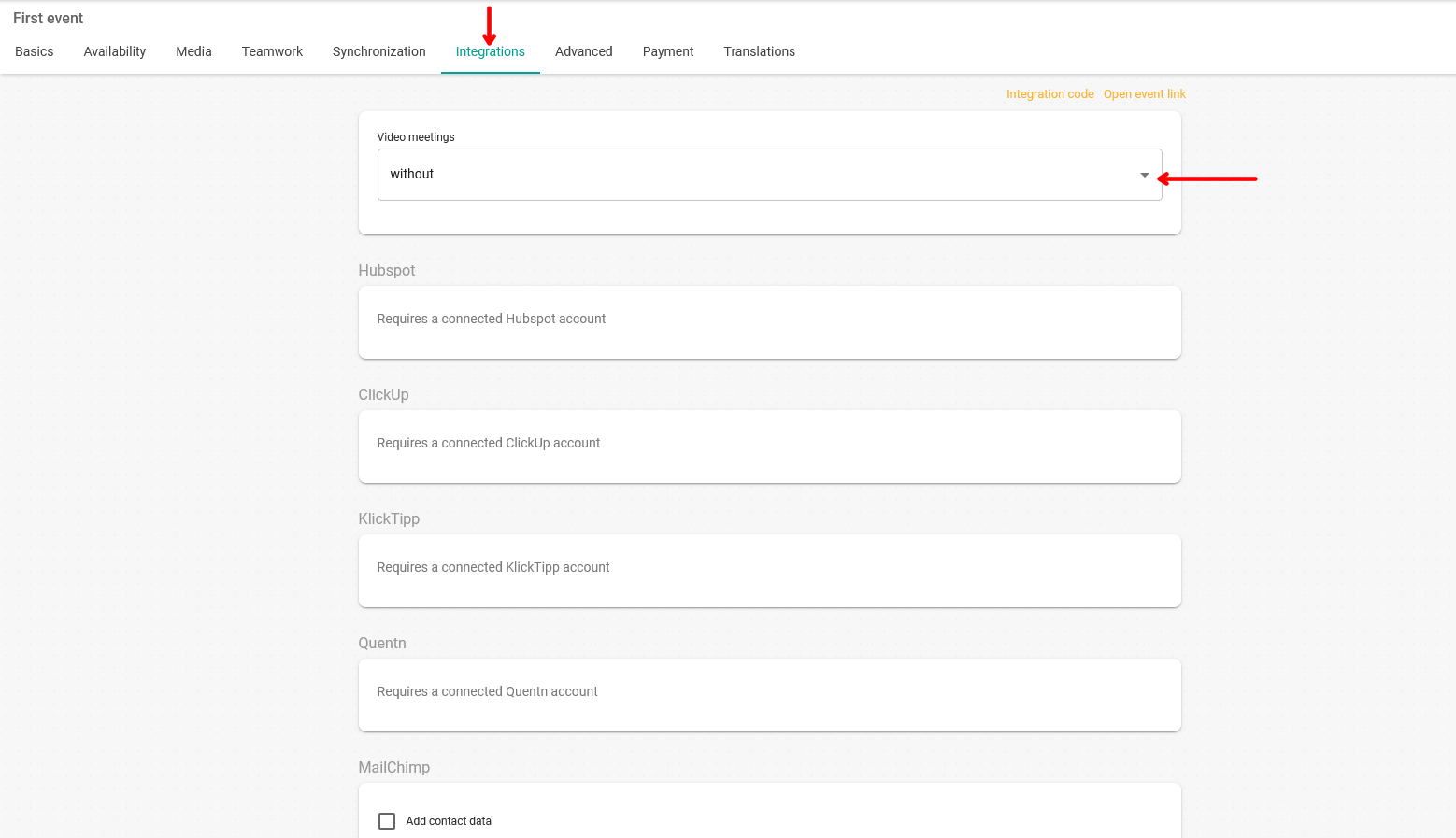
In the "Video meetings" block, you will find the Microsoft Teams option. Just select it.
Once you have done that, click "Save" and the connection between the event and your Microsoft Teams account will be established.
From now on, for any virtual meeting or appointment your customers schedule with you from the TuCalendi online calendar, the Microsoft Teams link will be created, and they can join directly by clicking the corresponding link.
For virtual meetings with Microsoft Teams scheduled from TuCalendi to appear in your Outlook Calendar and also in your Microsoft Teams Calendar, you must have integrated Outlook Calendar with TuCalendi and synchronized the event with Outlook Calendar.