
When creating an event, it is created with the system's standard form by default. The standard form requests the following data:
- First name.
- Last name.
- Email address.
The form is the information requested from a customer when they want to book an appointment from the online calendar.
Often you need some more information from the person making the booking, and you may ask yourself: Where can I change the questions on the booking form? The form with the questions or information requests you need to collect from the people who book with you is set up in the form flows.
The process is very simple: you just need to create the form flow and assign the events to the flow. This way you can request all the information you need from the person booking with you. You can also have different form flows with different questions and assign the events from your calendars to the appropriate form flow.
Let's see how to create a form flow and assign the events.
Log in to TuCalendi with your username and password. In the side menu, click on "Flows":
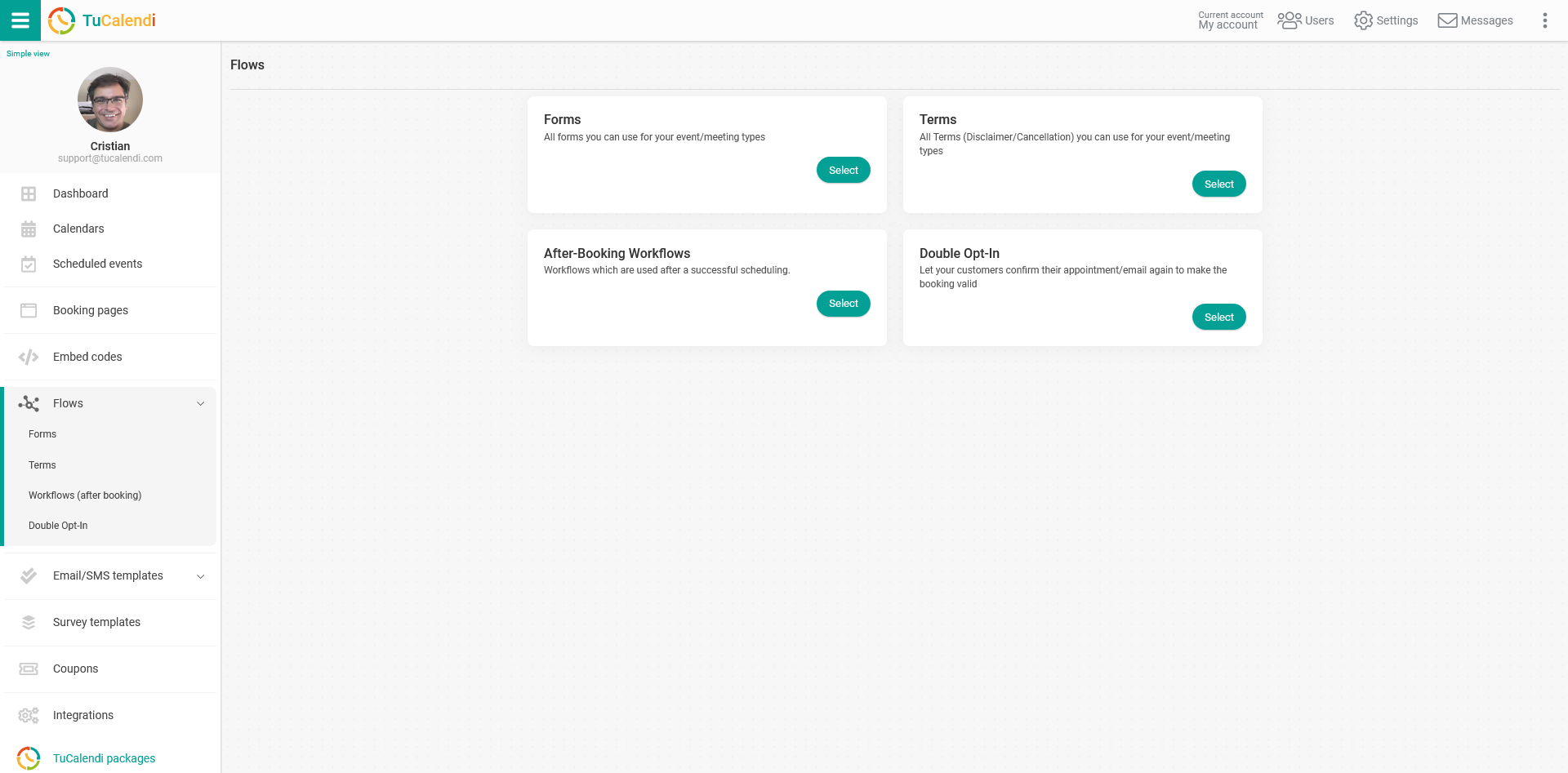
In the "Forms" option, click on "Select":
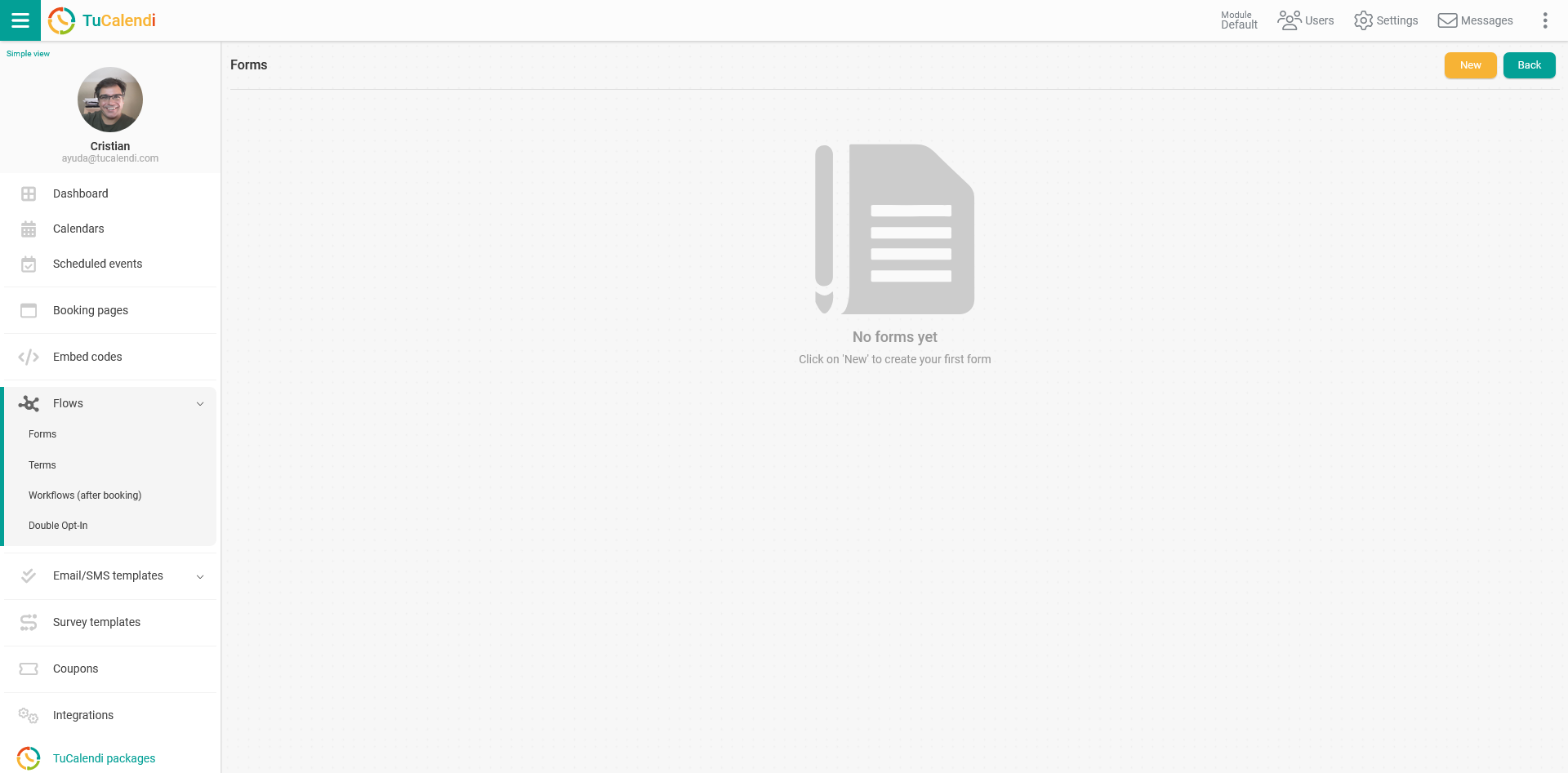
The list of form flows is empty because no form has been created yet.
Click on "New" to create the form flow.
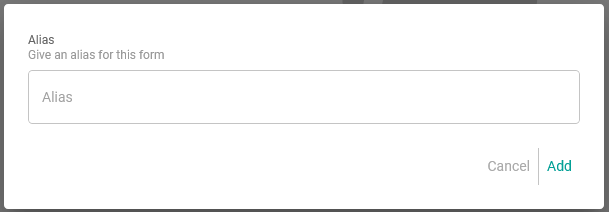
The first step is to give a name to the form you are going to create. Once you have typed the "Alias", click on "Add".
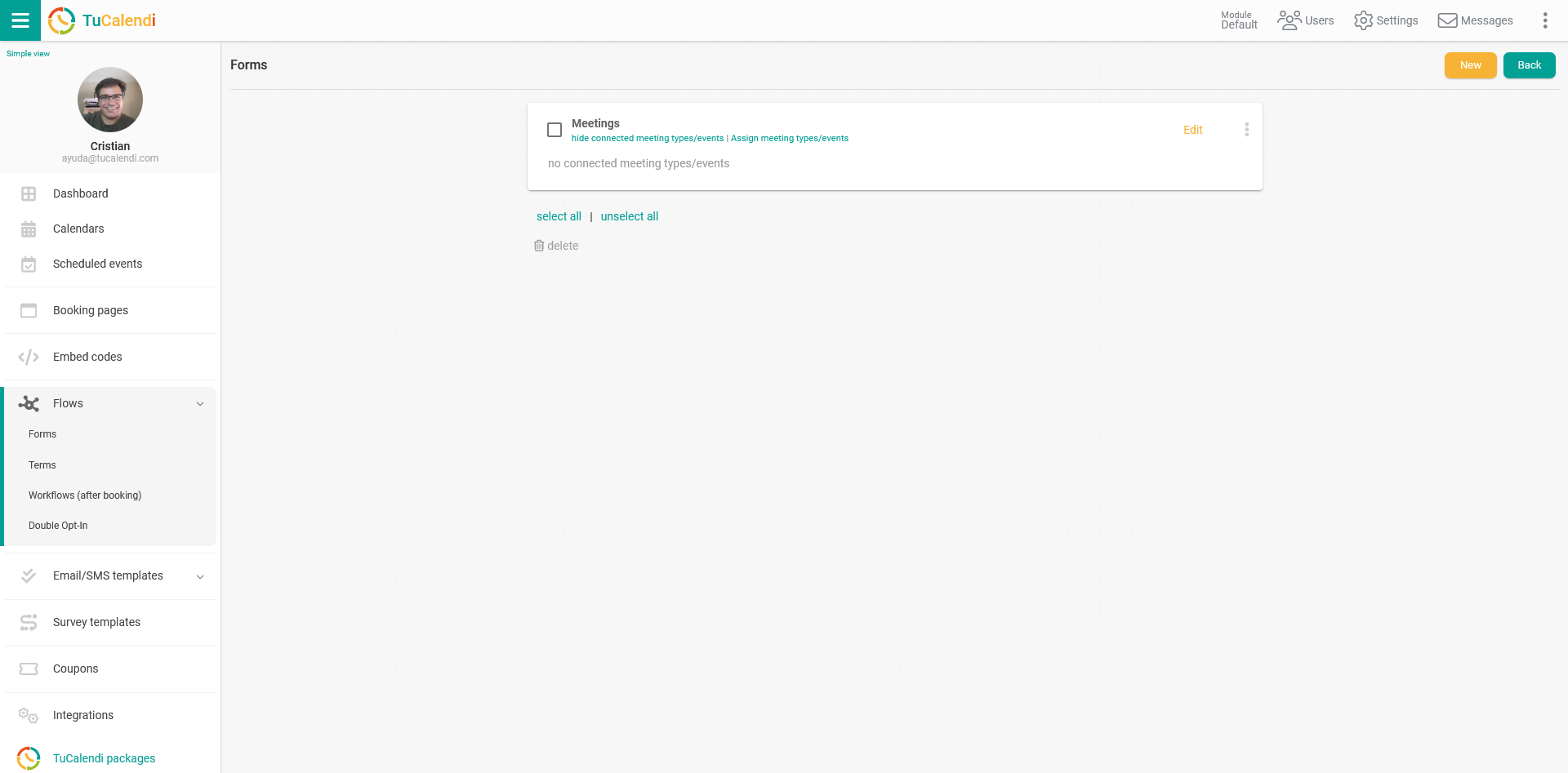
Next, you need to customize the information you want to request in the booking form. Click on "Edit":
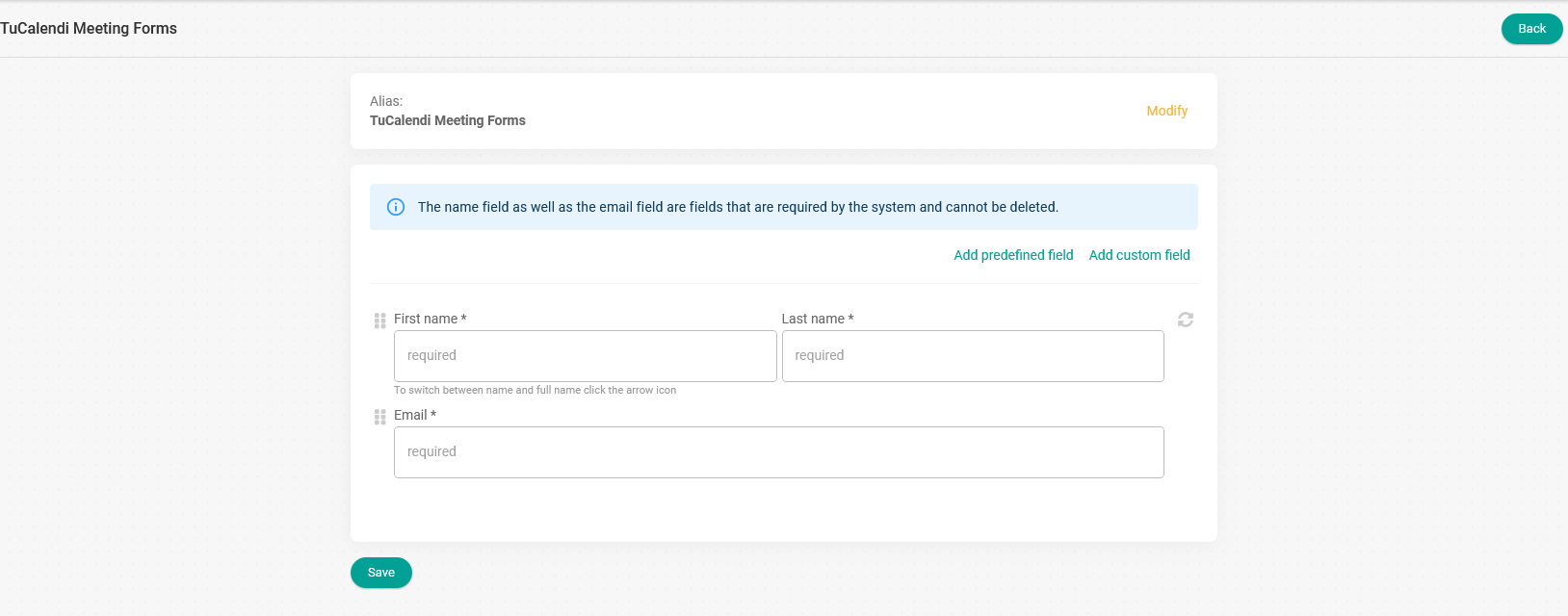
Initially, you will see the standard system form data, which are first name, last name and email.
There are two types of fields you can add to the form:
- Predefined fields.
- Custom fields.
Predefined fields
Both the name field and the email field are mandatory system fields and cannot be removed.
However, you can choose between requesting the first and last name or just the first name. Just click on the icon shown in the field:

There are also some predefined fields in the system that you can add and mark as required or not.
When you click on "Add predefined field", the available options are displayed and you only have to select the ones you want.
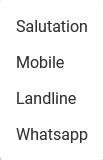
IMPORTANT: If you want to send SMS using the workflows, you must add the predefined field "Mobile" to the form flow.
In our case, we are going to add the "Mobile" field:
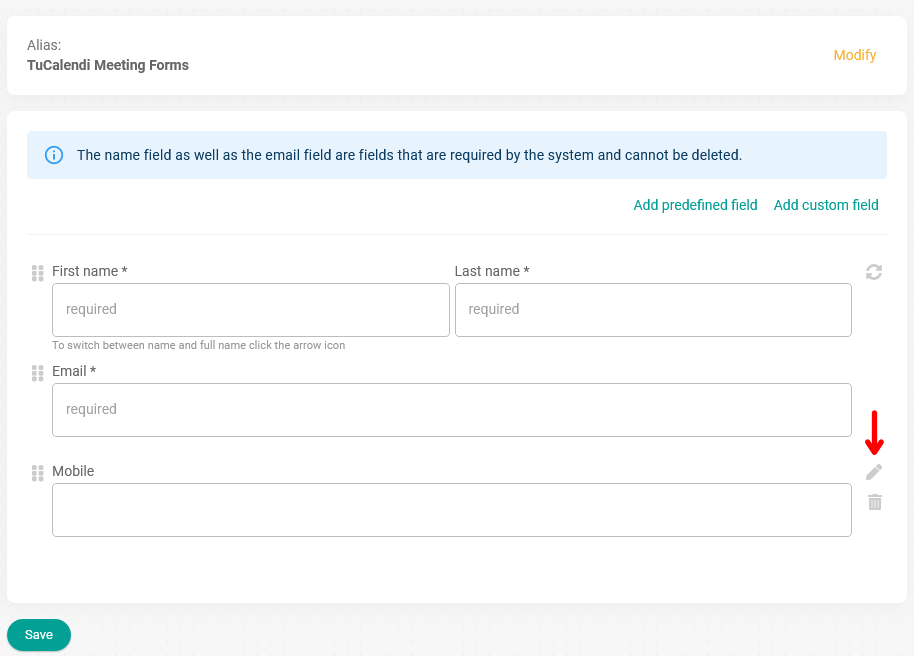
In the newly added field, click on the "pencil icon" to mark the mobile field as mandatory and select the default country code for phone numbers.
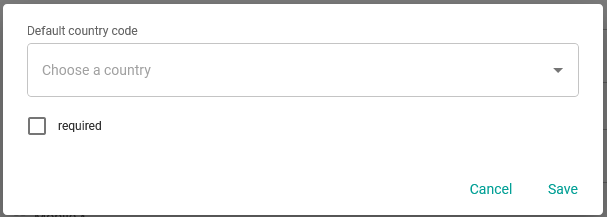
When you're done, click on "Save":

Custom fields
With custom fields, the possibilities multiply: you can choose from the different options available and add the same custom field several times with different options.
Clicking on "Add custom field" displays a menu with the options, and you only have to select the ones you need to get the information from the people who are going to book.
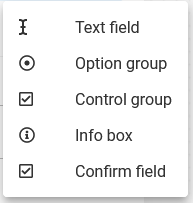
In our case, we will add a "Text" field and an "Option button" field with 4 choices. In both cases, the answers are mandatory.
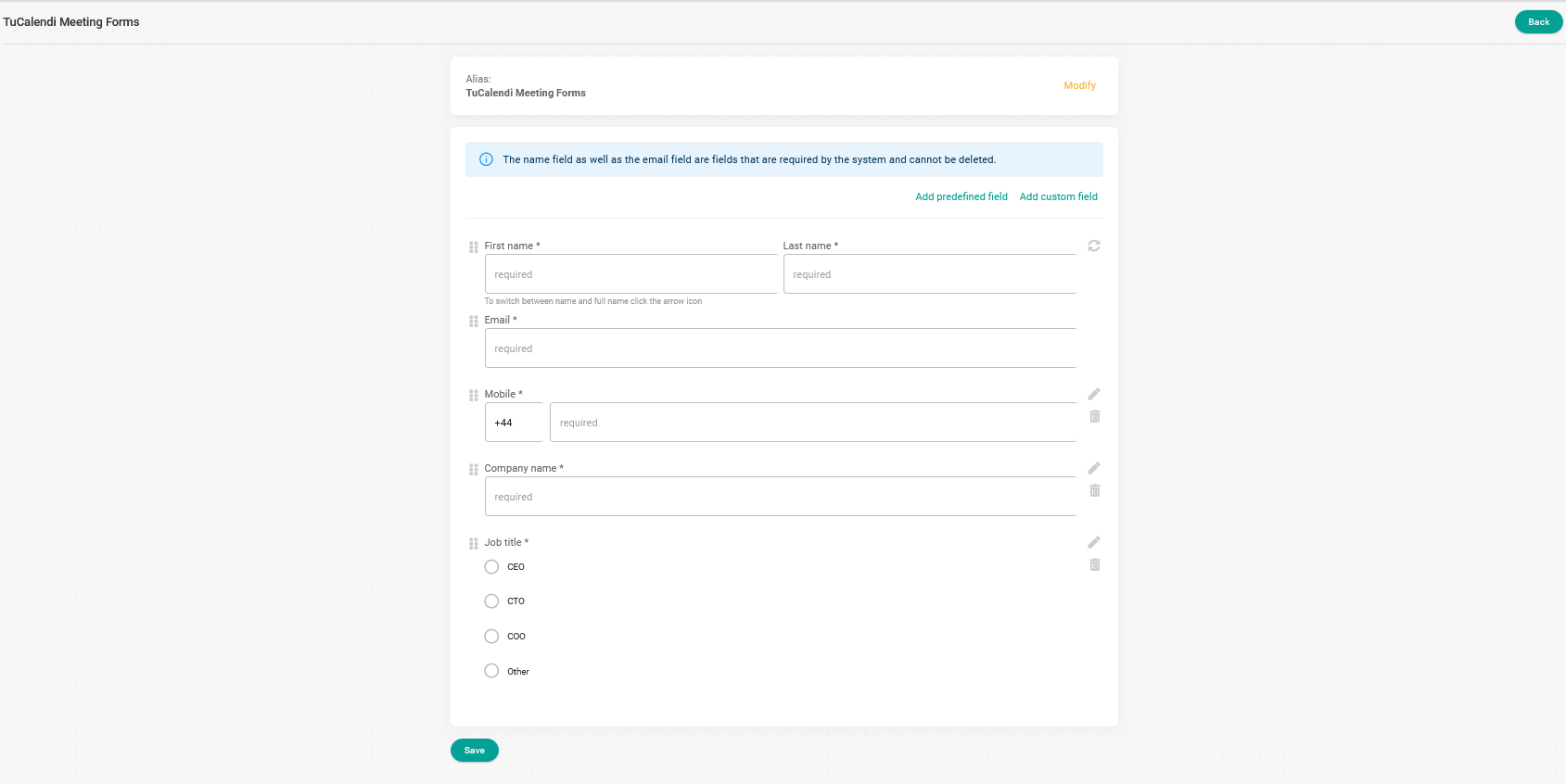
When you have added all the fields you need, click the "Save" button and your form is created.
Assign events
The next and final step to finish the form flow is to assign the events where you want the created form to be displayed.
Go back to the main form flow menu and click on "Assign events":

You can choose the events you want to assign to the form flow:
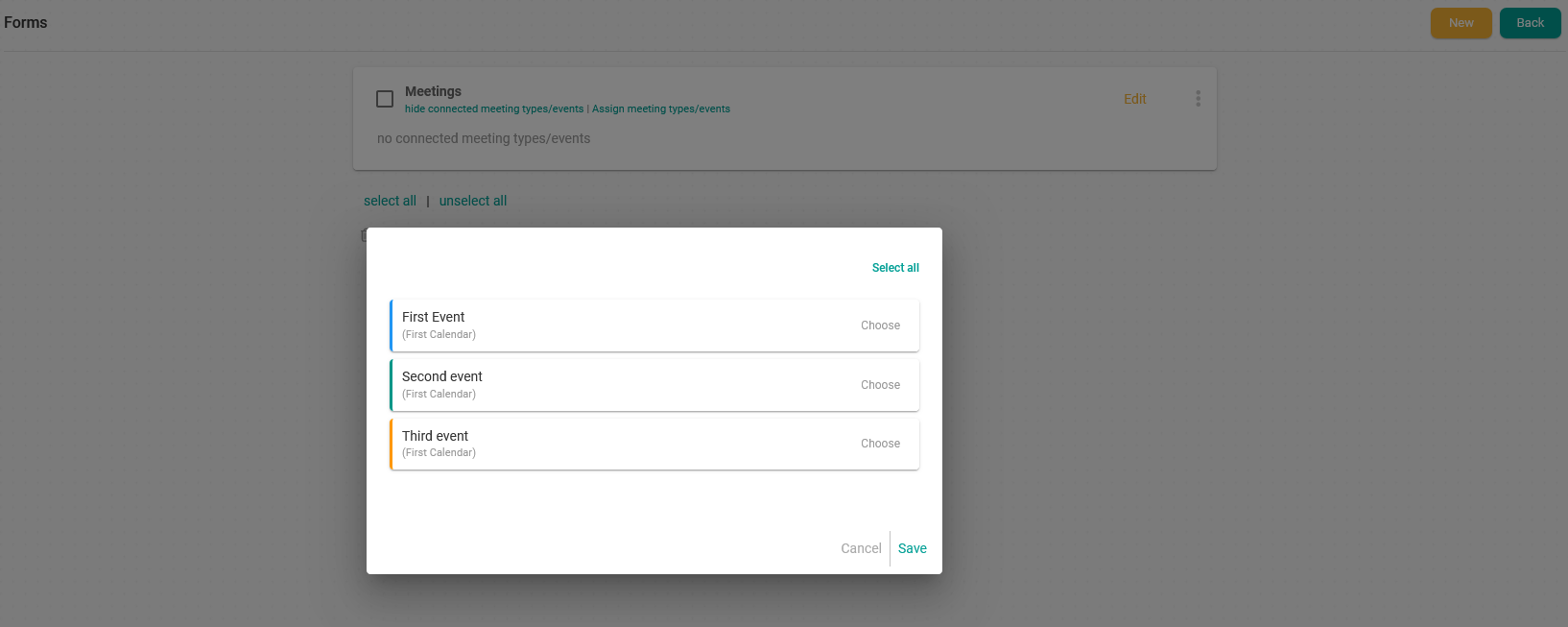
You can select events individually by clicking on "Choose" next to the event you want, or click on "Select All" to choose all available events.
IMPORTANT: The same event cannot be assigned to two different form flows.
When you have selected the events you want to assign to the form flow, click on "Save":
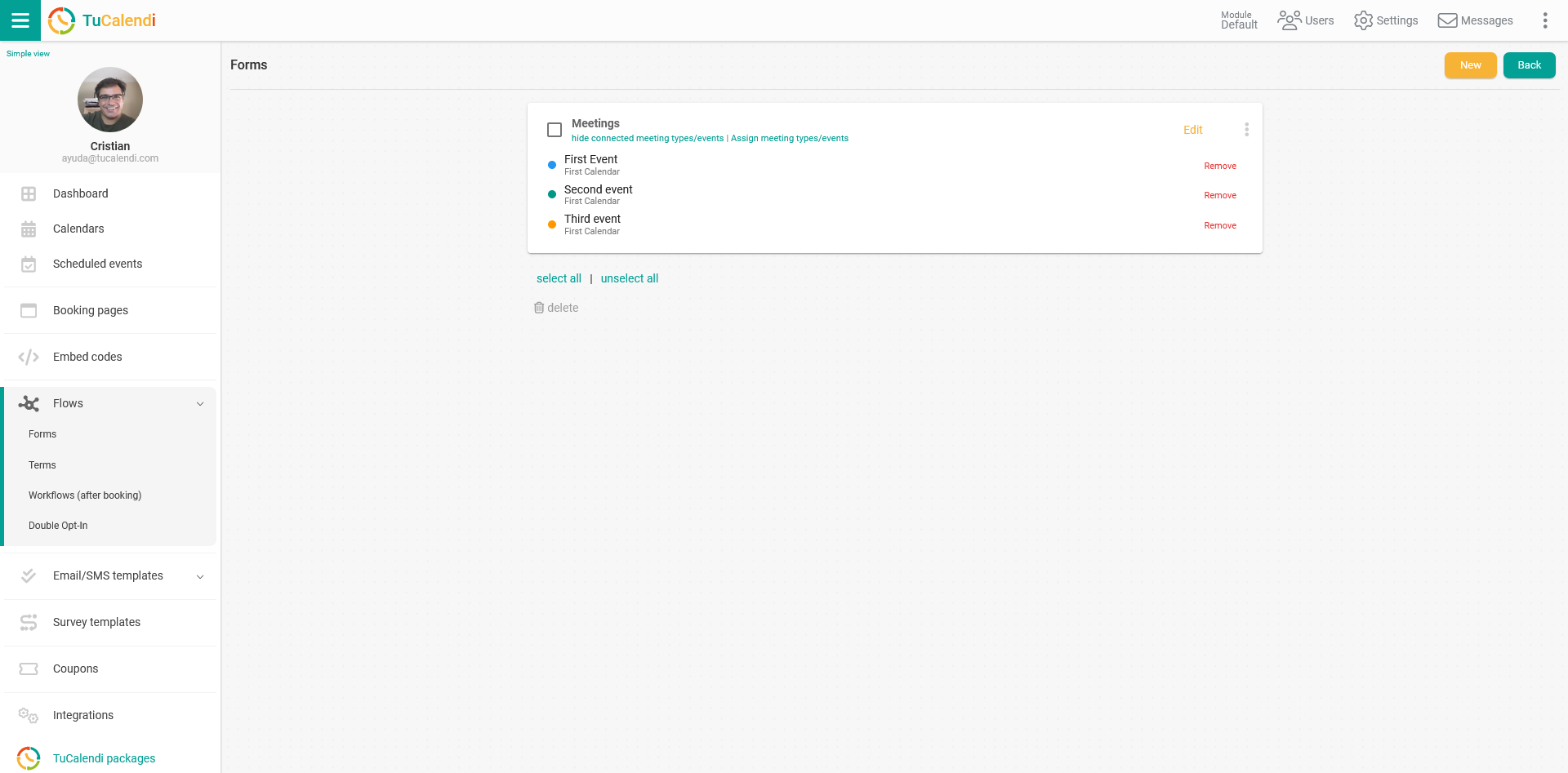
From now on, when someone books a meeting for any of the events assigned to the form flow, they will have to enter the requested information.
You can modify a created form at any time by adding or deleting fields. Of course, you can also add or remove the assigned events.