
For teamwork in Round Robin mode to work correctly, it is necessary to synchronize each user assigned to an event set in Round Robin mode with their external calendar, such as Google Calendar or Microsoft 365.
IMPORTANT: When you choose Round Robin mode for an event, the synchronization with external calendars set for the event is ignored and not taken into account. For teamwork in Round Robin mode to work correctly, it is absolutely necessary to synchronize each assigned user with their external calendar. External calendars can be Google Calendar or Microsoft 365.
Let's see how to complete this fundamental step: the synchronization of a user in Round Robin mode with Microsoft 365.
Log in to TuCalendi with your username and password. Go to the "Calendars" option:
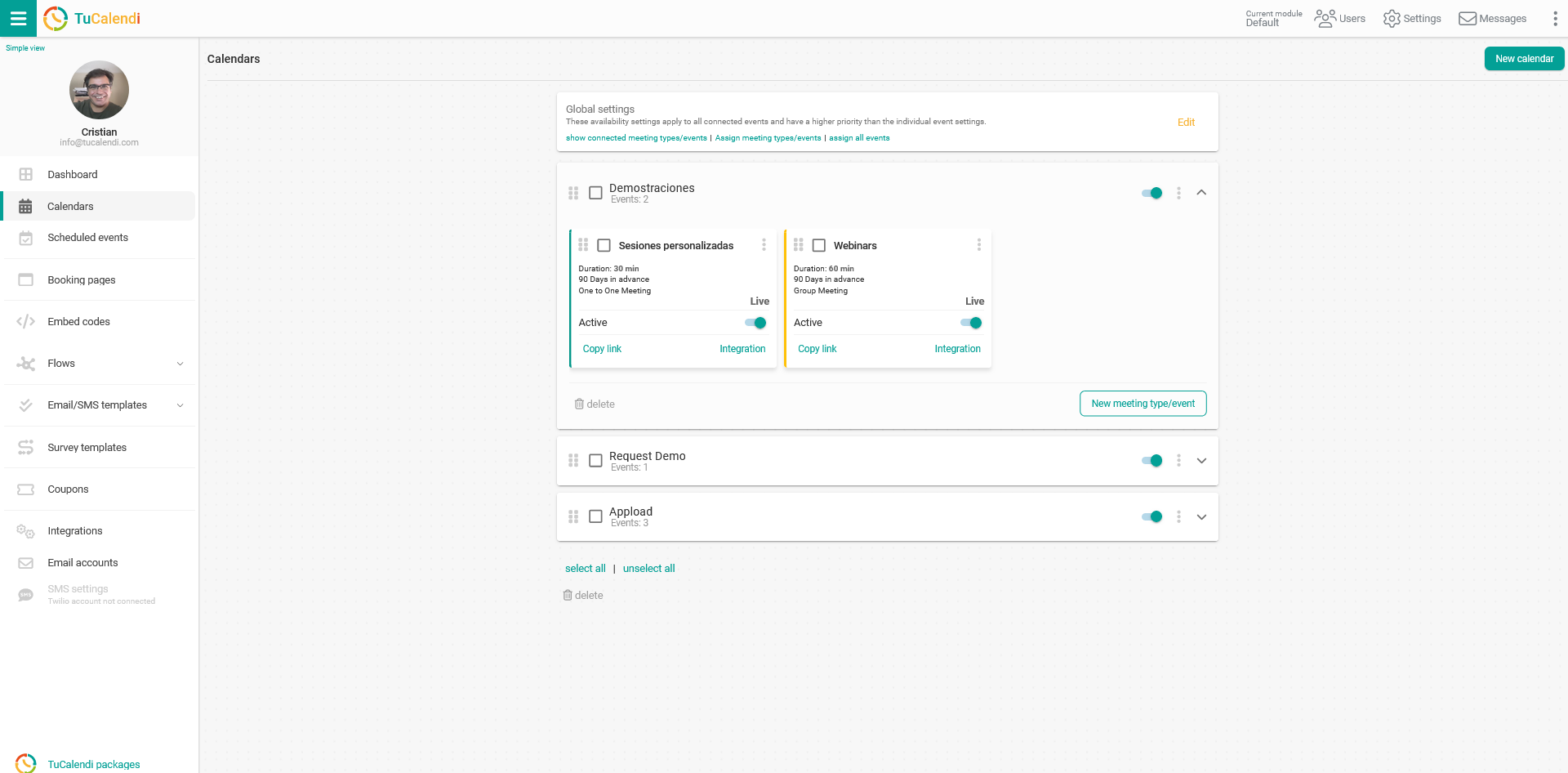
Locate the event for which you want to define the team type in Round Robin mode and the user assignment. Click on the name of the event.
In the horizontal menu, all the configuration options for the event will be displayed.
Click on the "Assignment" block.
In the "Team Type" drop-down menu, select the "Round Robin" mode and click on "Add User" to assign users to the event:
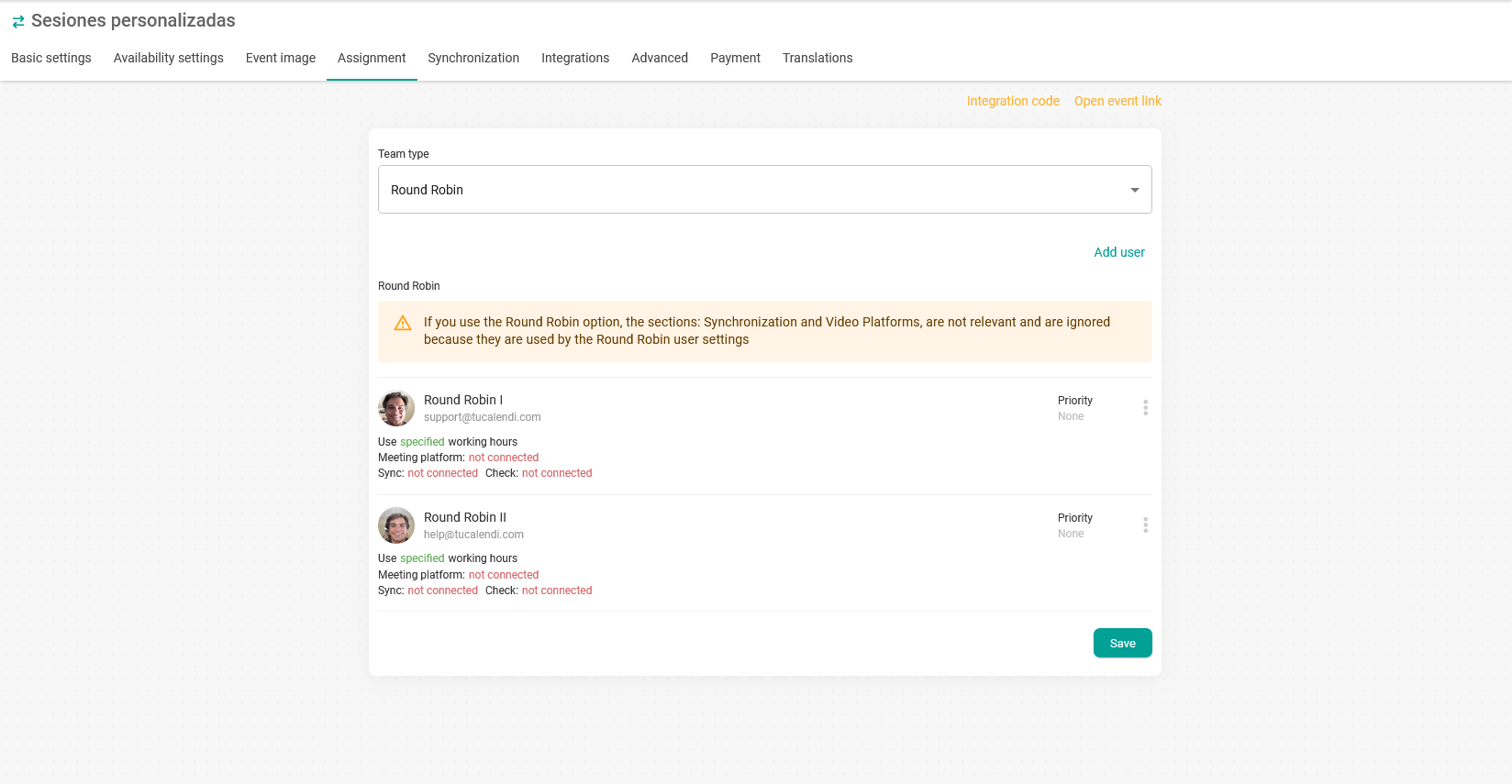
For each user, click on the three vertical dots:

You will access the menu with the setup options for each team member assigned to the event:
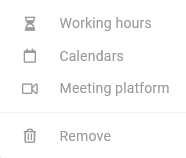
Click on "Calendars" to proceed with the synchronization:
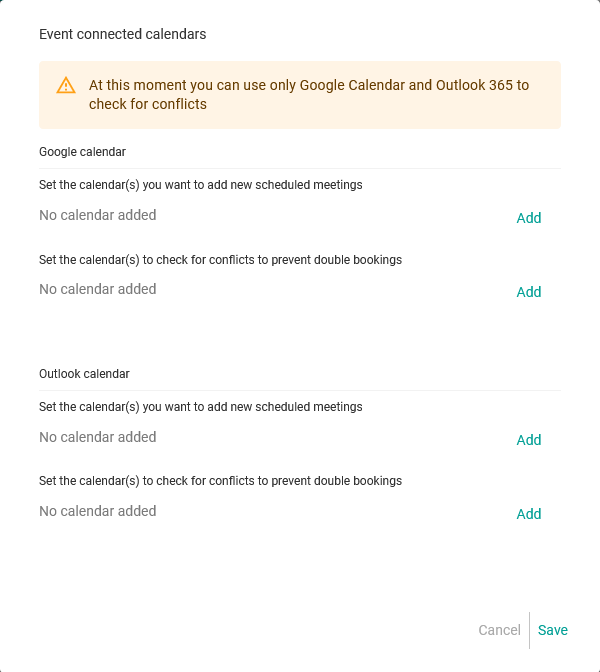
In this case, you get the option to synchronize with Google Calendar and Microsoft Calendar because both integrations are set up in the account. If you only had Microsoft 365, only this option would be shown to synchronize the user with the external calendar.
Click on "Add", select the calendar you want to synchronize with and click on "Save".
You will see that there are two options for adding calendars:
- "Select the calendars to which you want to add the booked meetings": this synchronization causes all bookings made by your customers in TuCalendi to be added to the chosen Microsoft 365 calendars.
- "Select the calendars that should be checked for conflicts and avoid double bookings": this corresponds to the bidirectional synchronization with an external calendar to check for conflicts in bookings, avoiding duplicate bookings or bookings in time slots that are already busy.
Once you have done this, each user will be updated and will appear as shown in the image with "Sync: Connected" and "Check: Connected".
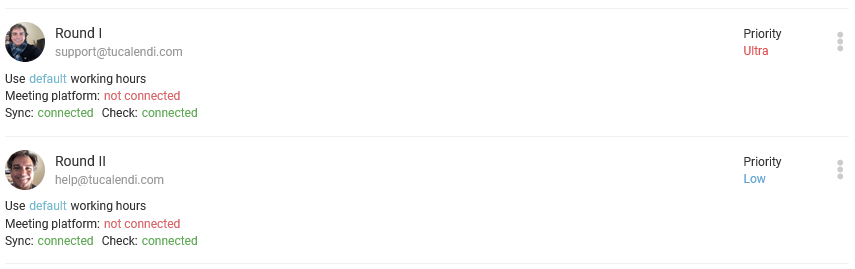
From this moment on, the event will start working in Round Robin mode according to the priority established and the time availability set.