
Once you have created a workflow you can edit it at any time to add or remove triggers and actions. In the same way, by editing it you can modify the actions of a particular trigger.
In this tutorial we are going to see how by editing an existing workflow we can add a follow up to the workflow.
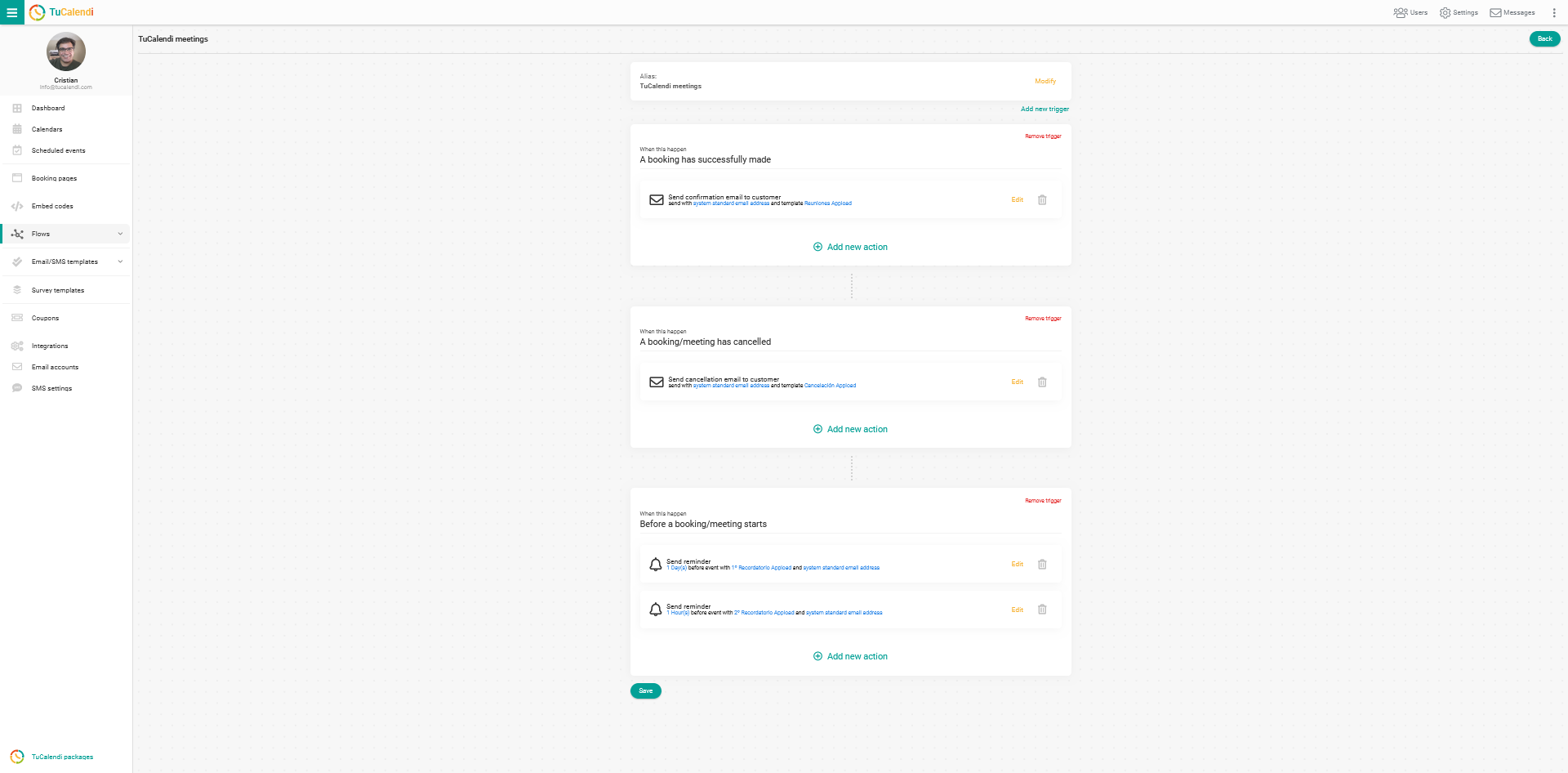
Starting from the workflow with three automations:
- Send confirmation email.
- Send reminder emails.
- Send cancellation email.
We will add a fourth automation, which will be:
- Send follow up email.
Log in with your TuCalendi username and password. Go to the "Flows" menu:
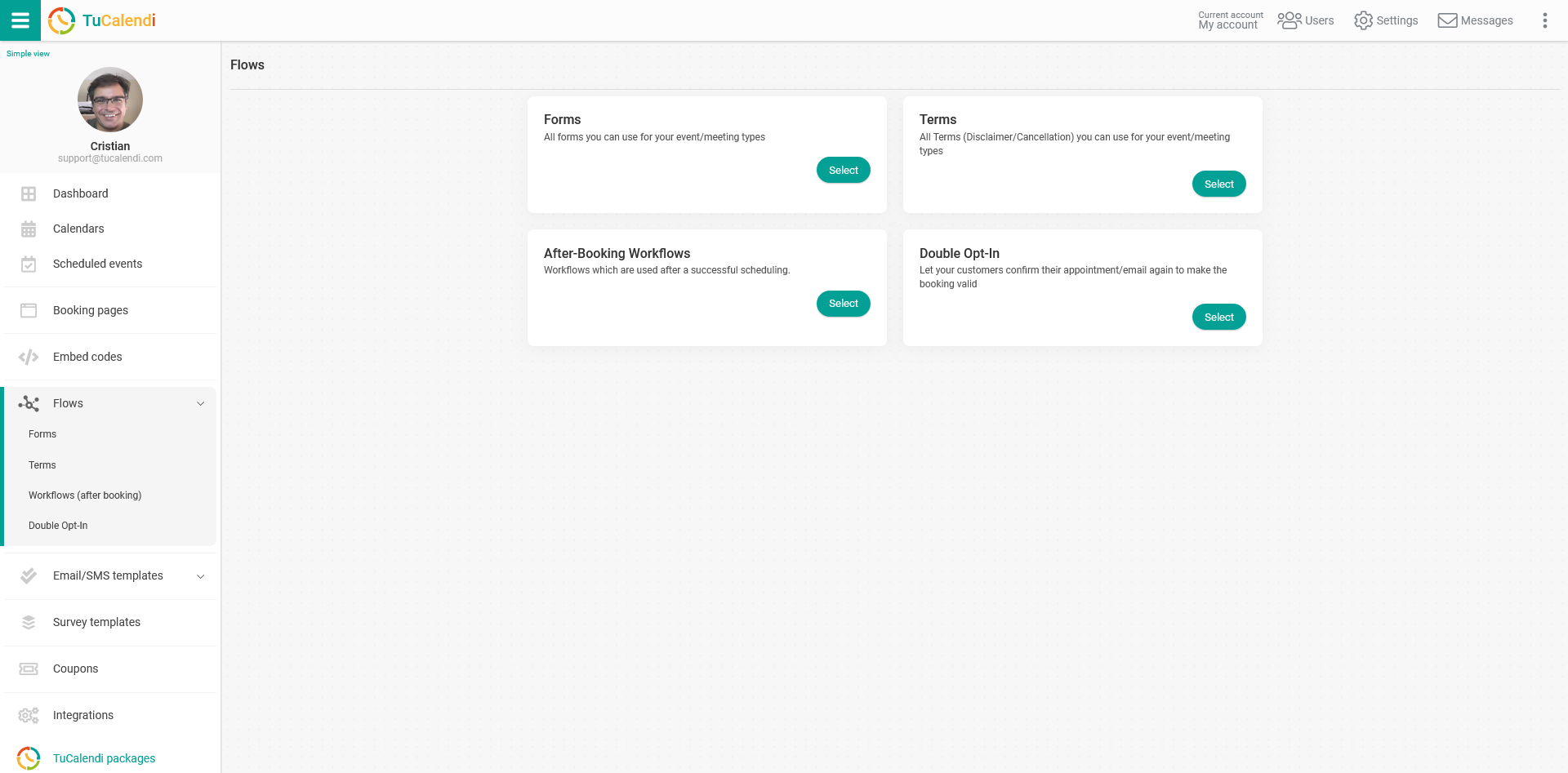
In the option "Workflows (after booking)" click on "Select" and you will see the workflows you have created:
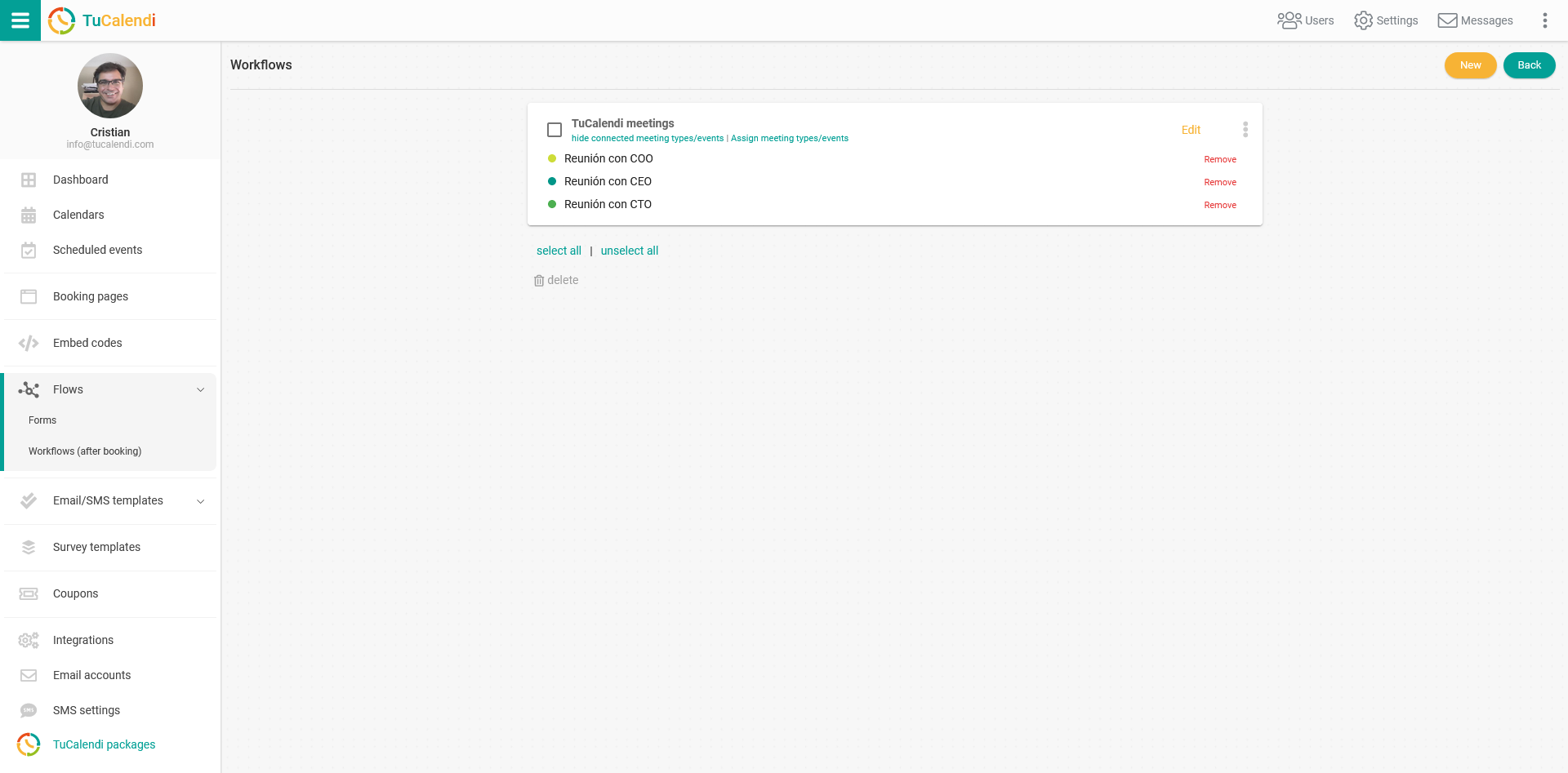
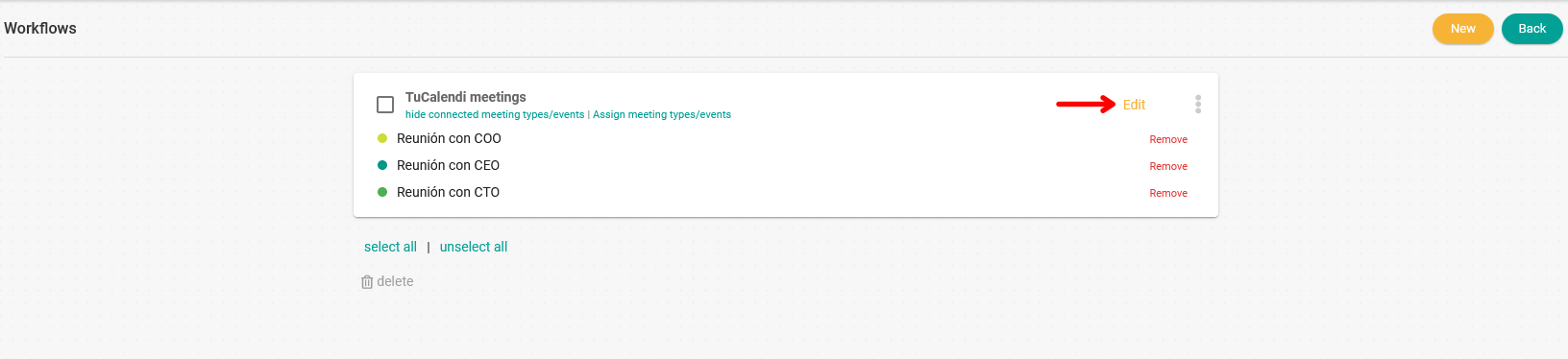
Click "Edit" on the workflow you want to modify:
The workflow will be displayed in its current state and you can start modifying it:
The new automation we want to add to the workflow is to send a follow up email when the meeting is done.
New trigger. After a meeting has ended.
When the meeting with a customer has ended, it is important to send a follow up email to stay connected with the customer. For this to happen you need to add a new trigger to the workflow.
Click on "Add trigger":
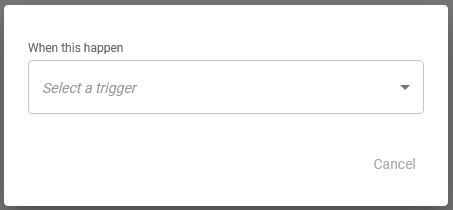
In the drop-down menu, the available triggers will appear:
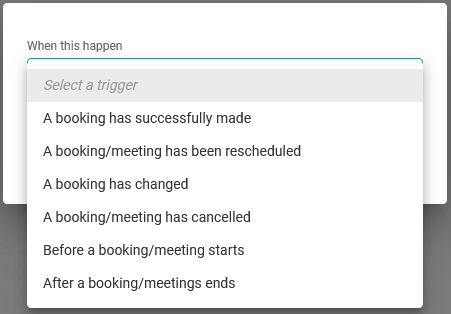
Select the trigger "After a booking/meeting ends":
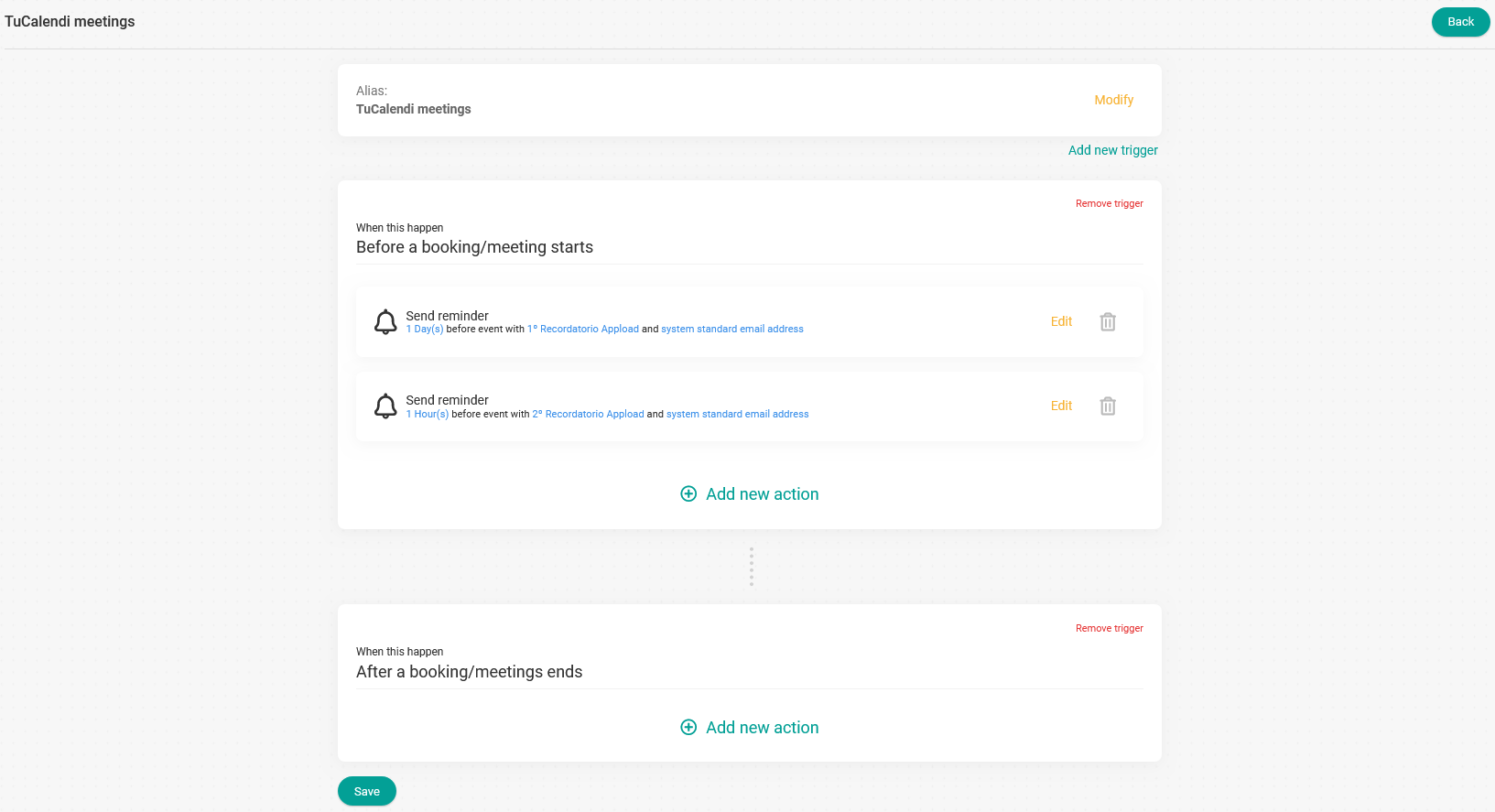
Now we need to add the action that will occur when the meeting has ended.
Add new action. Send follow up email.
Click on "Add new action" in the corresponding trigger:
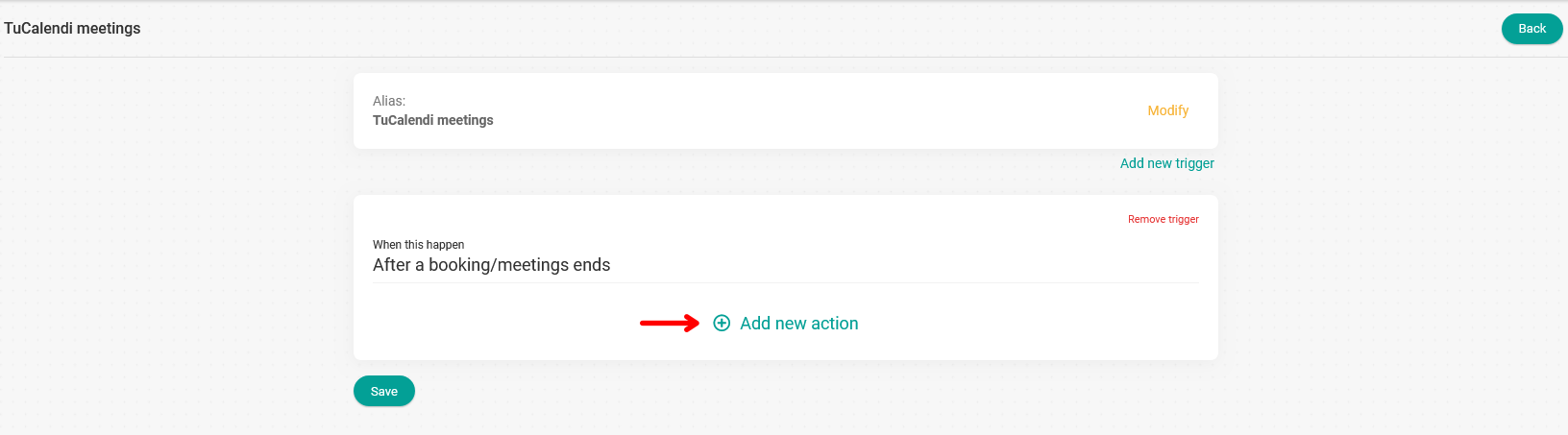
This lets you choose what should occur.
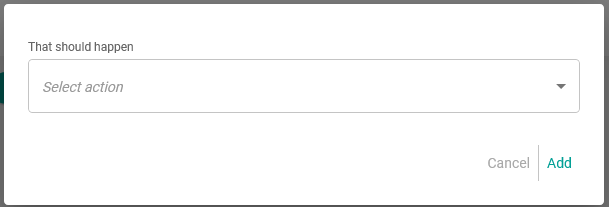
Select the action from the drop-down menu:
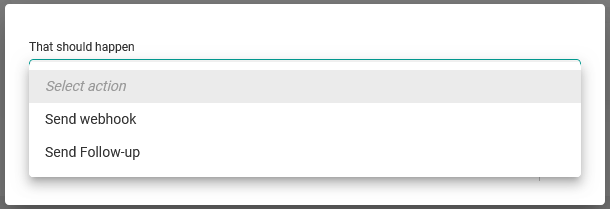
Since what we want is to send the follow up email when the meeting has ended, you need to select the "Send Follow-up" action:
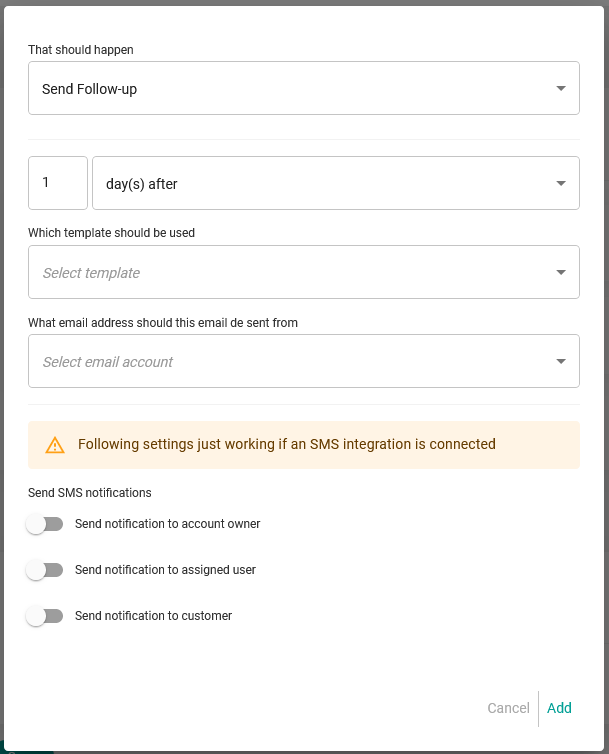
You must schedule when you want the follow up email to be sent, choose the follow up template you want to send and the email account from which the follow up email will be sent, then click "Add":
IMPORTANT: For the follow up email to be sent you must add your own email account.
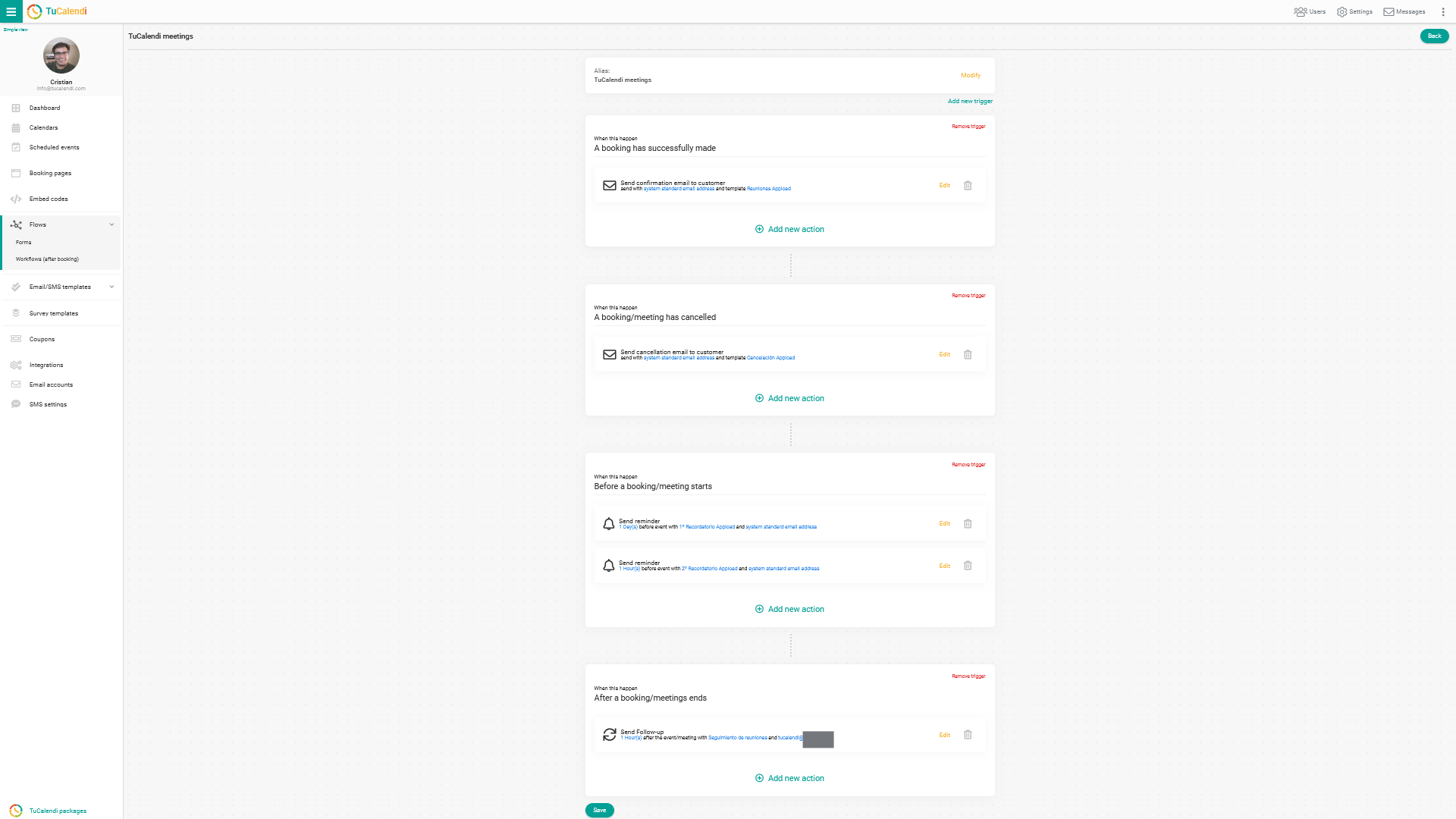
When you have finished editing the workflow, or each step you are including, click on "Save".
Now our workflow after editing consists of four automations:
- Send confirmation email.
- Send reminder emails.
- Send cancellation email.
- Send follow up email.
And it will be applied to all events assigned to this workflow.