
Important note: With the introduction of the flows, we will remove some event settings that can be integrated more flexibly into the flows. Therefore, these settings must be made with our Flows until 01/10/2023.
Why are we working with flows now?
Firstly, because we want to offer our customers a more flexible and smart way to link forms, settings and templates to the events, and secondly, because it gives us the possibility to add new features and settings more easily in the future. In short, TuCalendi is moving away from static settings and switching to Flows, which offer more features and flexibility.
What is involved in the switch to Flows?
The changeover will take place until 01.09.2023. If you need help with the changeover, you are very welcome to contact our support team, which as usual is always happy to help.
What kind of flows are available at the moment?
At the moment there are two types of flows: first, the forms, and second, the workflows, which are triggered after a successful booking.
What are the advantages of the flows?
You don't have to create a form for every event (which can be very time consuming). Instead, you can create form templates and then add them to the desired event/meeting type (more flexibility). Also, if you need to make changes, you don't have to do it for every single event/meeting type anymore, you only adjust the desired flow. This applies to both the forms and the workflows. More flows will follow in the future.
What do I have to do to change to the flows?
Some event settings will be removed or adjusted on 01.09.2023.

Removed (marked in red):
- Webhooks (are fully integrated in the workflows)
- Confirmation settings (are fully integrated in the workflows)
- Reminder settings (are fully integrated in the workflows)
- Cancellation settings (are fully integrated in the workflows)
- Reschedule settings (are fully integrated in the workflows)
Adjusted (highlighted in blue):
- Forms
- Last minute settings for reschedulings and cancellations
Save and edit new forms
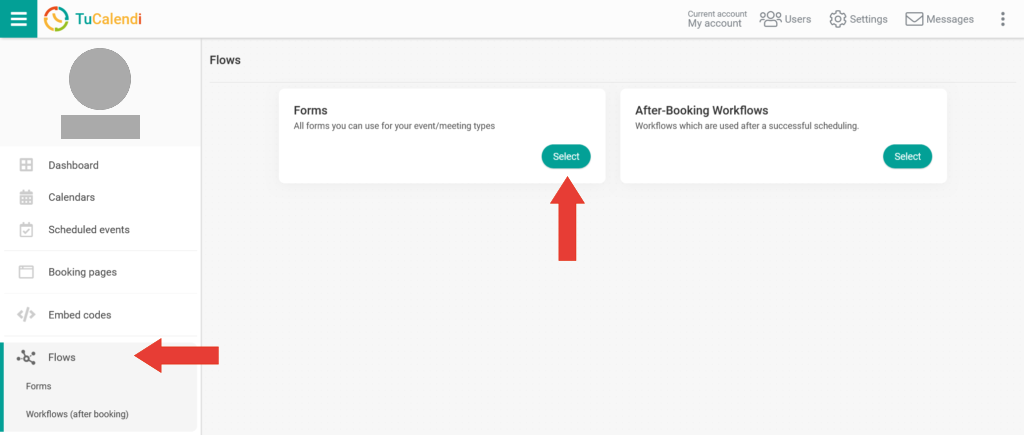
New forms can be easily created or edited. Go to Flows -> Forms and click on "New" in the upper right corner. If you want to edit a form, click on "Edit".

Assign events
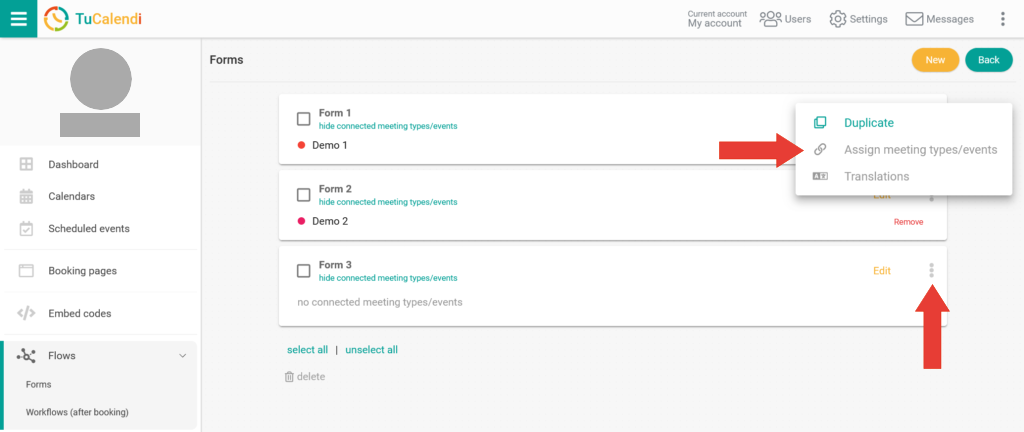
To use forms or workflows, you have to assign them to the desired event. This is very simple. Click on the 3-dot menu of the desired flow and click on "Assign events". This opens a list of all the events you have created. Select the event(s) you want to assign to the flow.
Save and edit new workflows
This works in exactly the same way as described for forms, but instead of selecting forms, you need to select workflows.