
Knowing which meetings and appointments your clients have scheduled with you in TuCalendi is very fast and intuitive. With the booking details feature, you can also check if a booking has been paid.
Once you have logged in to TuCalendi with your username and password, click on the left menu option called "Scheduled Events":
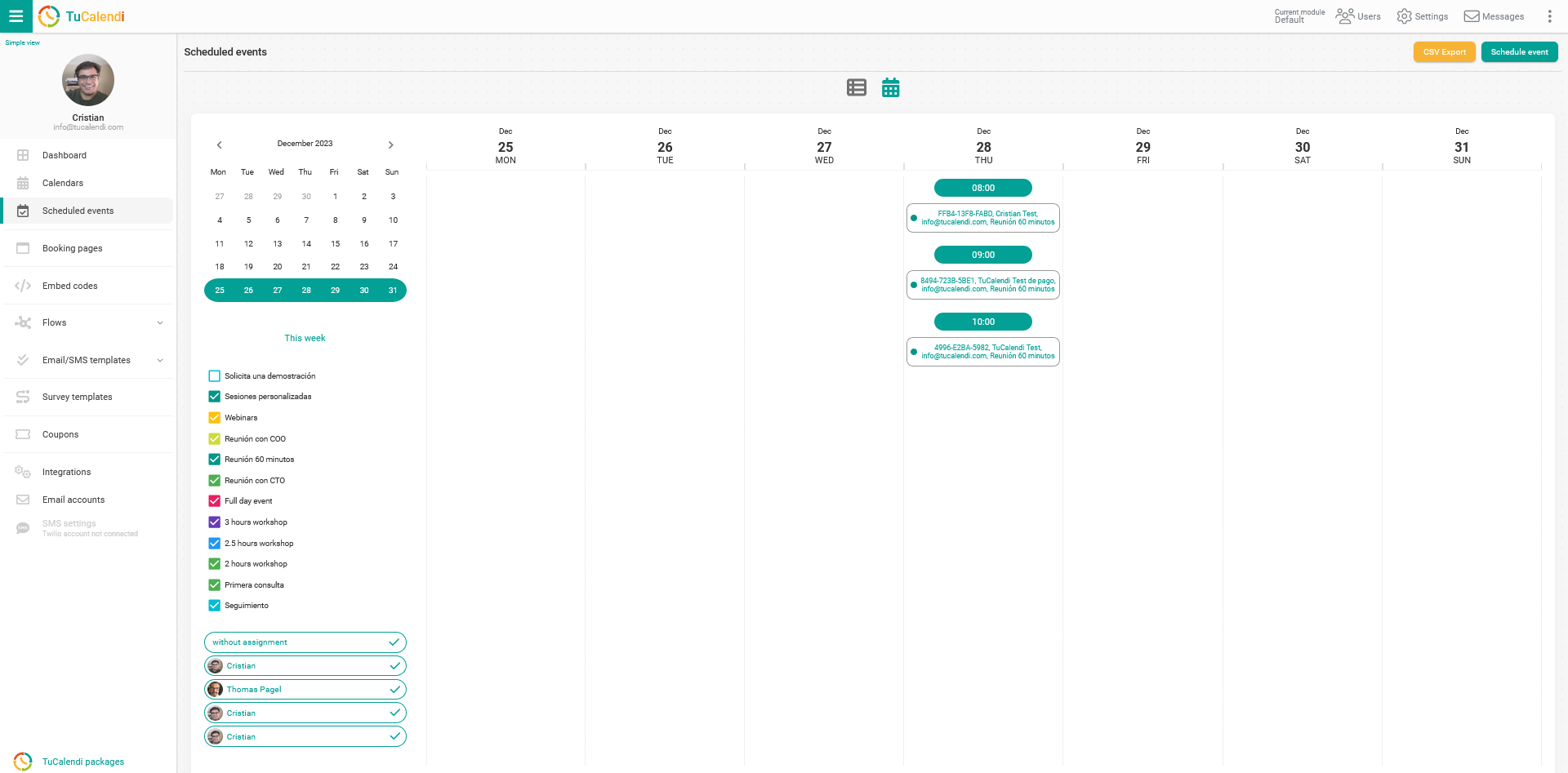
In the image above, you can see the scheduled events in calendar view. You can switch to list view by simply clicking on the icon above the dates.
Clicking on any of the booking references takes you to the full details of the booking.
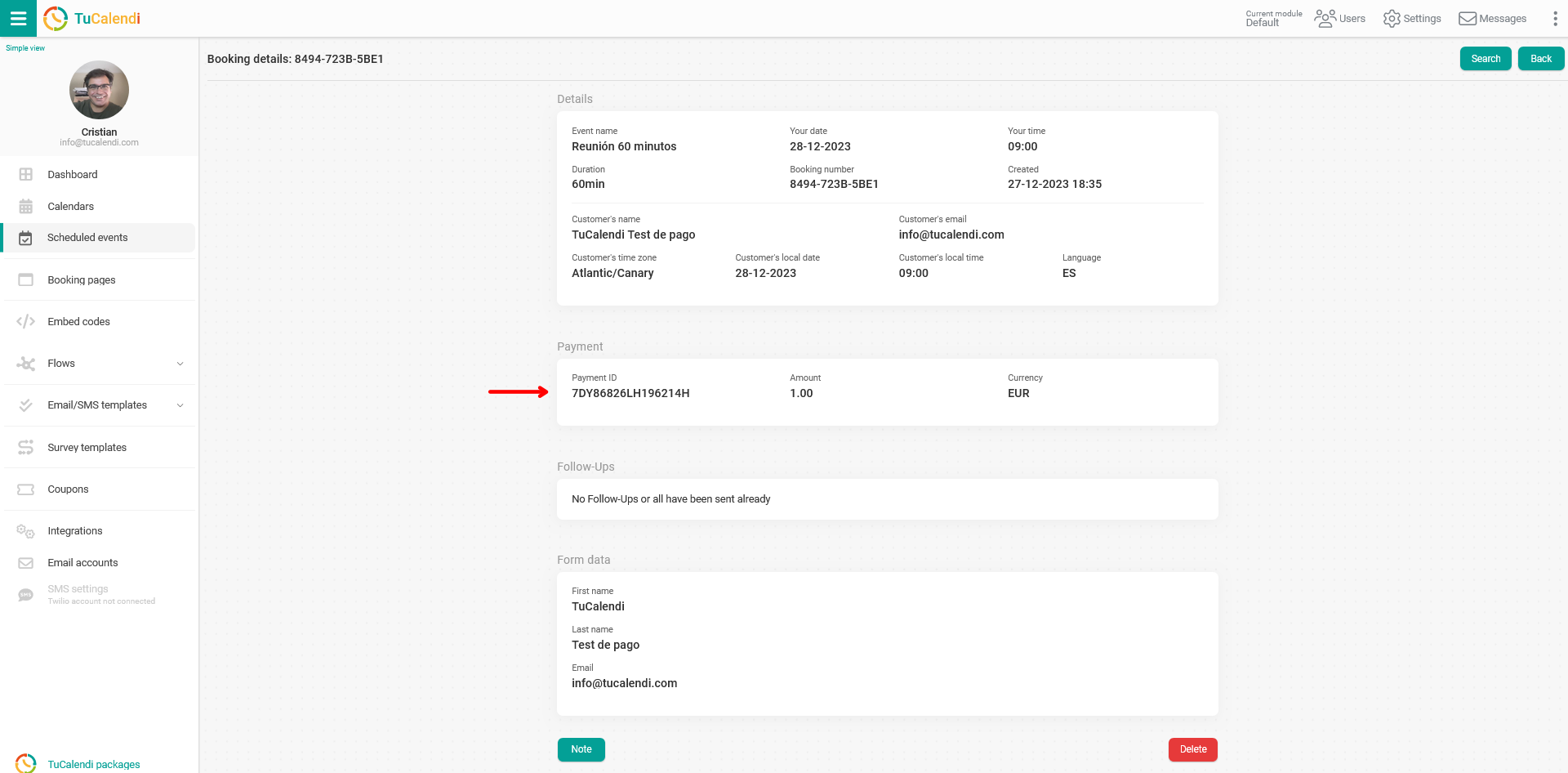
Details of a reservation with payment received
The details of a paid reservation show all the information related to the reservation:
- Date and time of the reservation.
- Mandatory data of the person who made the reservation.
- Manual rescheduling option.
- Payment information showing the transaction reference, amount and currency.
- Scheduled reminders, including the option to add a new reminder or remove an existing one.
- The follow up email, if included with the follow up flow.
- The complete details of the form created with the form flow.
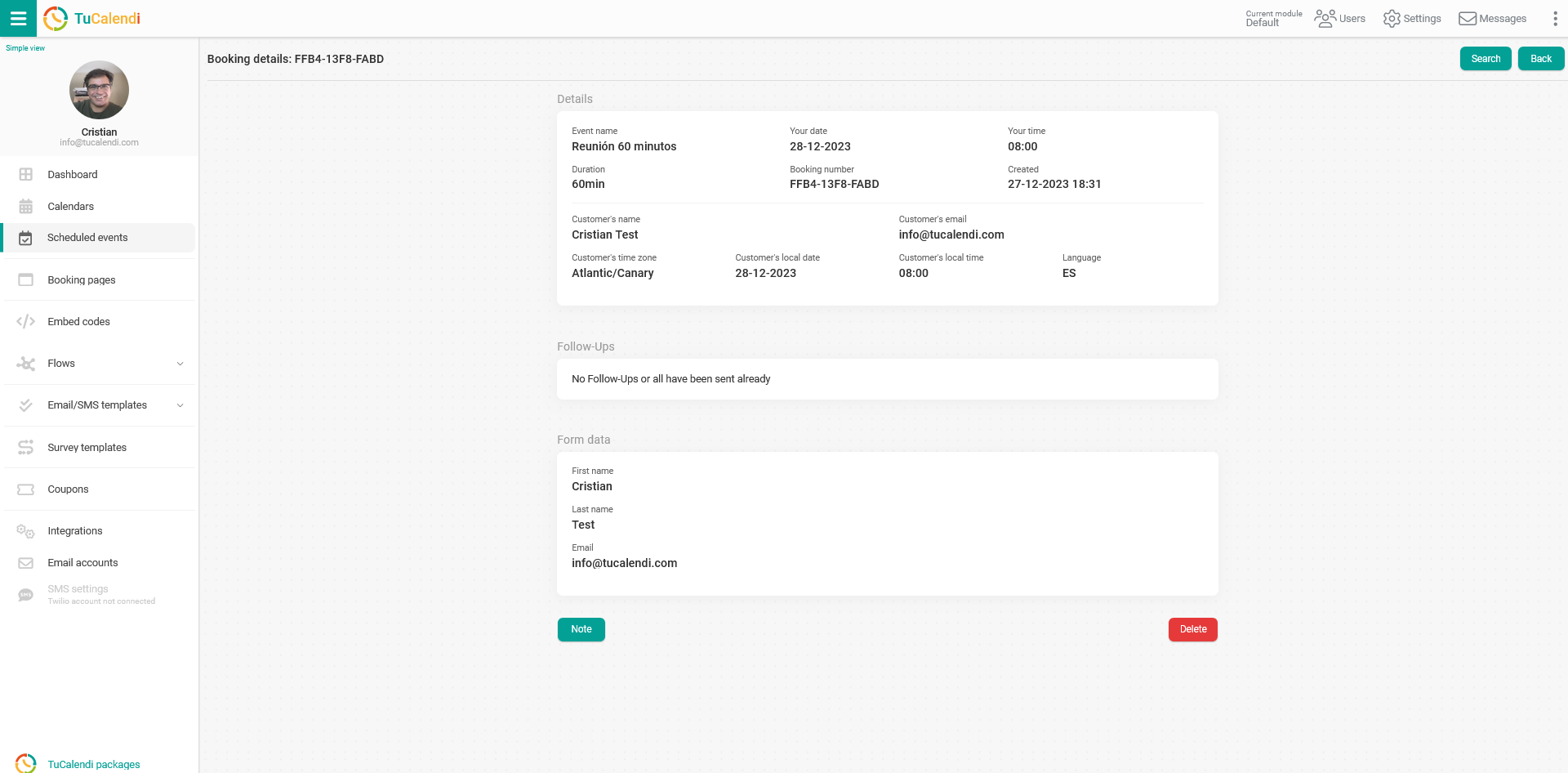
Details of a booking without payment
When a booking has not received a payment, the same information is displayed, except for the transaction information, because no transaction has taken place.
You may wonder why this information is useful. After all, when a customer pays, the money goes directly to your PayPal or Stripe account, and if they have made the reservation, it means they have paid, right?
This option is useful if you make manual reservations for your customers. For security reasons, these reservations do not ask for credit card or PayPal account information. You can still make the reservation to block the time slot, and this way you know that the customer has not paid yet and needs to pay when you meet with them.
If you make manual reservations for events that require payment, you will know that the appointment has not been paid and that you need to charge the client.