Domains and Branding on TuCalendi: What It Is and How to Access It
The "Domains and Branding" section of TuCalendi is where you manage the domain associated with your account and all options related to visual identity and brand customization. The domain is the one you set up when you create your TuCalendi account, and it forms the base URL your customers use to access your booking page.
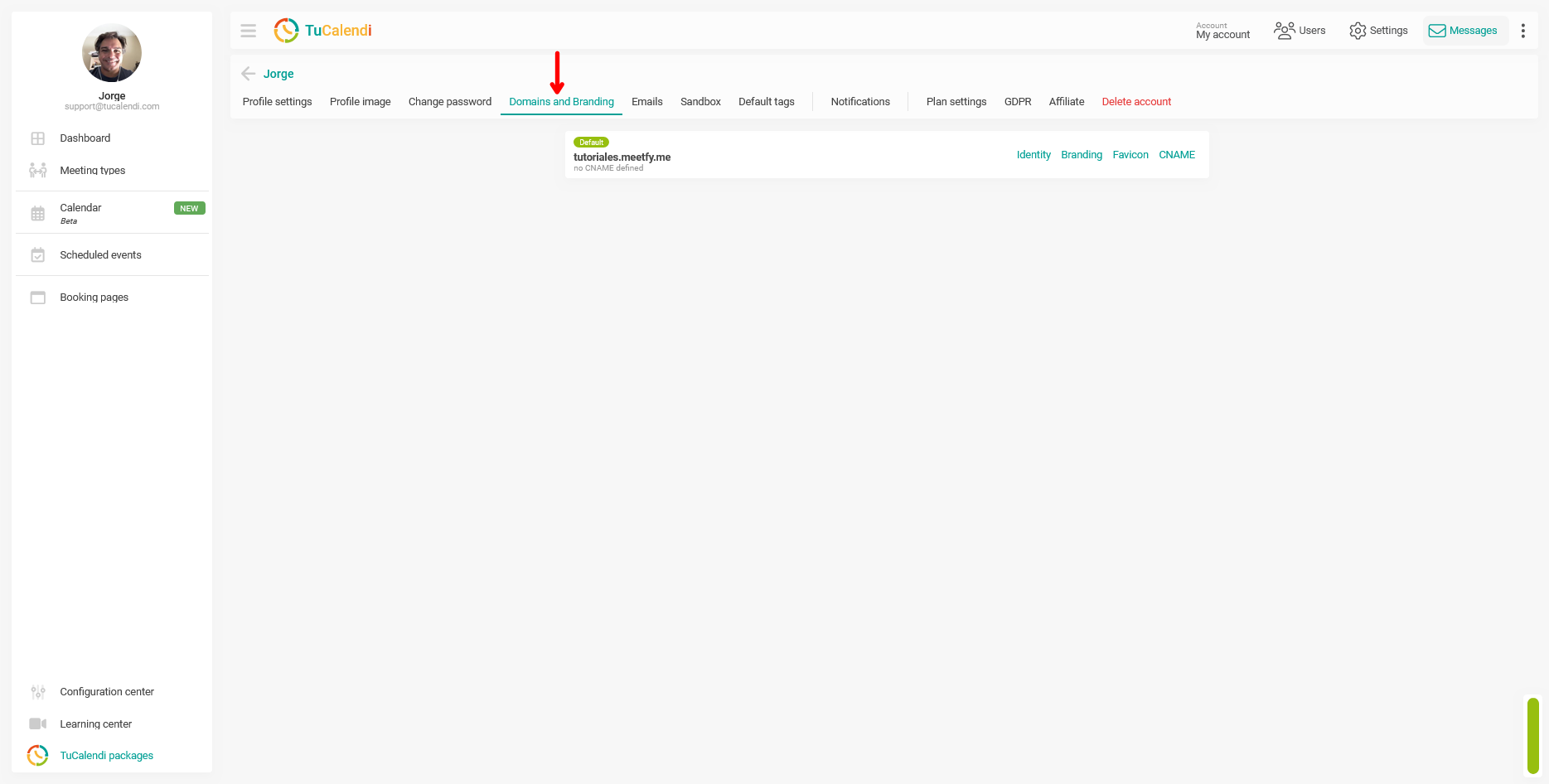
The main screen of this section displays your account’s active domain labeled “Default” along with the CNAME status. From here, you can also access the four configuration options available for that domain:
- Identity: Configure the name and details associated with the domain.
- Branding: Customize your company’s visual branding elements.
- Favicon: Set the icon that appears in the browser tab.
- CNAME: Configure your own custom domain instead of the TuCalendi subdomain.
Each of these options has its own detailed tutorial. This tutorial explains only how to access the section.
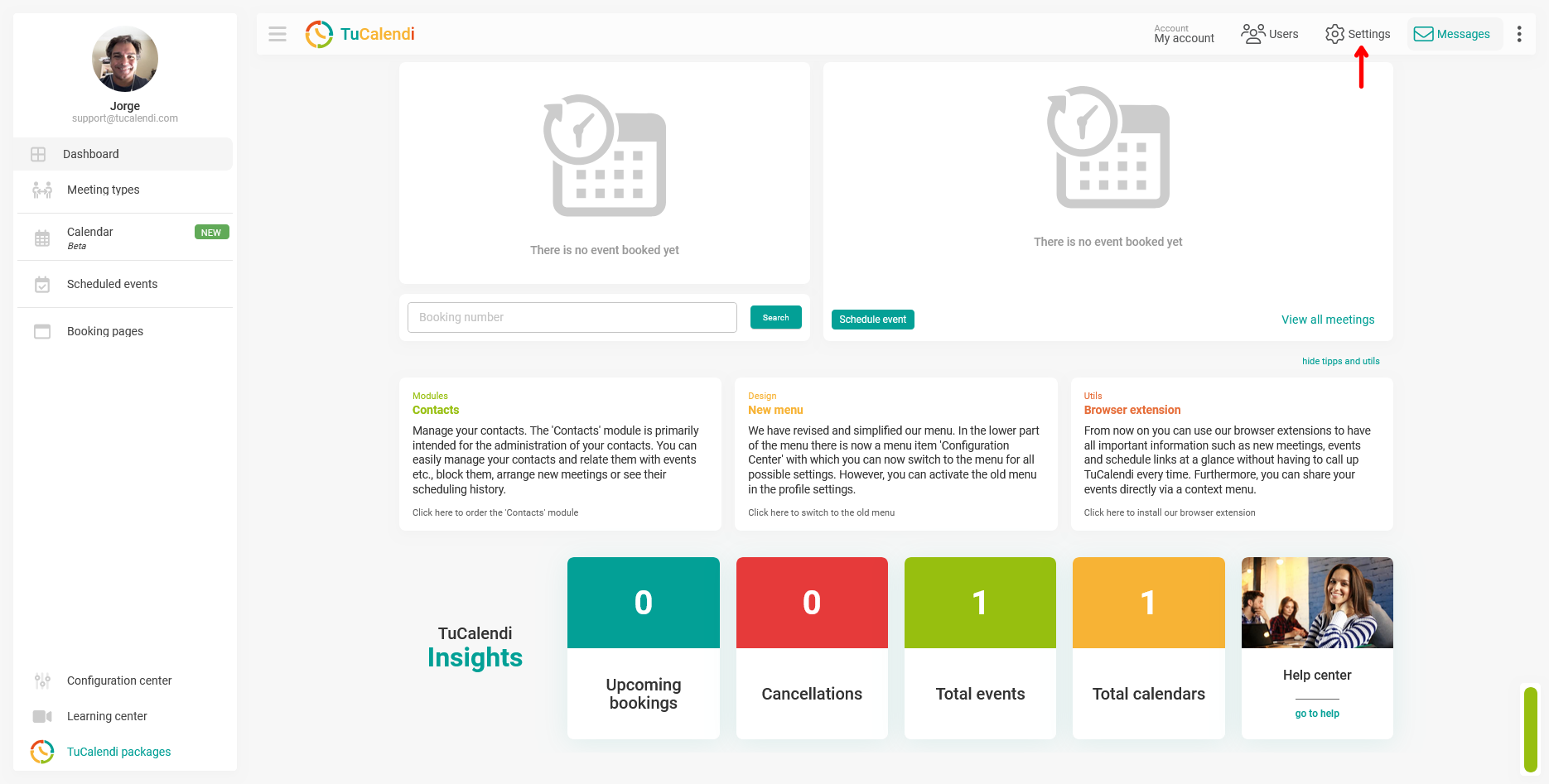
Step 1. Go to Settings
Click "Settings" in the top navigation bar of TuCalendi.
Step 2. Select "Domains and Branding"
In the horizontal menu of options at the top of the screen, click "Domains and Branding".
Your account’s active domain will be displayed with the label “Default”, and to the right, you’ll see the four configuration links: Identity, Branding, Favicon, and CNAME.
Process Overview
To access the Domains and Branding section, click "Settings" in the top bar of TuCalendi and select "Domains and Branding" from the horizontal menu. There you’ll see your account’s active domain and links to the configuration options: Identity, Branding, Favicon, and CNAME each with its own detailed tutorial.