How to Get the Button-Style Embed Code for the TuCalendi Widget
This tutorial explains how to get the button-style embed code for the TuCalendi Widget. Unlike the inline widget, which is displayed directly on the page, the Button type adds a button to your website that, when clicked, opens the booking widget as a pop-up window. Additionally, the button can be configured as a floating button that remains visible at all times while the user browses the page.
Before you begin, TuCalendi lets you customize the button text, its visual appearance, and its colors directly from the code generator—no technical knowledge required.
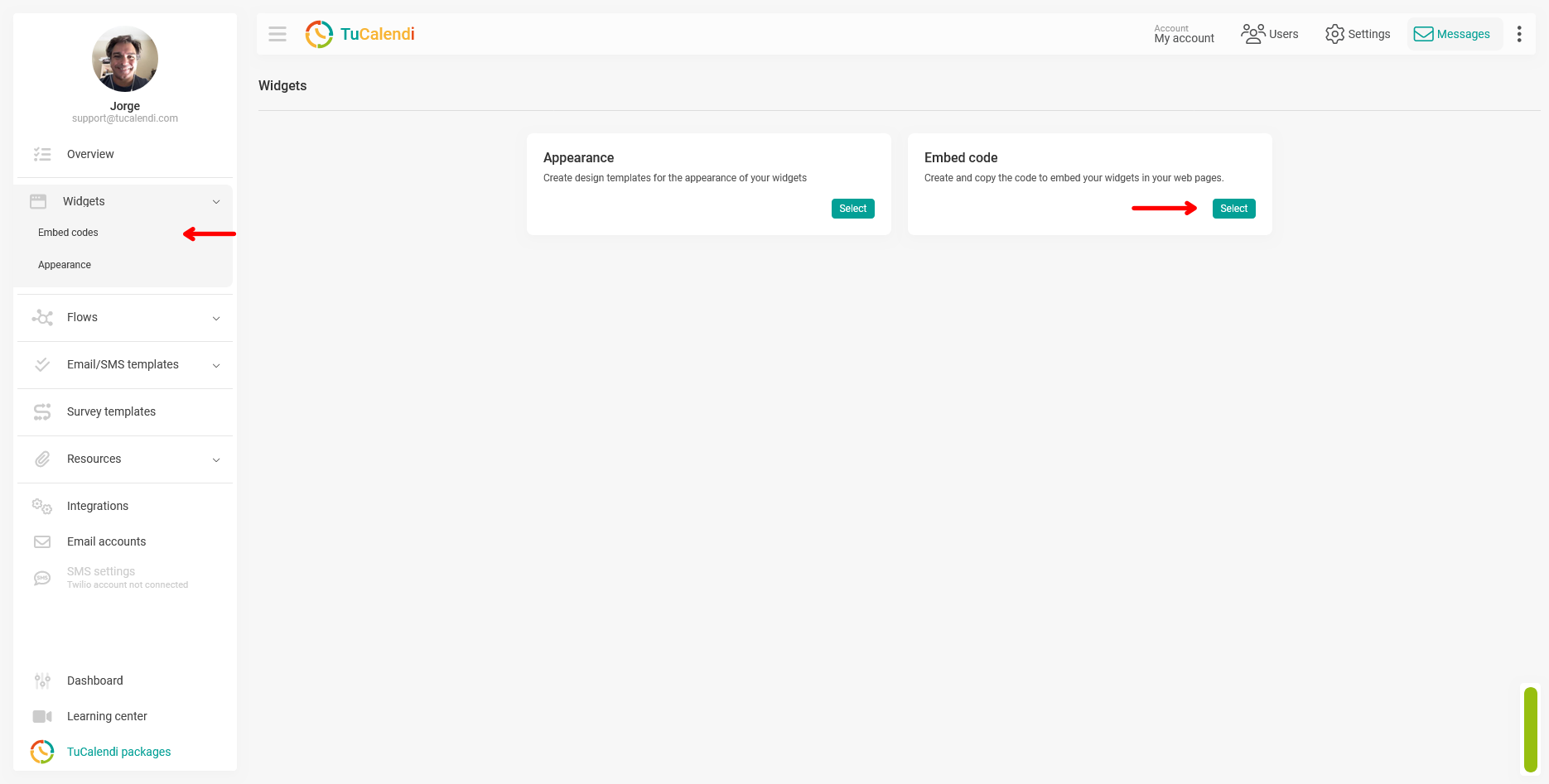
Step 1. Go to the Widgets section
From the TuCalendi side menu, click on Widgets and select "Embed Code" or click the "Select" button on the Embed Code card.
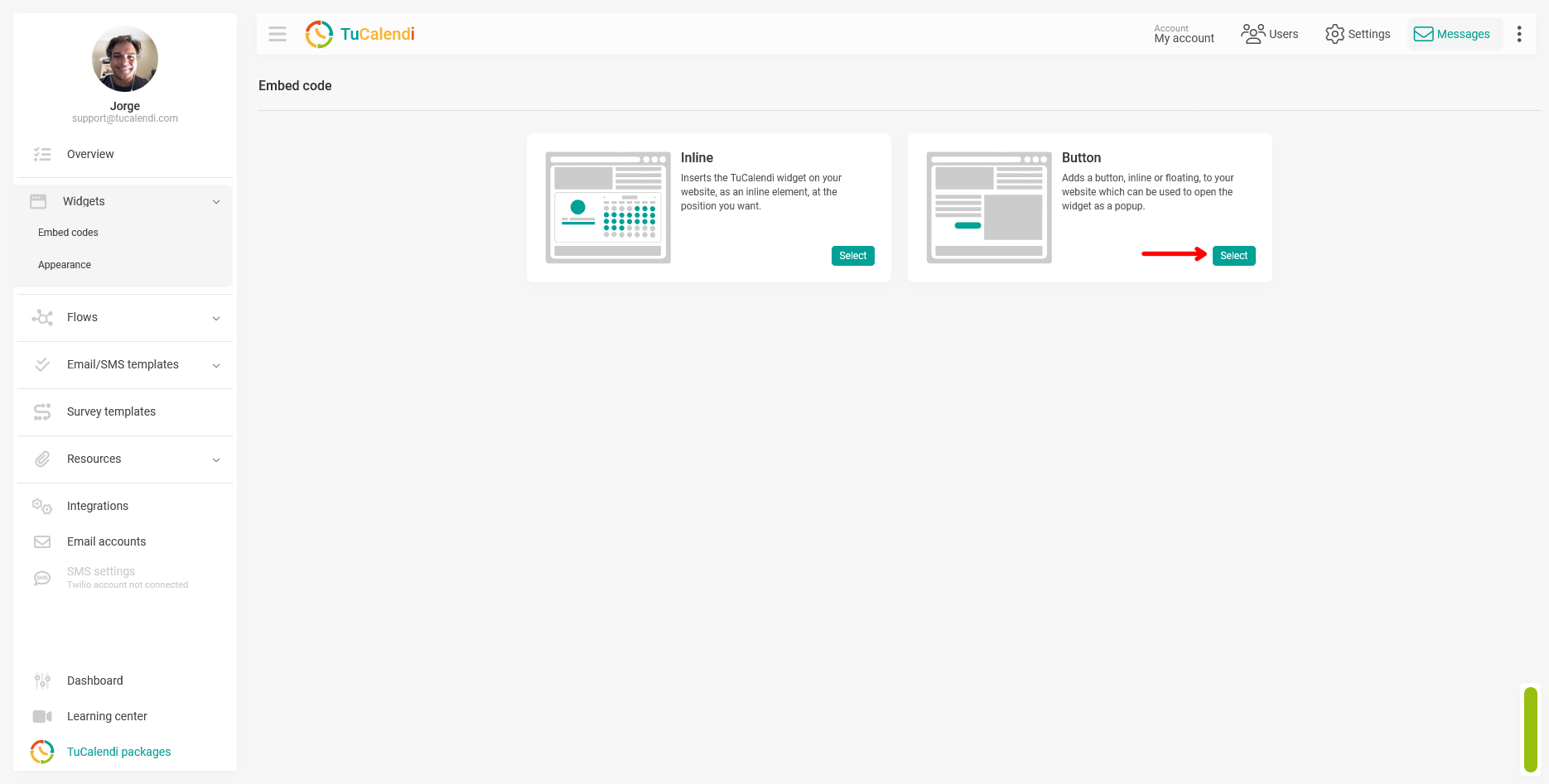
Step 2. Select the "Button" embed type
On the embed type selection screen, click the "Select” button on the Button card.
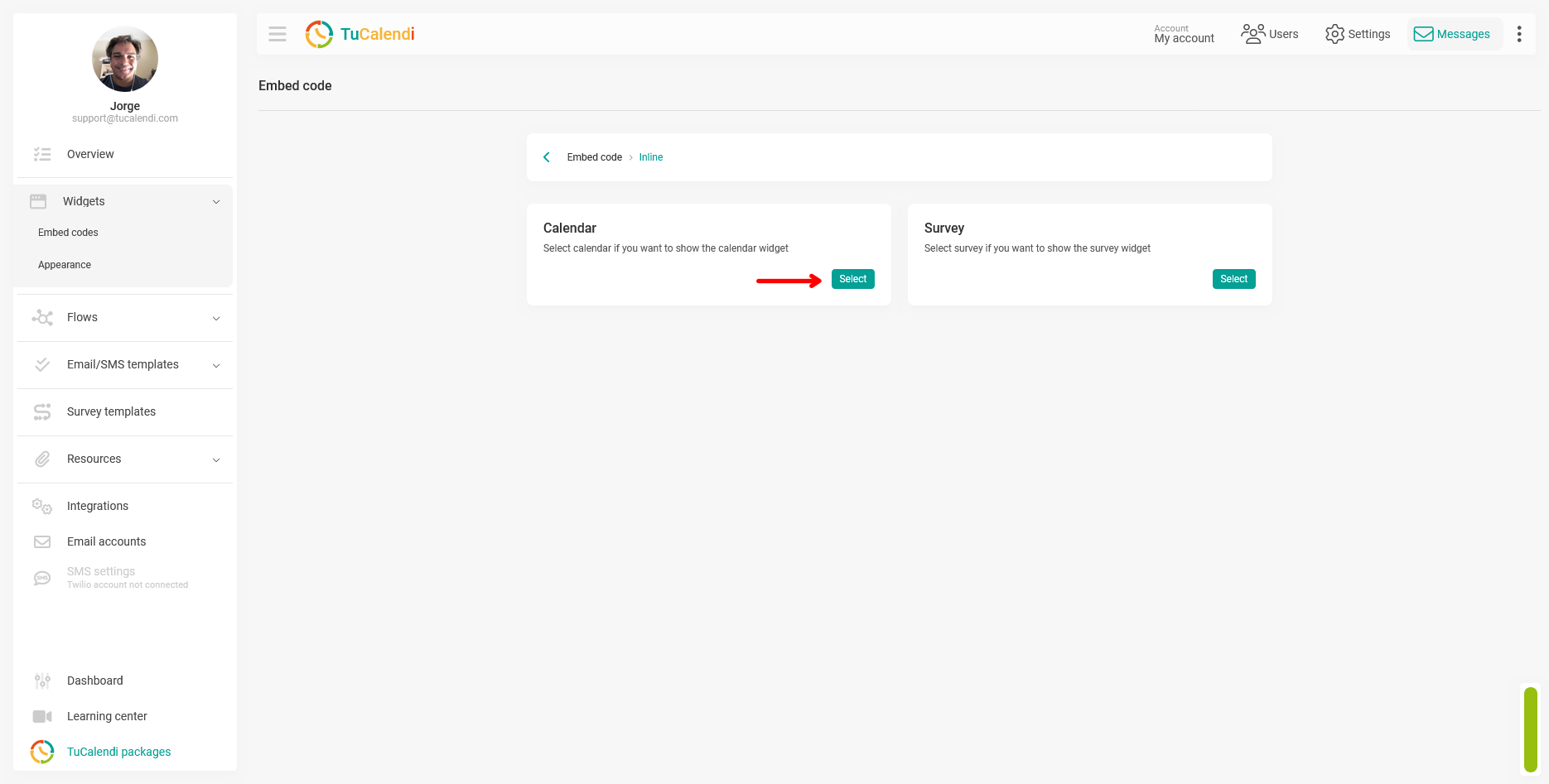
Step 3. Choose between Calendar and Survey
Next, choose which type of widget will open when the button is clicked: Calendar for the appointment booking widget, or Survey for a survey with routing. Click "Select" on the corresponding card—in this tutorial, the "Calendar" card.
Step 4. Select the event
Click the "Event" field to open the dropdown menu and select the event or calendar for which you want to generate the code.
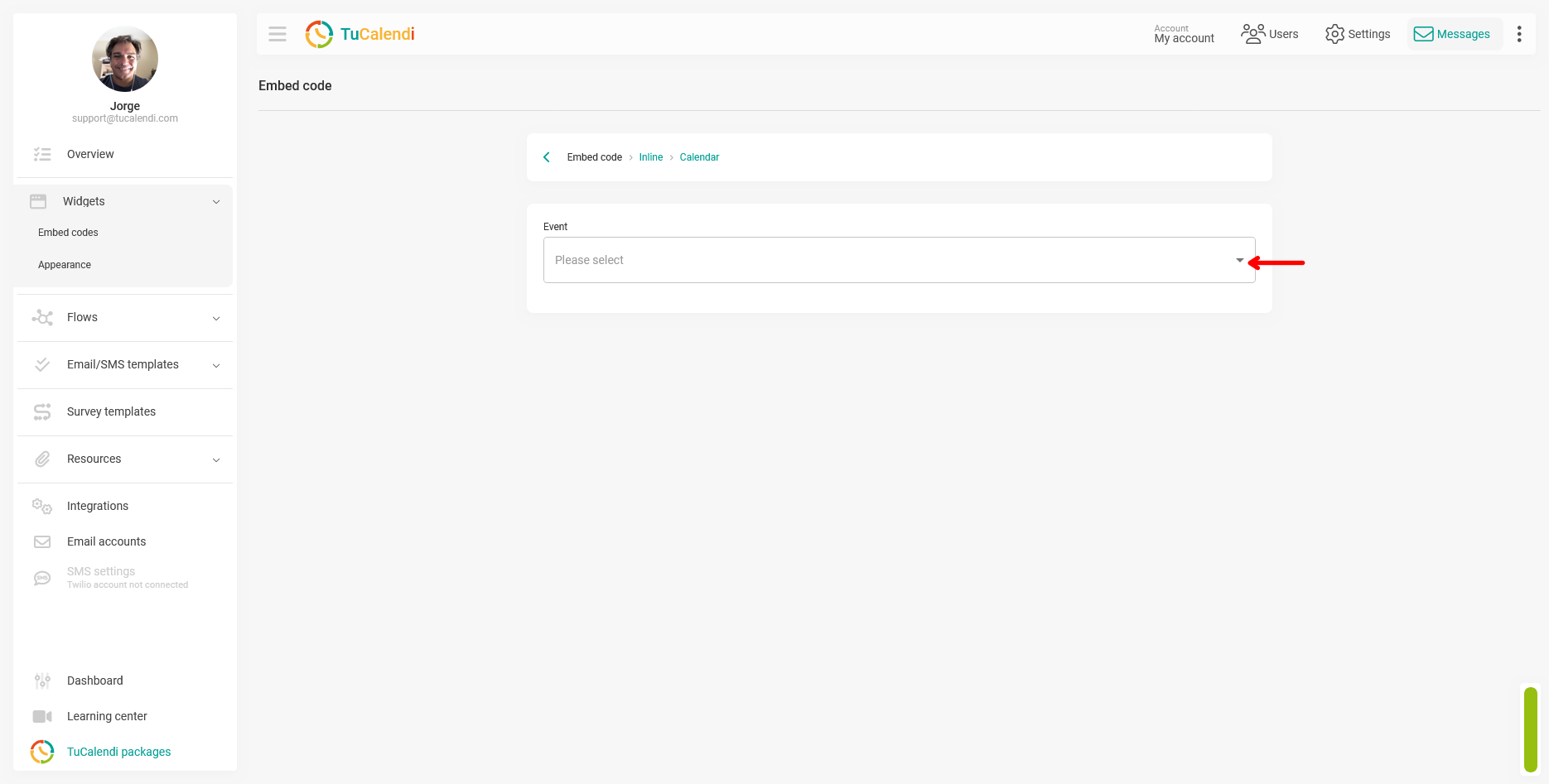
The menu displays the calendars and events available in your account, organized by category.
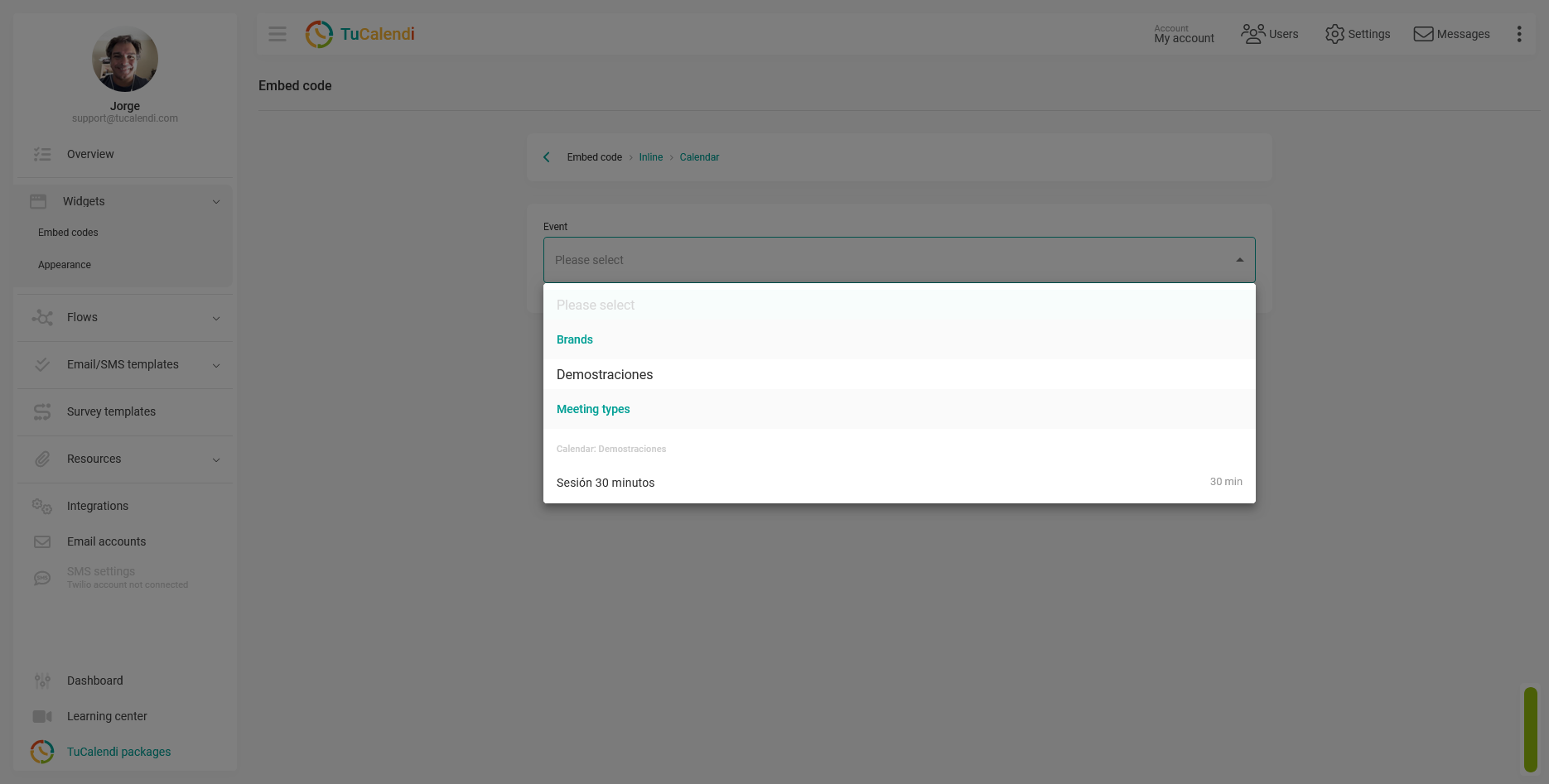
Step 5. Customize the button and copy the code
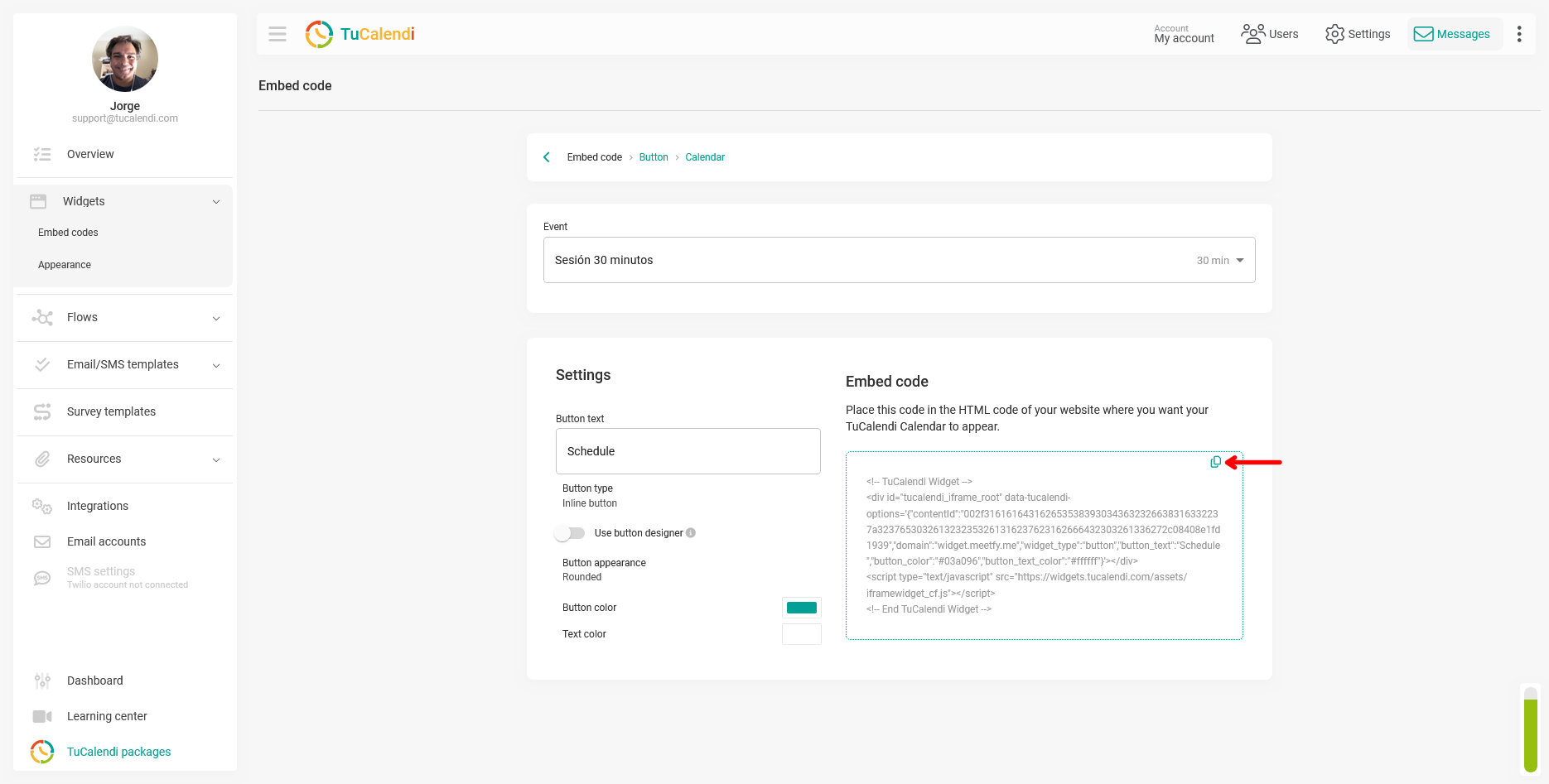
Once you’ve selected the event, TuCalendi displays two sections on the same screen:
- Settings: allows you to customize the button before copying the code. You can modify the button text (default: "Book"), the button type (inline or floating), the appearance (rounded or other options), the button color, and the text color. You can also enable the button designer for additional options.
- Embed Code: Displays the automatically generated HTML code based on your selected settings.
Once the button looks the way you want, click the "copy icon" that appears in the upper-right corner of the code box to copy it to the clipboard.
Process Overview
To get the button-type embed code for the TuCalendi Widget, go to "Widget Embed Codes", select the "Button" type, and choose "Calendar" or "Survey. " Select the desired event in the Event field. In the "Settings" section, you can customize the button’s text, appearance, and colors. When you’re ready, click the "copy icon" in the code box to copy it to the clipboard and paste it onto your website.