What to do after migrating to TuCalendi 3.0
After completing the migration to TuCalendi 3.0, your account will already be using the new structure based on meetfy.me. In most cases, you’ll just need to review a few items to confirm that everything is correct and update any content you’ve shared outside of TuCalendi.
Not all users will need to follow every step in this tutorial. If you didn’t have any published links, embedded widgets, polls, or custom domains, you likely won’t need to make any significant additional changes after migrating.
1. Check your domain in Domains and Branding
The first step after migrating is to review the Domains and Brand settings. To do this, log in to your TuCalendi 3.0 account and go to:
Settings → Domains and Branding
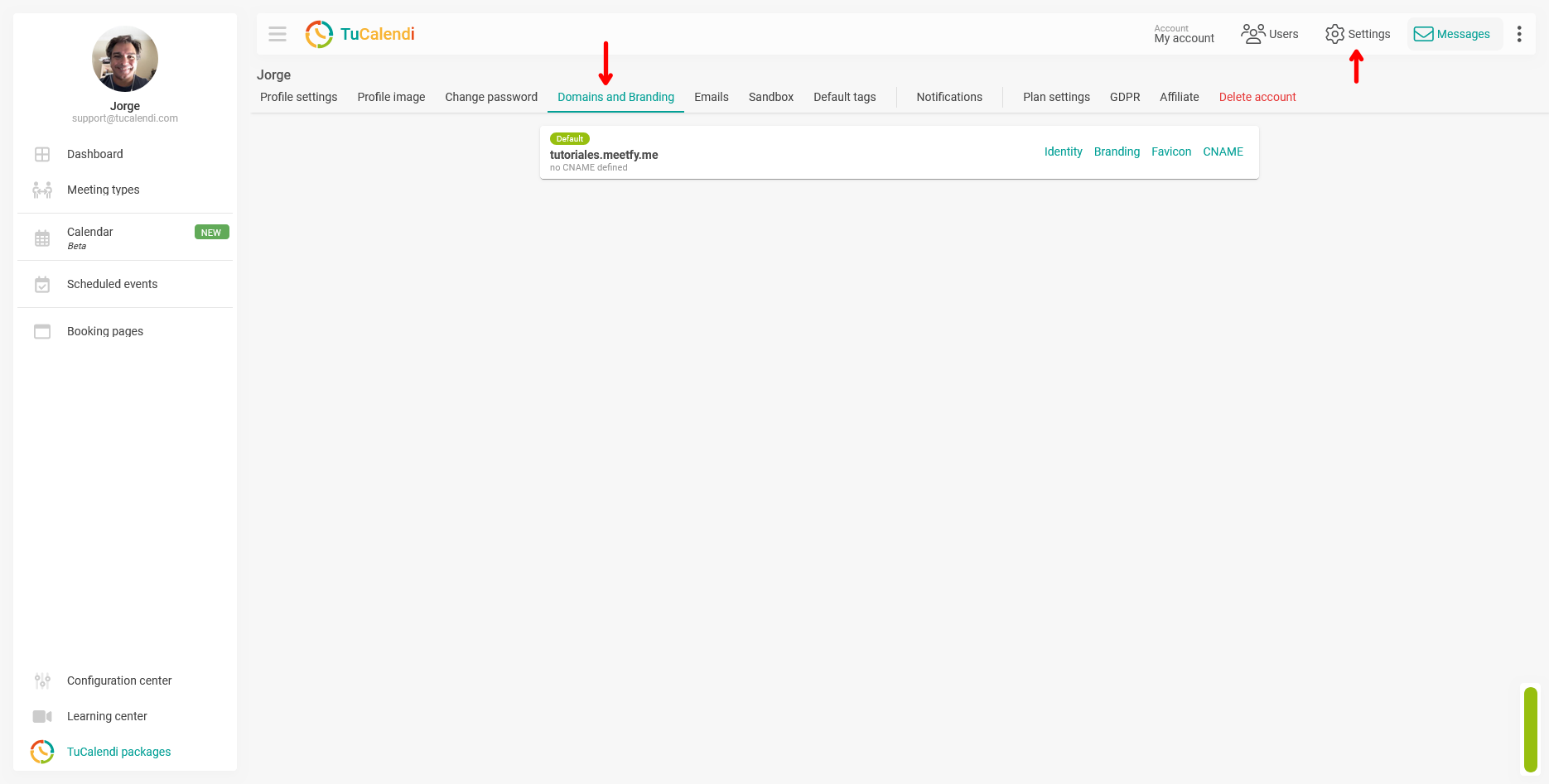
On this screen, you’ll see the primary domain associated with your account. If you’ve migrated from TuCalendi 2.0, you’ll typically see your new subdomain under meetfy.me, for example:
yourcompany.meetfy.me
Verify that the subdomain is as expected and that it matches the name you want to use for your booking pages, widget, and other public resources.
| Element | What to check |
| Primary domain | That the subdomain under meetfy.me is correct. |
| “Default” tag | Ensure the primary domain appears as the default domain. |
| Identity | Ensure that the company name and welcome message remain correct. |
| Branding | Check your company logo. |
| Favicon | It will be empty since this is a new option after the migration. |
| CNAME | If you use a custom domain, you’ll need to set it up again with your DNS provider |
If everything displays correctly, you don’t need to do anything else on this screen. If you notice that the domain isn’t what you expected, contact our support team before updating links on your website, emails, or campaigns.
2. Review the name and welcome message
Within the same Identity section, you can also review the basic information displayed on your main meetfy.me domain. This information helps your customers recognize your company when they access a booking page.
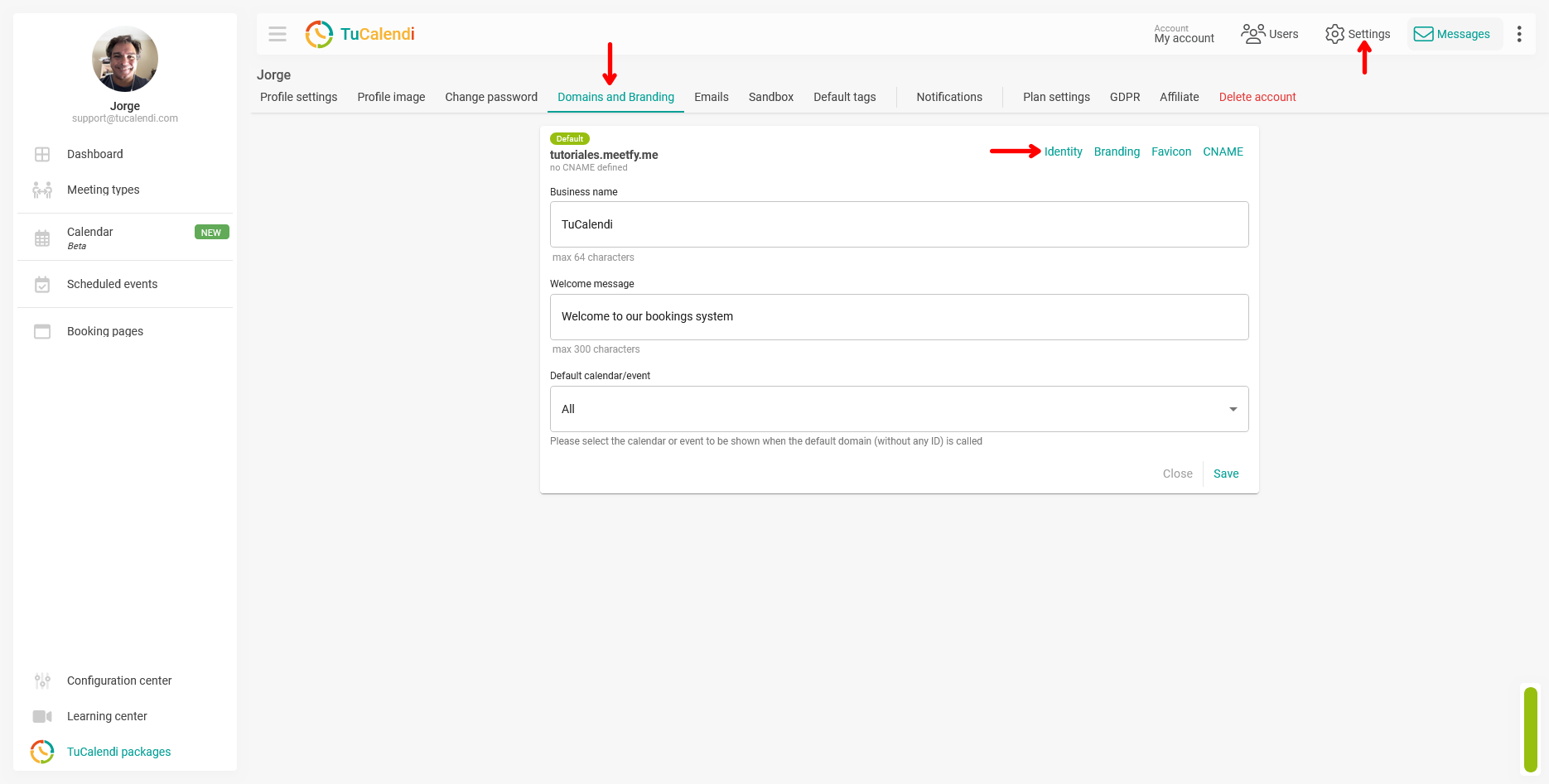
Pay special attention to the company name and welcome message, though it’s also important to select the content that will be displayed by default on the homepage of your meetfy.me subdomain. If these were already set up correctly before the migration, you likely won’t need to change them.
3. Check the widget’s appearance
Since TuCalendi 3.0 uses a new widget, also review the widget’s appearance after migrating, as there are new configuration options. To do this, go to the Settings Center and navigate to:
Widgets → Appearance
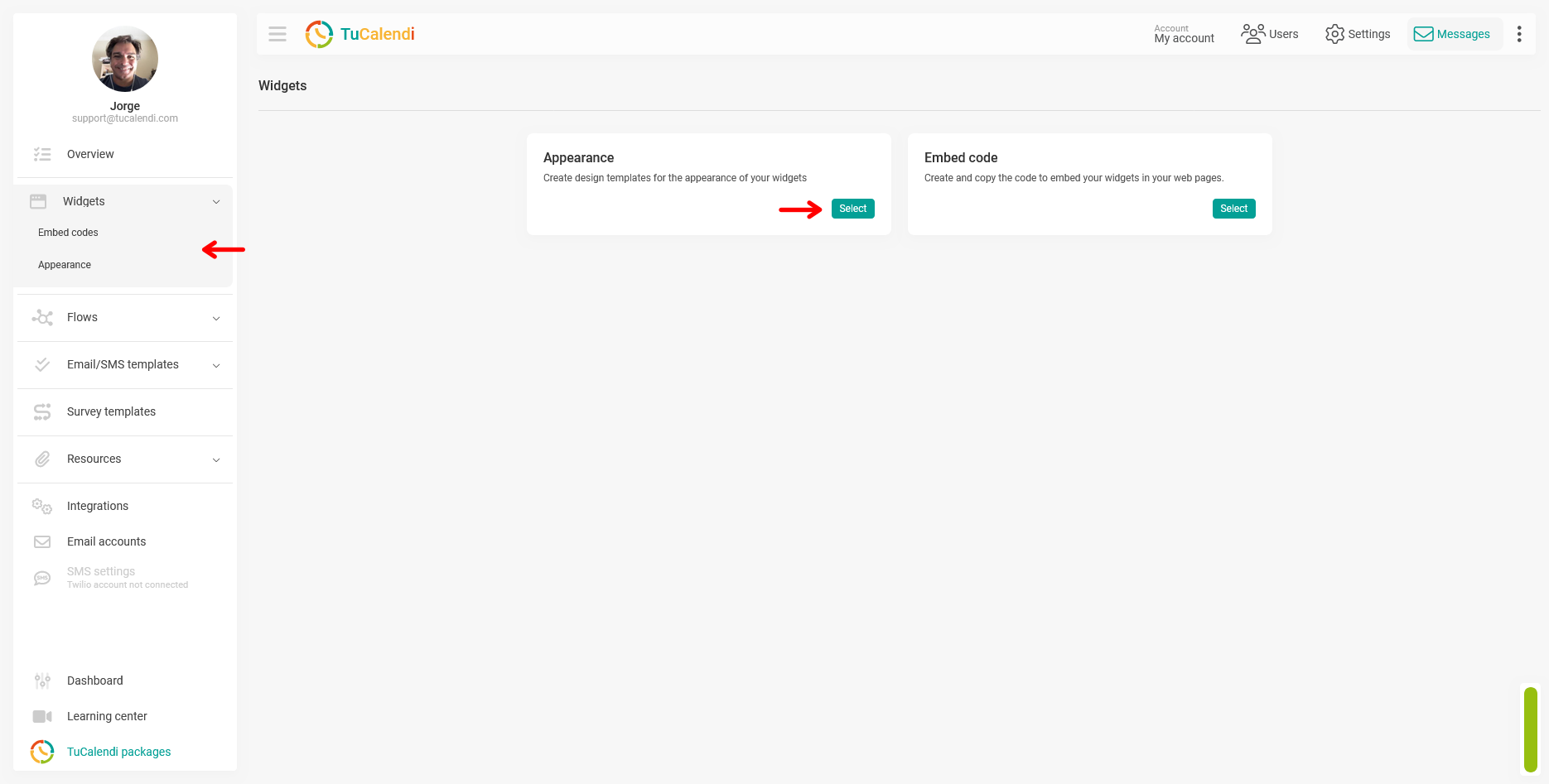
From this section, you can check the available design templates for your widgets and confirm that the appearance is still suitable for your website.
4. Update any public links you’ve shared
After verifying that your domain is correct and the widget’s appearance is correct, check if you’ve shared booking links outside of TuCalendi. For example, on your website, in emails, on social media, in campaigns, in documents, in email signatures, or in automated messages.
If your old links pointed to previous domains, you’ll need to replace them with the new links generated in TuCalendi 3.0.
| Where you might have old links | What to do after migrating |
| Website | Replace the old links with the new links for meeting types, hubs, booking pages, or surveys with routing. |
| Email signature | Update the link if it points to the old version. |
| Social media | Check booking buttons, bios, or featured links. |
| Campaigns or newsletters | Use the new link in future communications. |
| Documents or PDFs | Update them when you share or publish them again. |
You don’t need to check everything at once if you don’t use it. Start with the places where your customers book most often.
5. Replace the widget if you had it embedded on your website
If you were using the TuCalendi widget on your website, after migrating you’ll need to copy the new embed code from TuCalendi 3.0 and replace the old code on your site.
To do this, go to the widgets section and select the Embed Codes option. From there, you can copy the new code prepared for TuCalendi 3.0.
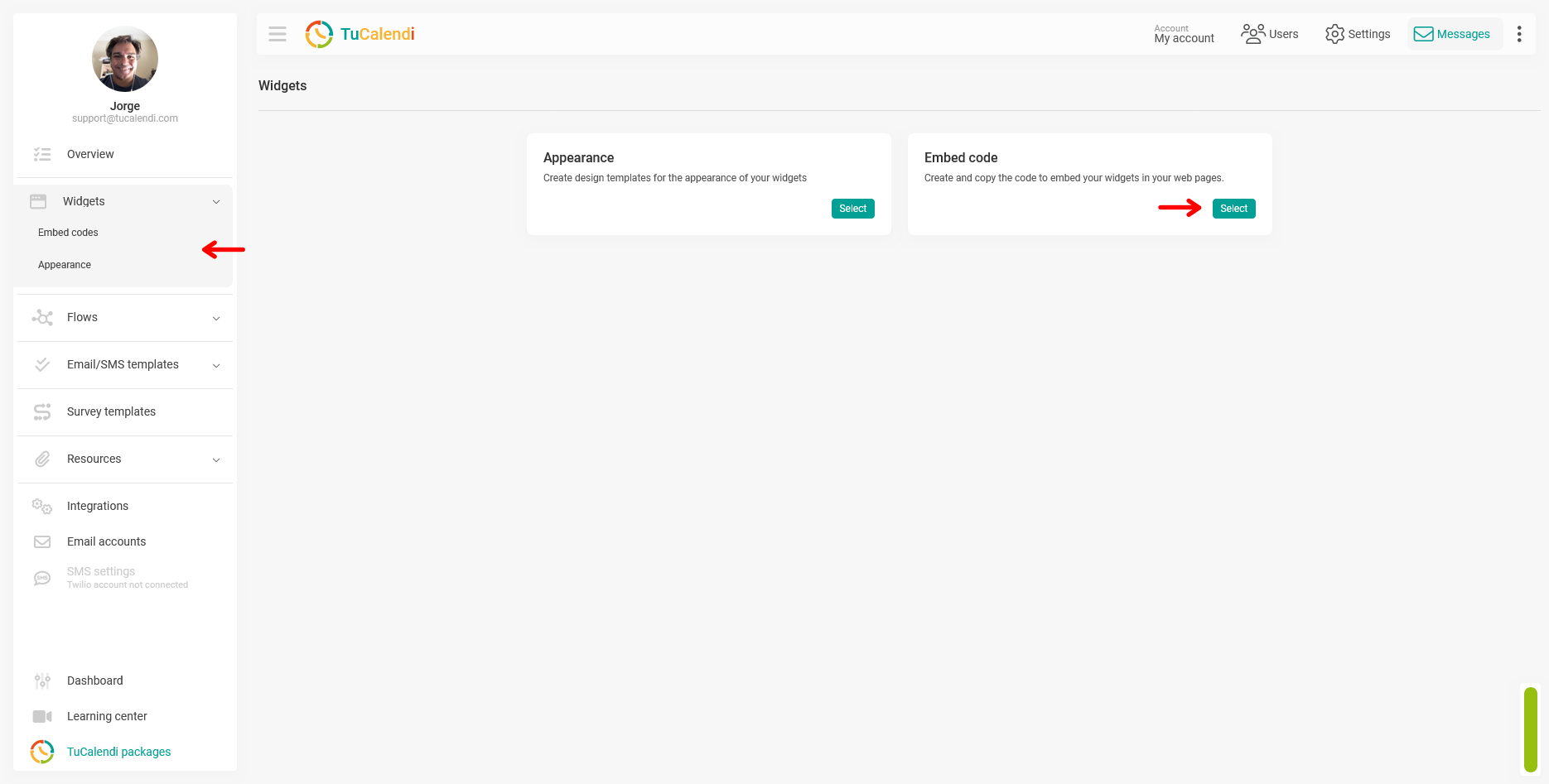
This step is important because the new widget is designed to work with the current structure of TuCalendi 3.0 and the new meetfy.me domain.
If you didn’t have any widgets embedded on your website, you can skip this step.
6. Check your CNAME if you use a custom domain
If you use a custom domain via CNAME, check the settings after migrating. In TuCalendi 3.0, the CNAME can be applied to more resources, such as hubs, meeting types, booking pages, and surveys, depending on your plan.
In the Domains and Branding section, go to the CNAME tab and review your custom domain settings. If you were already using CNAME before migrating, you’ll need to set it up again with your DNS provider.
Summary
After migrating to TuCalendi 3.0, the most important thing is to verify that your primary domain is correct and update only what you were using outside of TuCalendi.
| Step | Action |
| 1 | Check your primary domain in Domains and select it. |
| 2 | Review the company name, welcome message, and default content for the subdomain. |
| 3 | Check the widget's appearance if you use it on your website. |
| 4 | Update any public links you’ve shared outside of TuCalendi. |
| 5 | Replace the widget code if you had it embedded on your website. |
| 6 | Check or recreate the CNAME if you’re using a custom domain. |
In other tutorials, we’ll go over each of these points in detail.