How to Configure Domain Identity
The "Identity" option under "Domains and Branding" lets you configure three basic aspects of your domain's presence on TuCalendi: the company name displayed to your customers, the welcome message that appears on your booking page, and the content that is displayed by default when someone accesses your domain directly without any specific identifier in the URL.
- Company name.
- Welcome message.
- Default calendar/event.
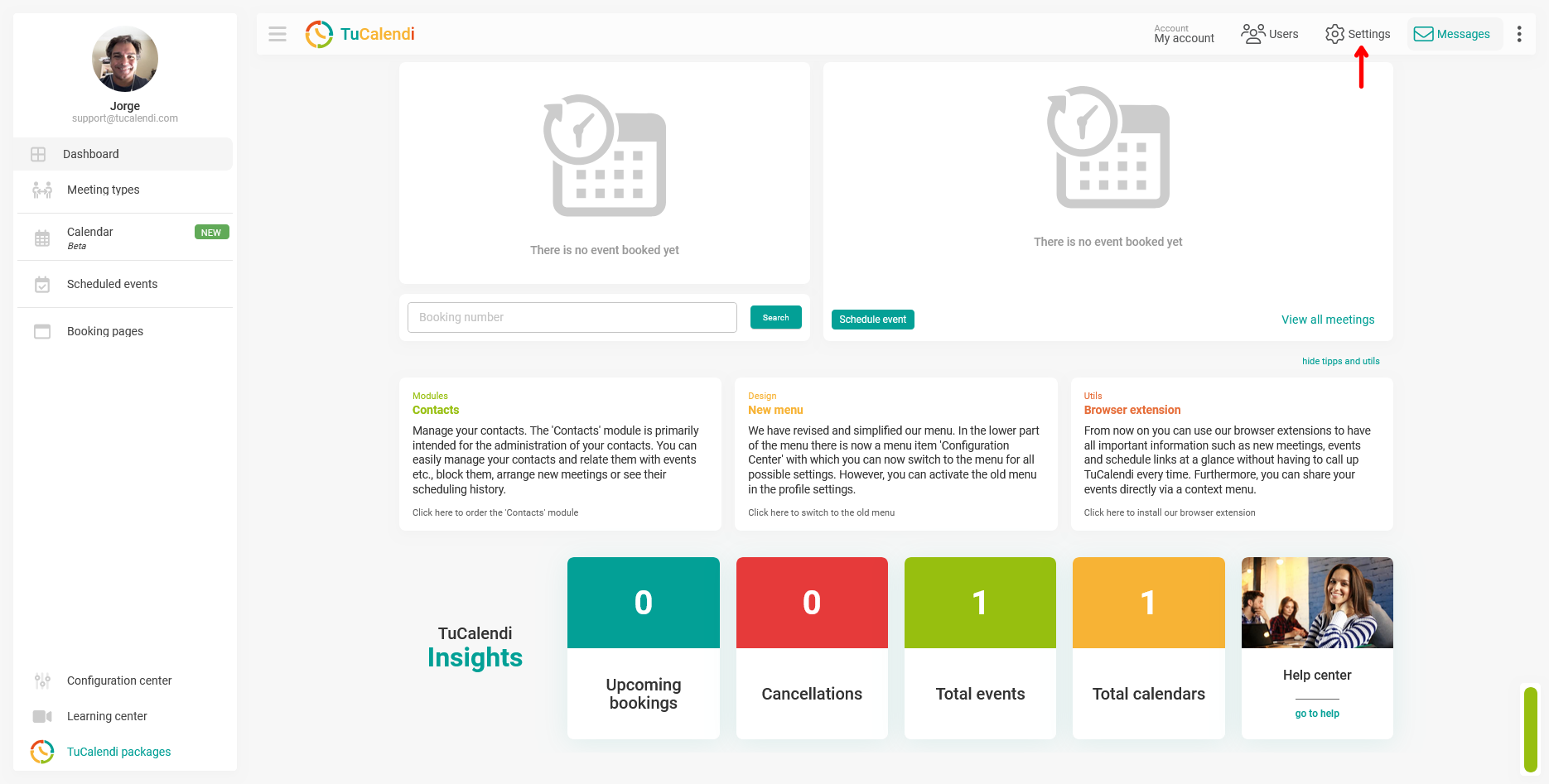
Step 1. Go to Settings
Click "Settings" in the top navigation bar of TuCalendi.
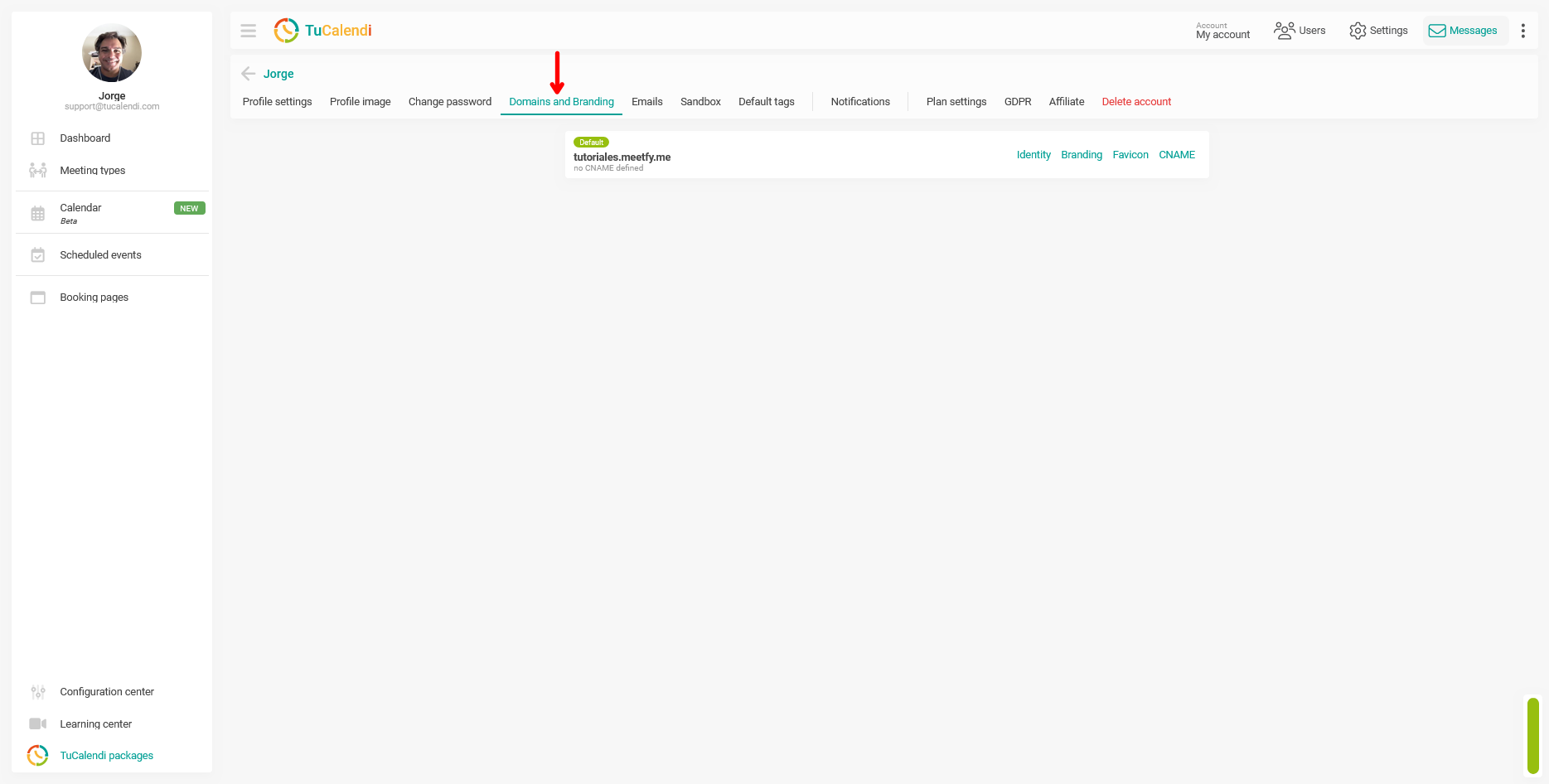
Step 2. Select "Domains and Branding"
In the horizontal menu of options that appears at the top of the screen, click "Domains and Branding. "
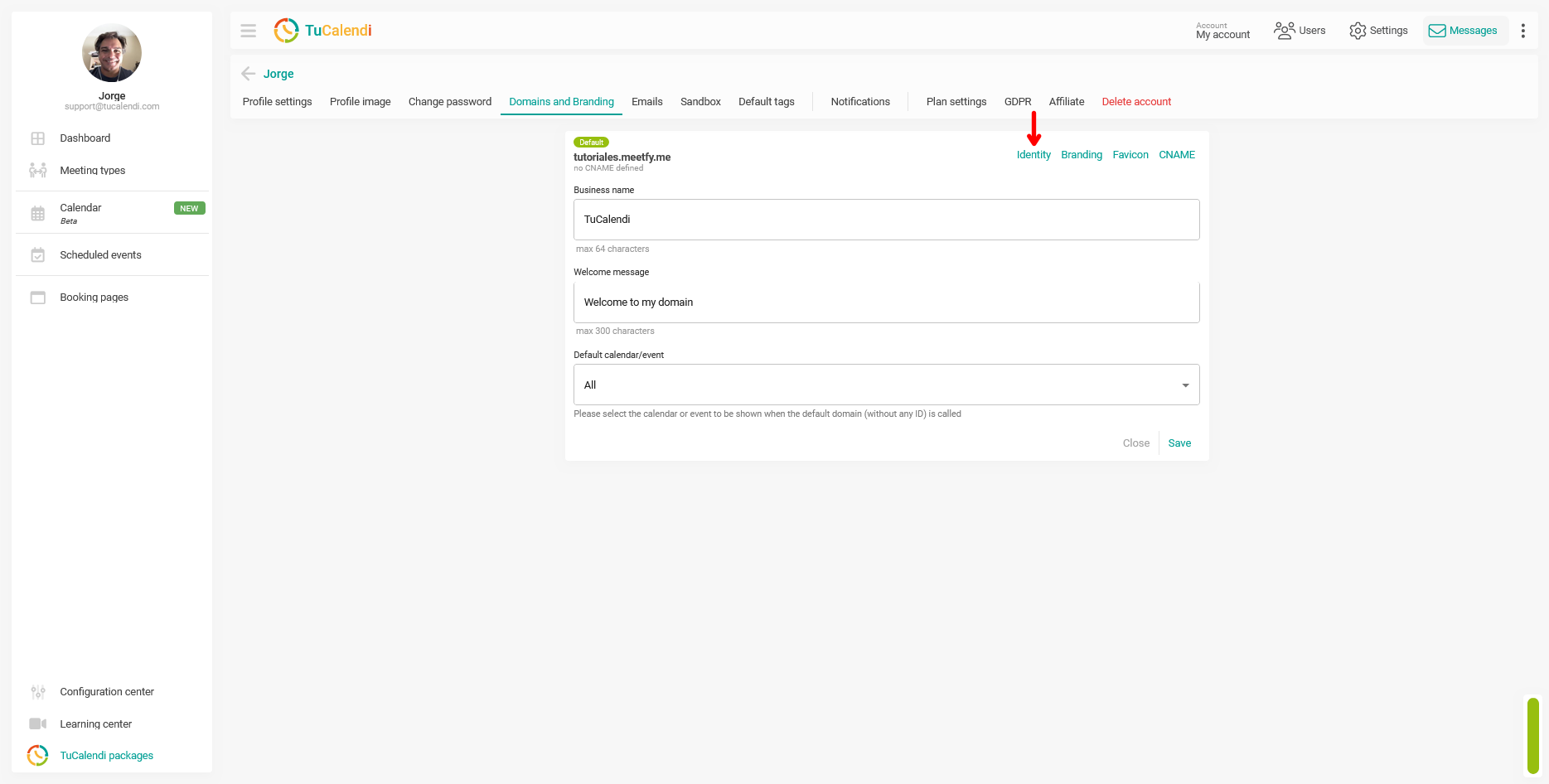
Step 3. Open the "Identity" option
On the "Domains and Branding" screen, locate your active domain and click the "Identity" link on the right.
Step 4. Fill in the identity fields
Fill in the available fields:
- Company Name: Enter the name you want to appear on your booking page. It has a 64-character limit.
- Welcome message: Enter the text your customers will see when they access your domain. The limit is 300 characters.
Step 5. Select the domain’s default content
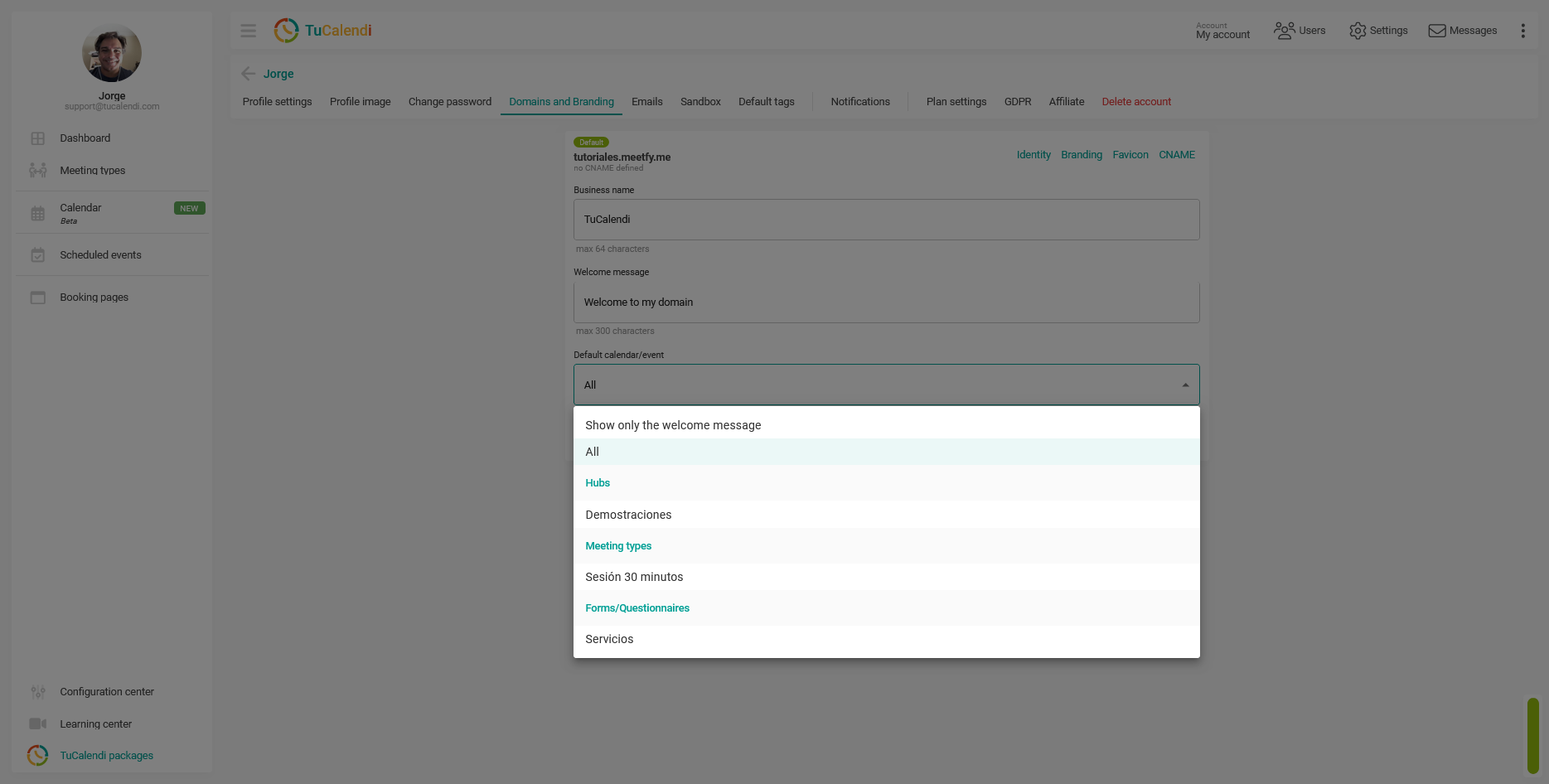
The "Default Calendar/Event" field determines what is displayed when someone accesses your domain directly, without any ID in the URL. When you open the dropdown menu, the available options are:
- Show only the welcome message: Only the welcome message is displayed, without any calendar or event
- All: All hubs available in the account are displayed.
- Specific hub (e.g., Demostraciones): Only that hub is displayed.
- Specific meeting type (e.g., Sesión 30 minutos): That specific meeting type is displayed directly.
- Specific form/questionnaire (e.g., Servicios): That specific form with routing is displayed directly
The options for hubs, meeting types, and forms/surveys are listed by the name of each item created in the account, grouped by category.
Step 5. Save the changes
Once all fields are filled out, click "Save" to apply the changes.
Process Overview
To configure your domain’s identity in TuCalendi, go to “Settings” from the top bar, select “Domains and Branding” from the horizontal menu, and click “Identity” next to your active domain. Enter the company name (max. 64 characters) and the welcome message (max. 300 characters). In the “Default calendar/event” field, choose what will be displayed when someone accesses your domain directly: just the welcome message, all hubs, or a specific hub, meeting type, or form/survey. Click “Save” to apply the changes.