How to Configure the Position of the Currency Symbol in the Widget
In this tutorial, we explain how to configure the position of the currency symbol in the TuCalendi widget. This option affects how the price is displayed for paid events within the widget, allowing you to adapt the format to the standard used in each country or region.
Depending on local conventions, in some countries the currency symbol is placed to the left of the amount (for example, $100 or £50), while in others it is placed to the right (for example, 100€). TuCalendi lets you choose between these two options so that the price is displayed in the way that feels most natural to the widget’s users.
Before You Begin
To follow this tutorial, you must go to the “Widget Appearance” section and have an appearance template created so you can edit it. The complete process for creating and assigning templates is explained in the general tutorial on how to create and assign a widget appearance template.
Step 1. Access the widget’s appearance
From the TuCalendi side menu, go to the Widgets section and select the Appearance option.
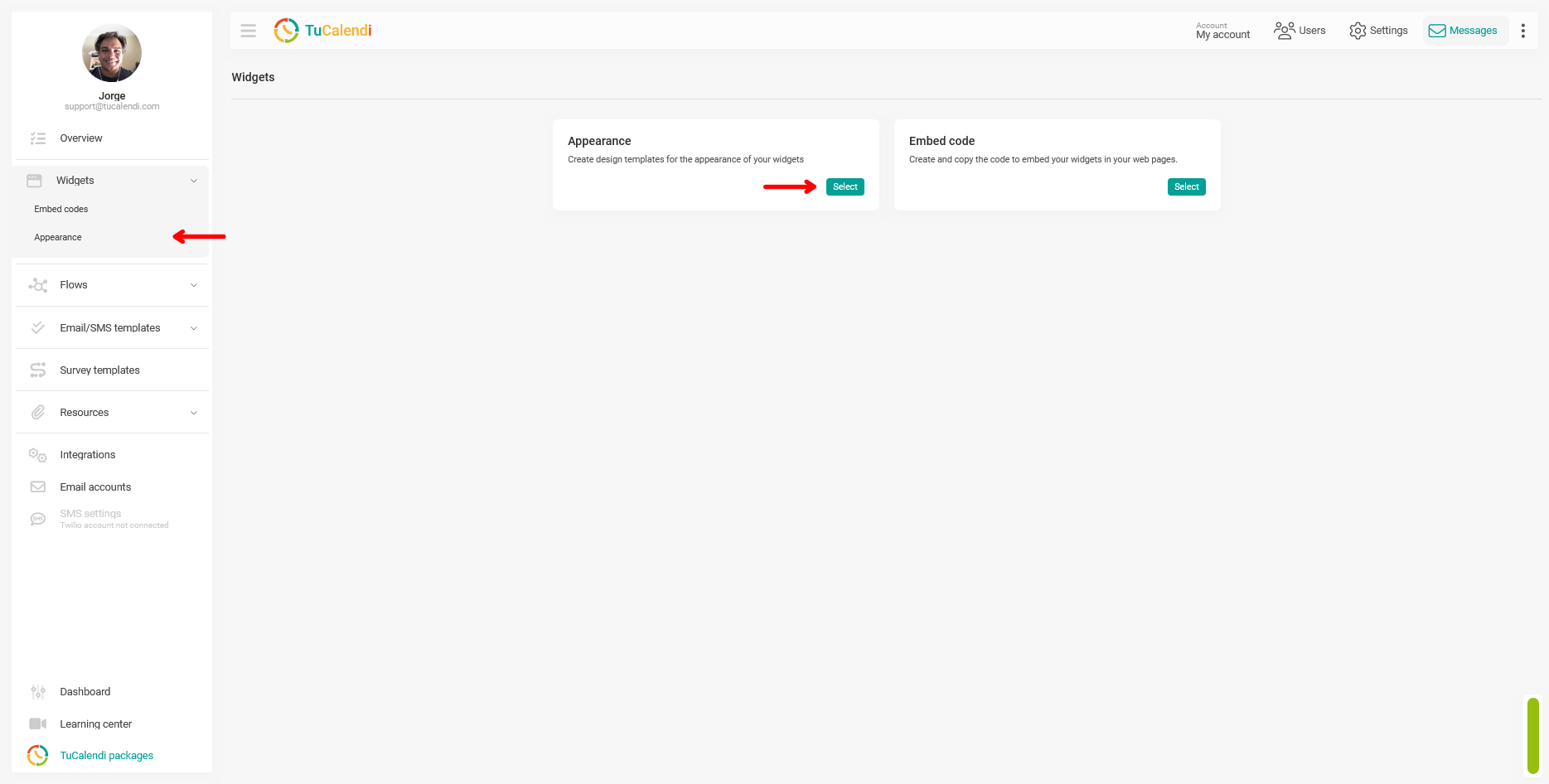
Step 2. Create or edit a widget appearance template
Within the Appearance section, create a new template or edit an existing one by clicking "Edit".
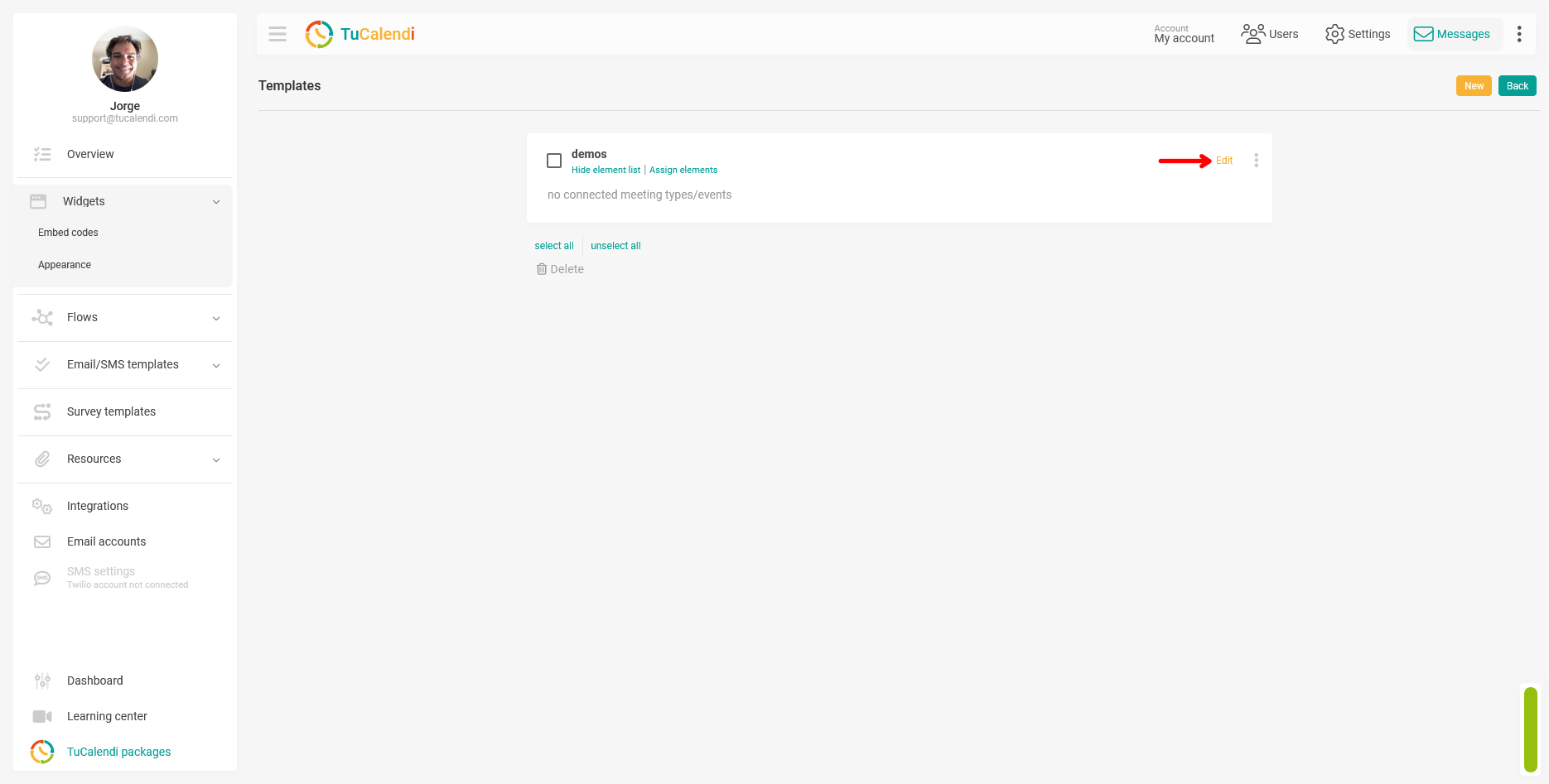
Step 3. Locate and configure the "Currency Position" field
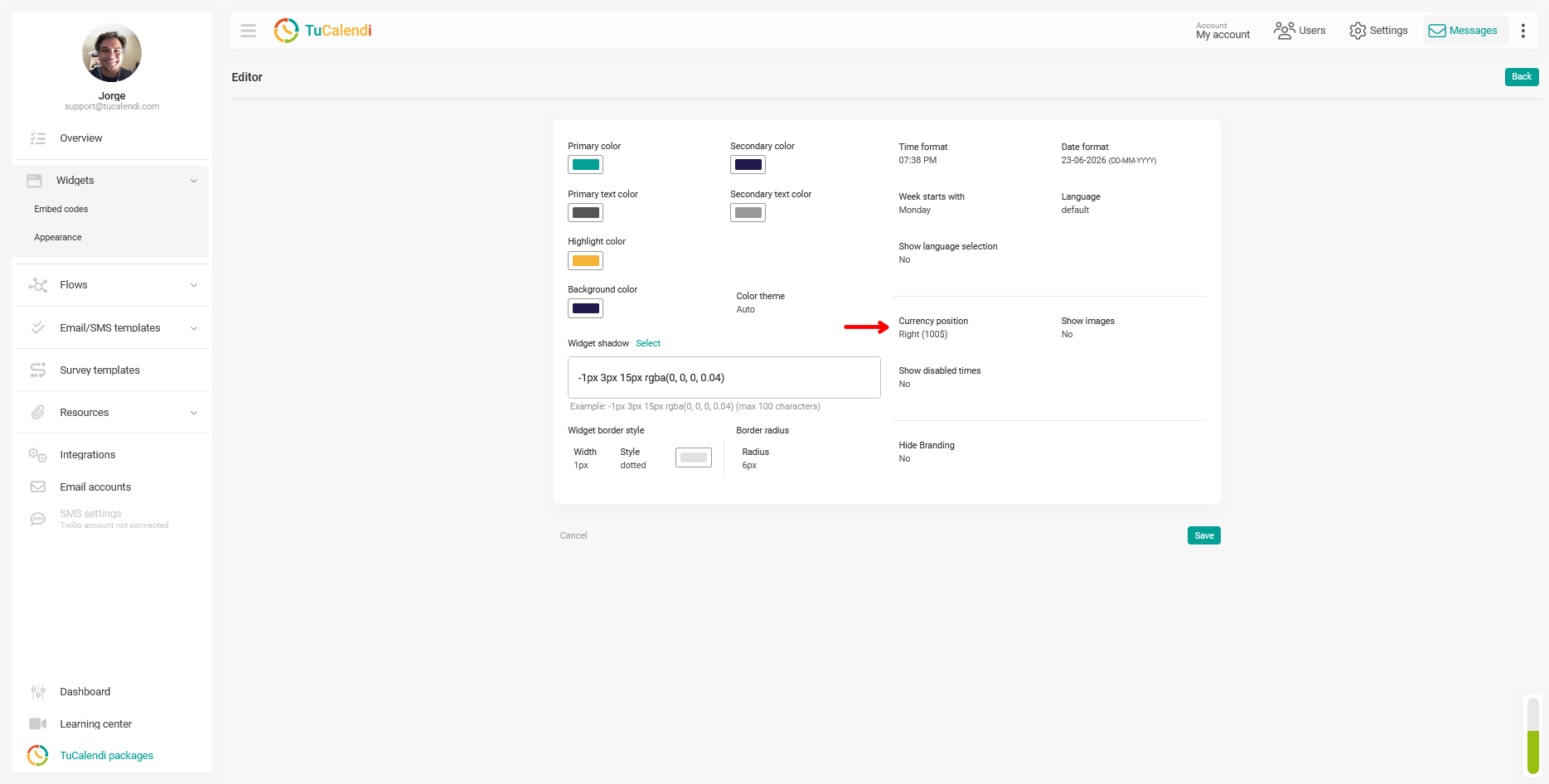
In the template editor, locate the "Currency Position" field. This field is located in the right column of the customization panel, in the central area, between the "Color Theme" field and the "Show Images" field.
Click the "Currency Position" field to select the desired position: "Left" to display the symbol before the amount, or "Right" to display it after.
The following screenshot shows exactly where the "Currency Position" field is located within the appearance editor, with the "Right" (100€) value selected.
Step 4. Save the changes
After selecting the desired position, click "Save" to apply the change to the theme template.
Step 5. Check the element assignment
Once the template is saved, verify that it is assigned to the corresponding hub or survey with routing. If the template is not assigned to any element, the change will not be reflected in any widget.
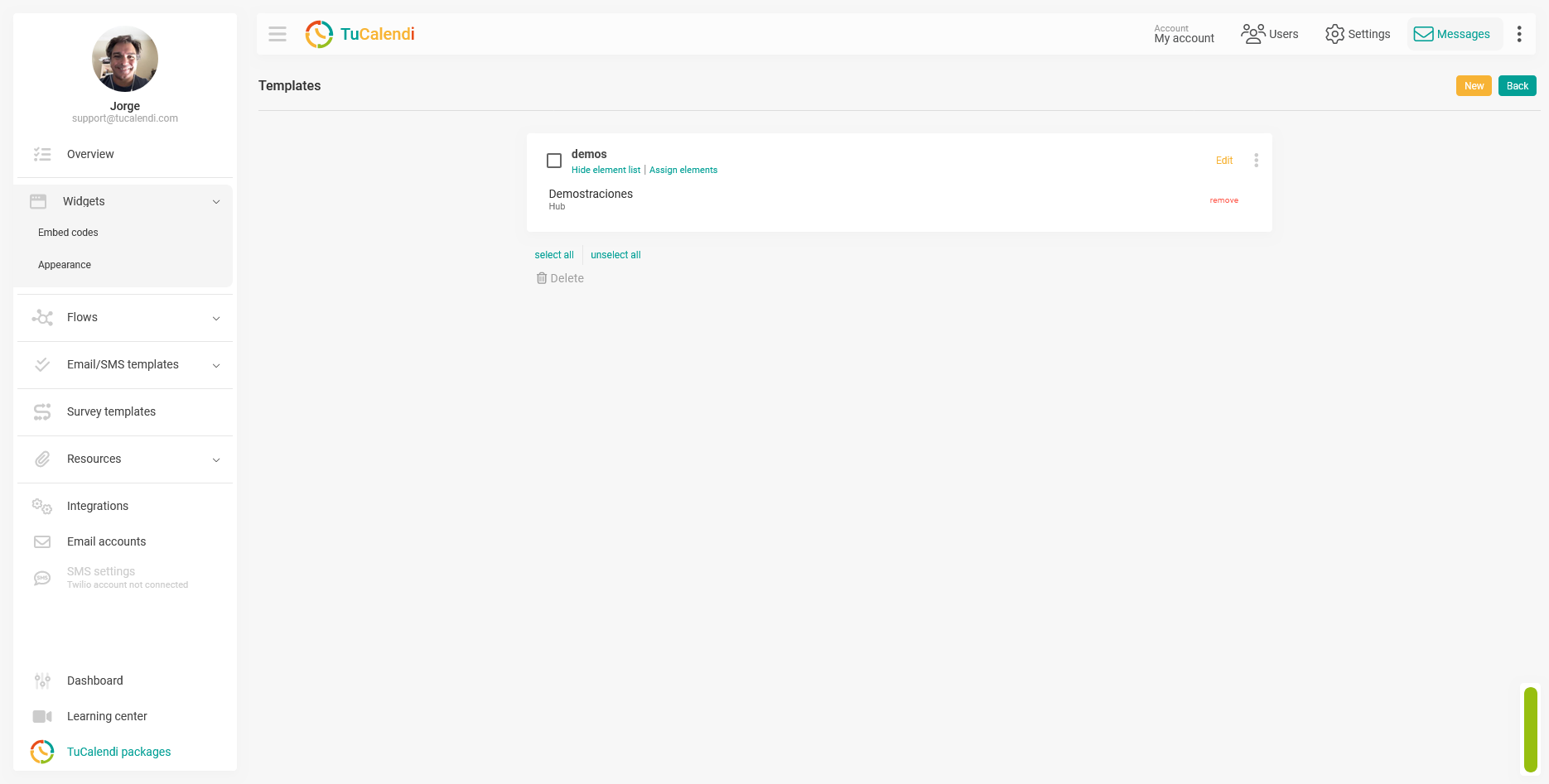
Process Summary
To configure the position of the currency symbol in payment events, go to "Widget Appearance" create or edit a template, and locate the "Currency Position" field. Select "Left" to display the symbol before the amount (for example, $100) or "Right" to display it after (for example, 100€). Click "Save" and verify that the template is assigned to the corresponding hub or survey.