How to Set the Widget's Language
This tutorial explains how to configure the language of the TuCalendi widget from a theme template. This option controls the language in which the common parts of the widget are displayed during the booking process, such as navigation text, buttons, and calendar labels.
The Language field offers two possible settings. When set to "Default" the widget automatically detects the user’s browser language and displays the common elements in that language. When a "Specific Language" is selected, the widget ignores the browser language and always displays the common elements in the chosen language, regardless of the user’s location.
Before You Begin
To follow this tutorial, you must go to the "Widget Appearance" section and have an appearance template created that you can edit. The complete process of creating and assigning templates is explained in the general tutorial on how to create and assign a widget appearance template.
Step 1. Access the widget’s appearance
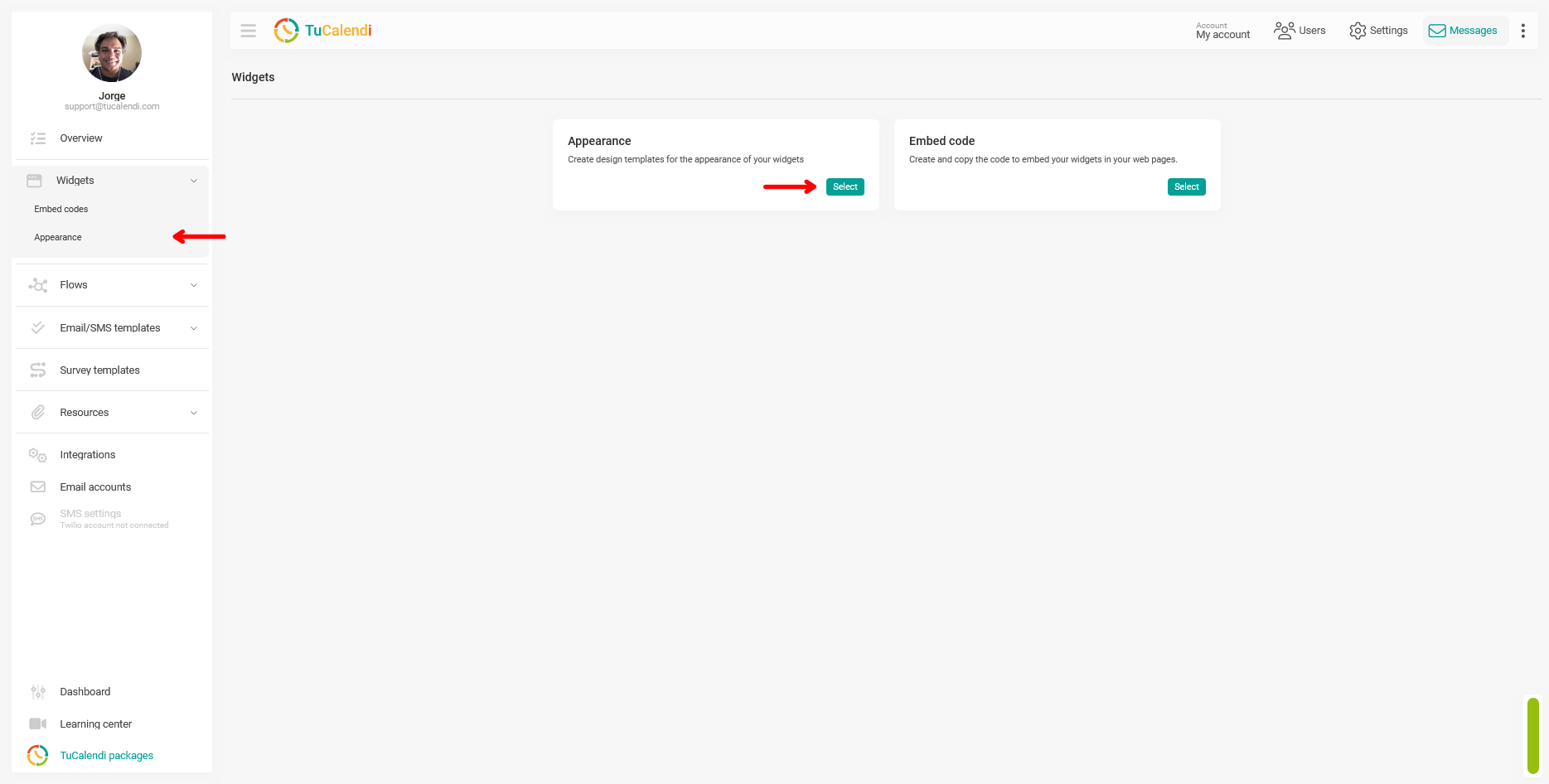
From the TuCalendi side menu, go to the "Widgets" section and select the "Appearance" option.
Step 2. Create or edit a widget appearance template
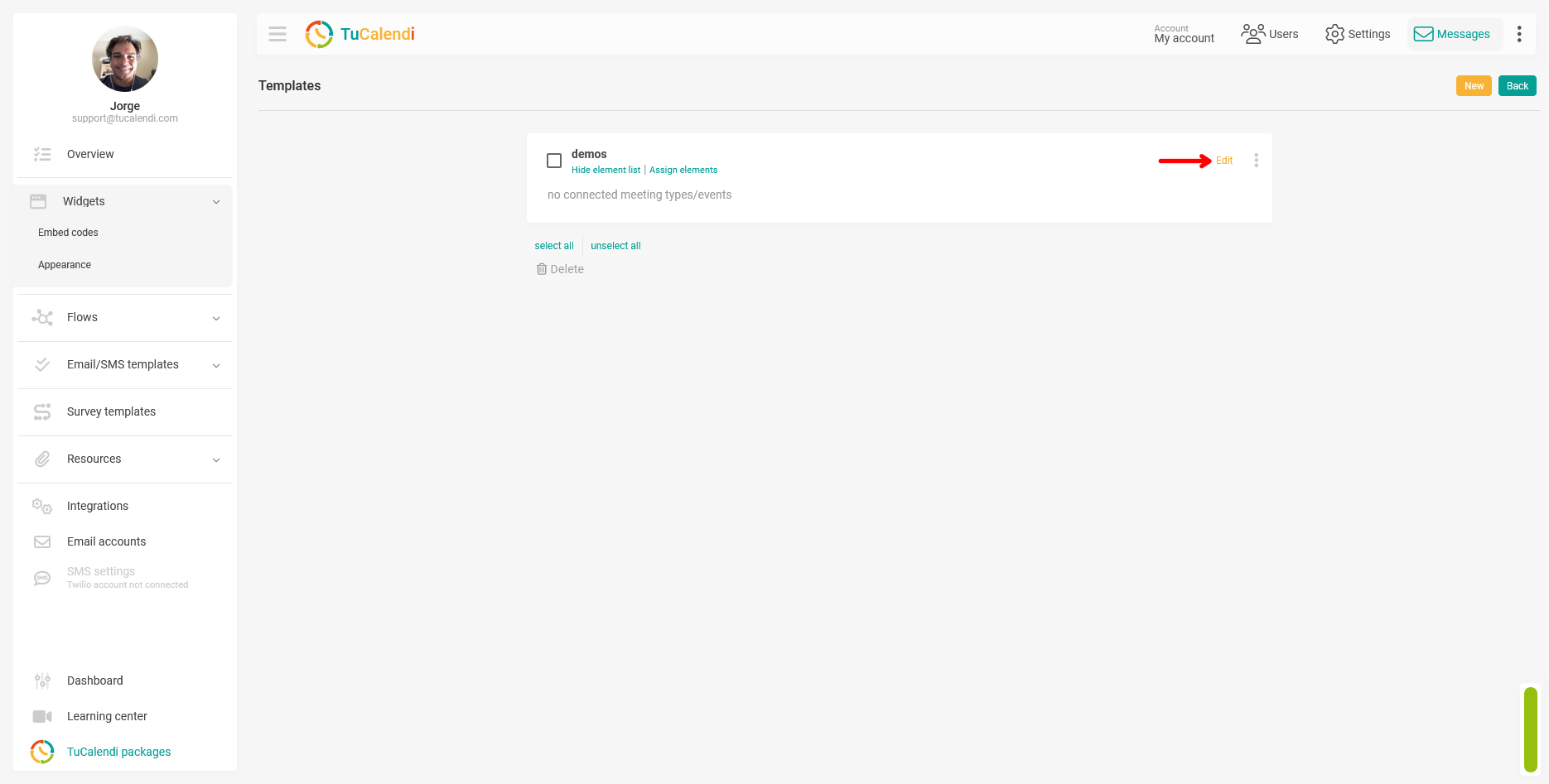
Within the Appearance section, create a new template or edit an existing one by clicking "Edit".
Step 3. Locate and configure the "Language" field
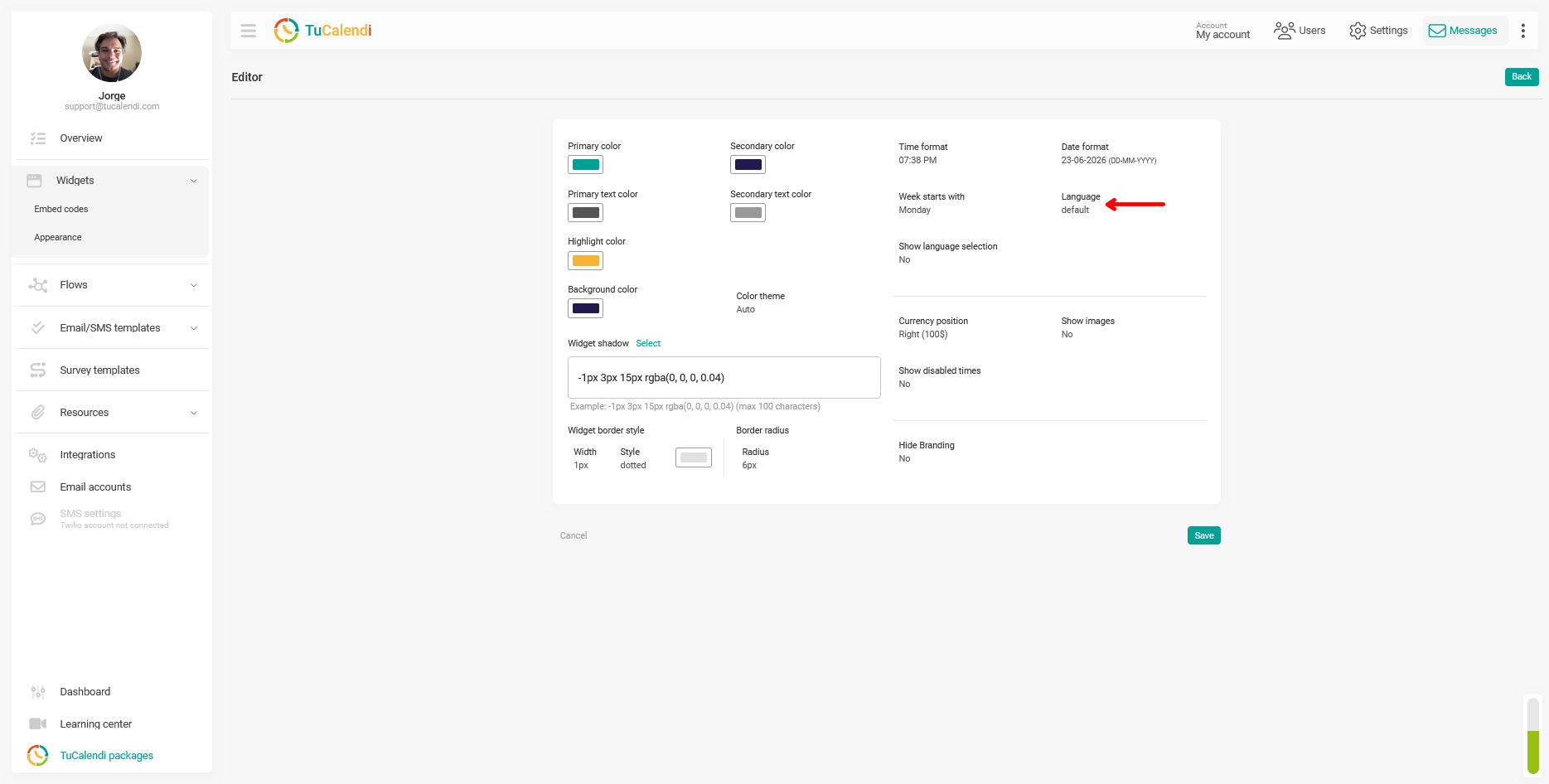
In the template editor, locate the "Language" field. This field is located in the upper-right corner of the customization panel, next to the "Week starts on" field.
Click the "Language" field to select the desired option.
Step 4. Save the changes
After configuring the language, click "Save" to apply the change to the theme template.
Step 5. Check the element assignments
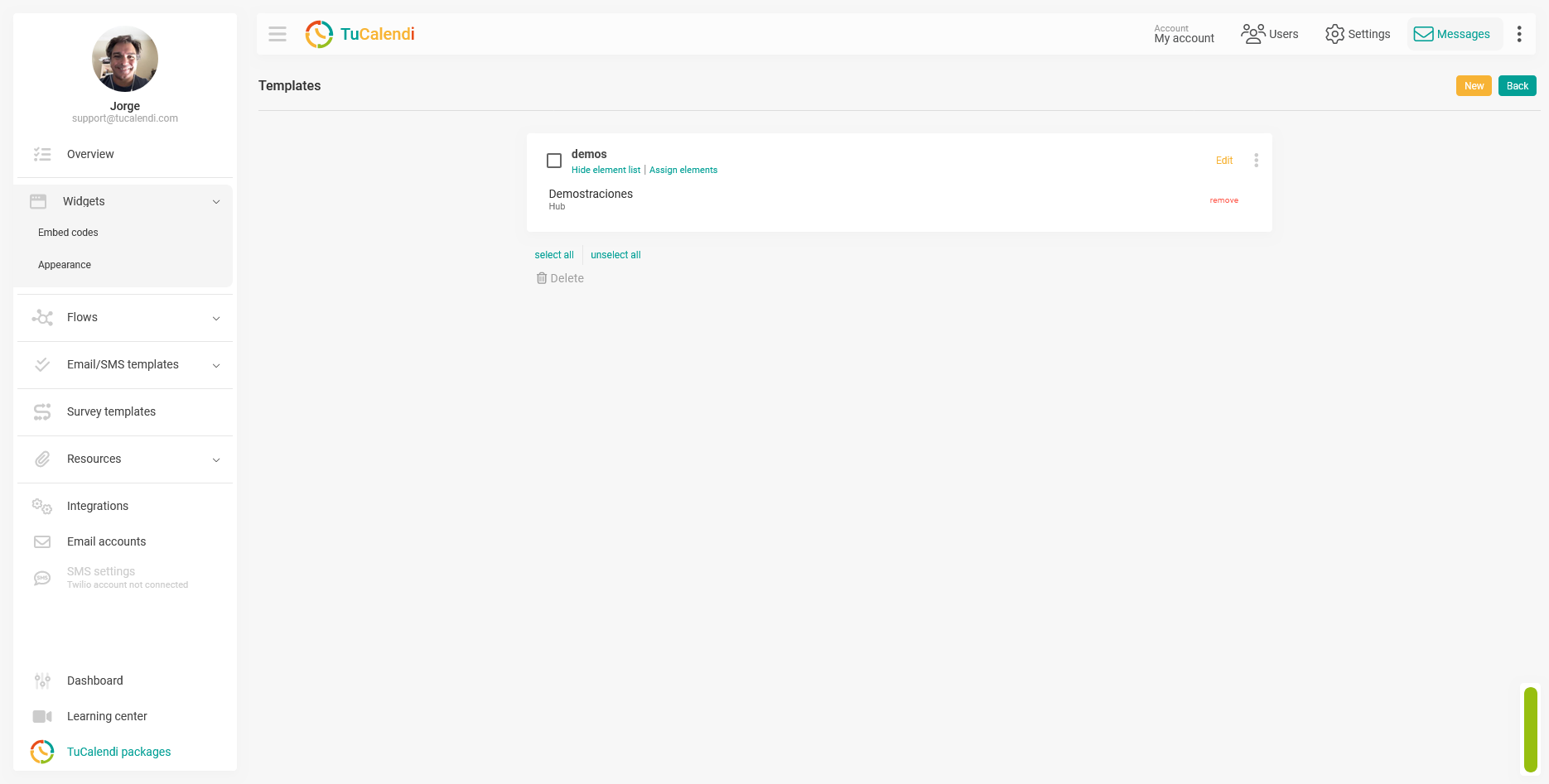
Once the template is saved, verify that it is assigned to the corresponding hub or survey with routing. If the template is not assigned to any element, the change will not be reflected in any widget.
Process Summary
To set the widget’s language, go to "Widget Appearance" create or edit a template, and locate the "Language" field. If you leave it set to "Default" the widget will display common elements in the user’s browser language. If you select a "Specific Language" the widget will always use that language regardless of the browser. Click "Save" and verify that the template is assigned to the corresponding hub or survey.