How to Get the Embed Code for the TuCalendi Widget
This tutorial explains how to get the online embed code for the TuCalendi Widget. Once you've copied it, simply paste it into your website, and the booking widget will appear directly on your site.
If you’re not sure what an embed code is or what it’s used for, we recommend reading the introductory tutorial on what the TuCalendi Widget embed code is first.
Step 1. Go to the Widgets section
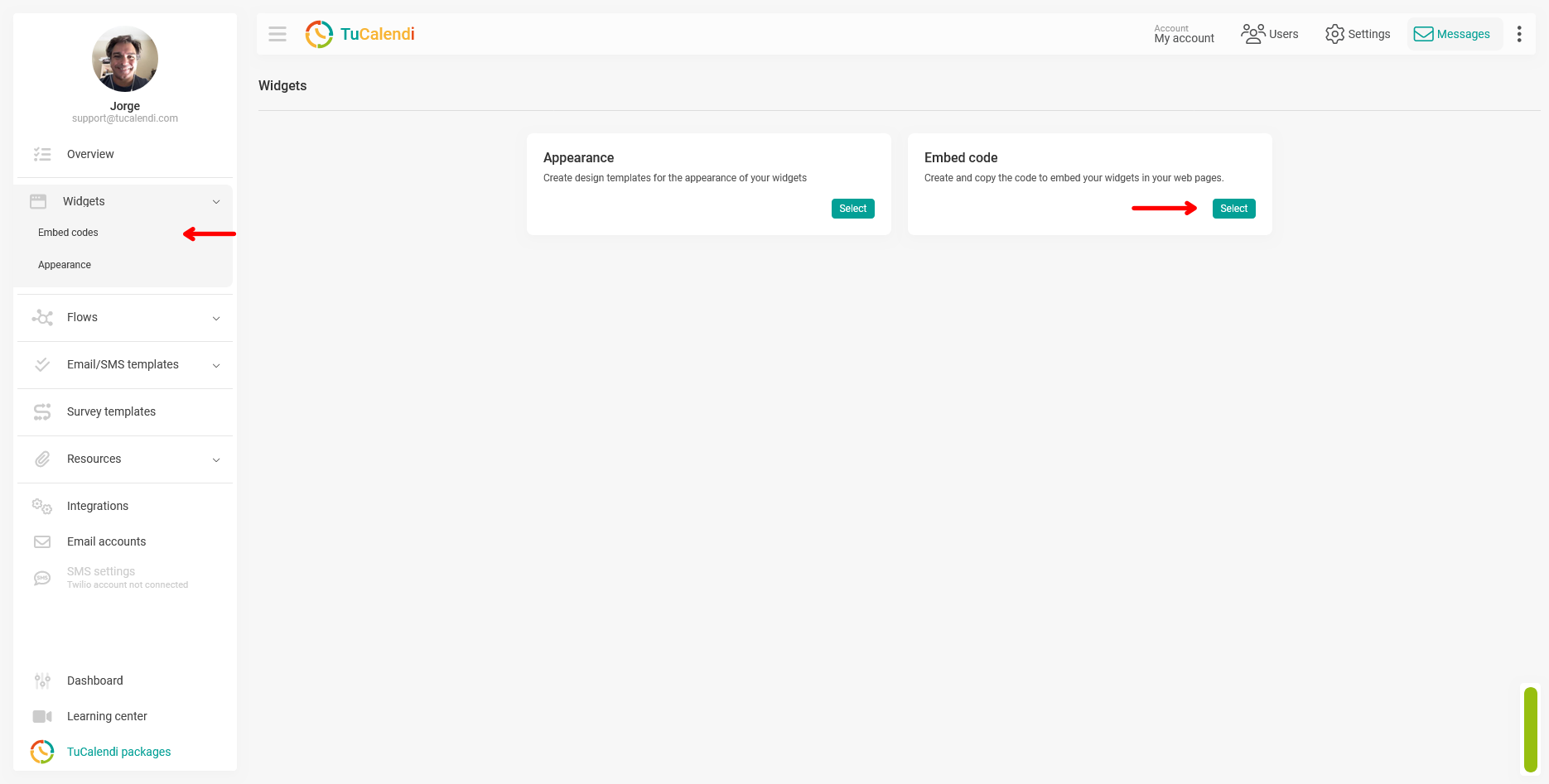
From the TuCalendi side menu, click on Widgets. You’ll see two options: Appearance and Embed Codes. Click on "Embed Codes" or click the "Select" button on the Embed Code card.
Step 2. Select the "Inline" embed type
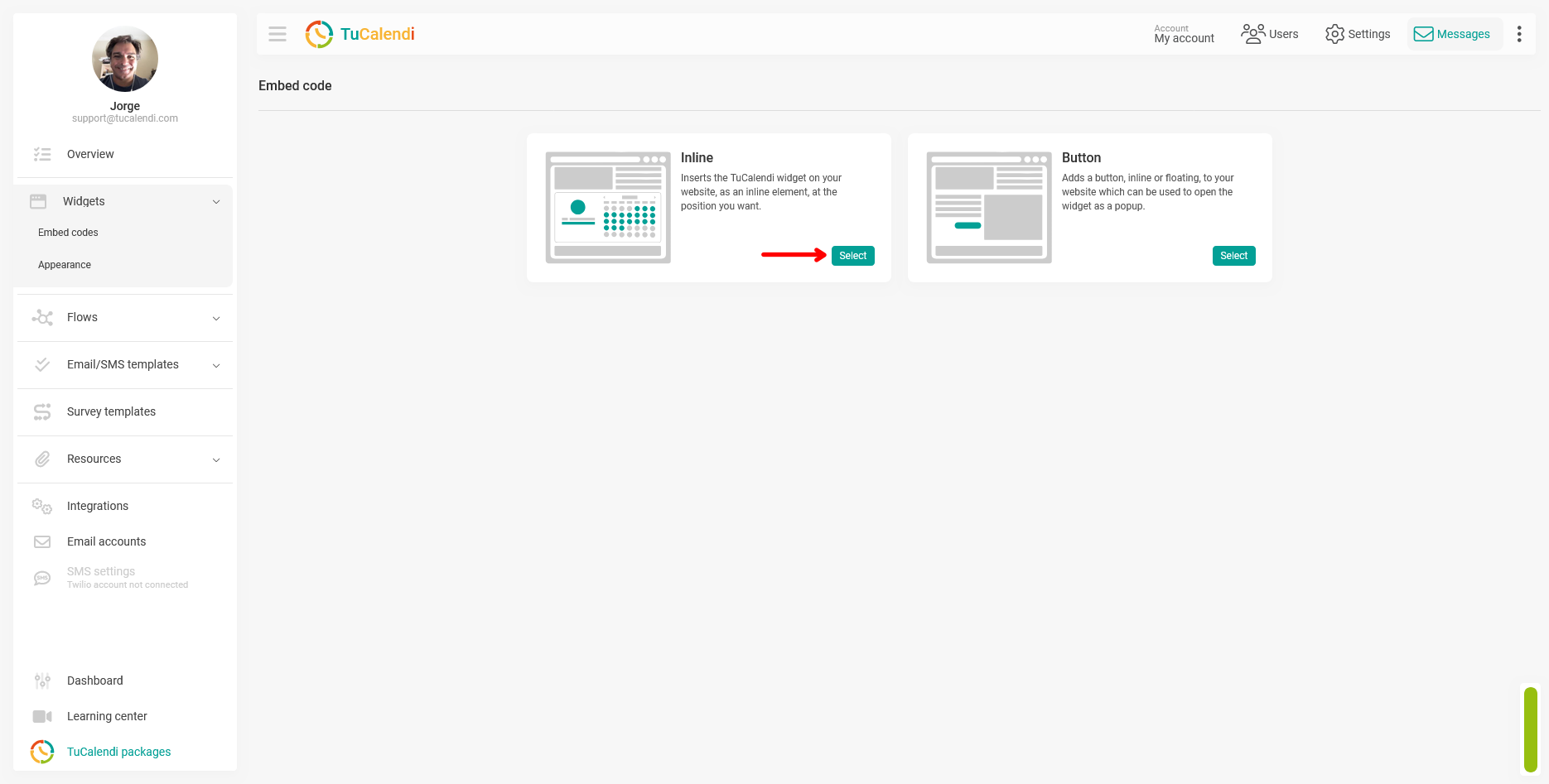
TuCalendi offers two embedding types: Inline and Button. The "Inline" type embeds the widget directly on the page, at the location where you paste the code. The "Button" type adds a button that opens the widget as a pop-up window.
For this tutorial, we’ll select "Inline". Click the "Select" button on the Inline card.
Step 3. Choose between Calendar and Survey
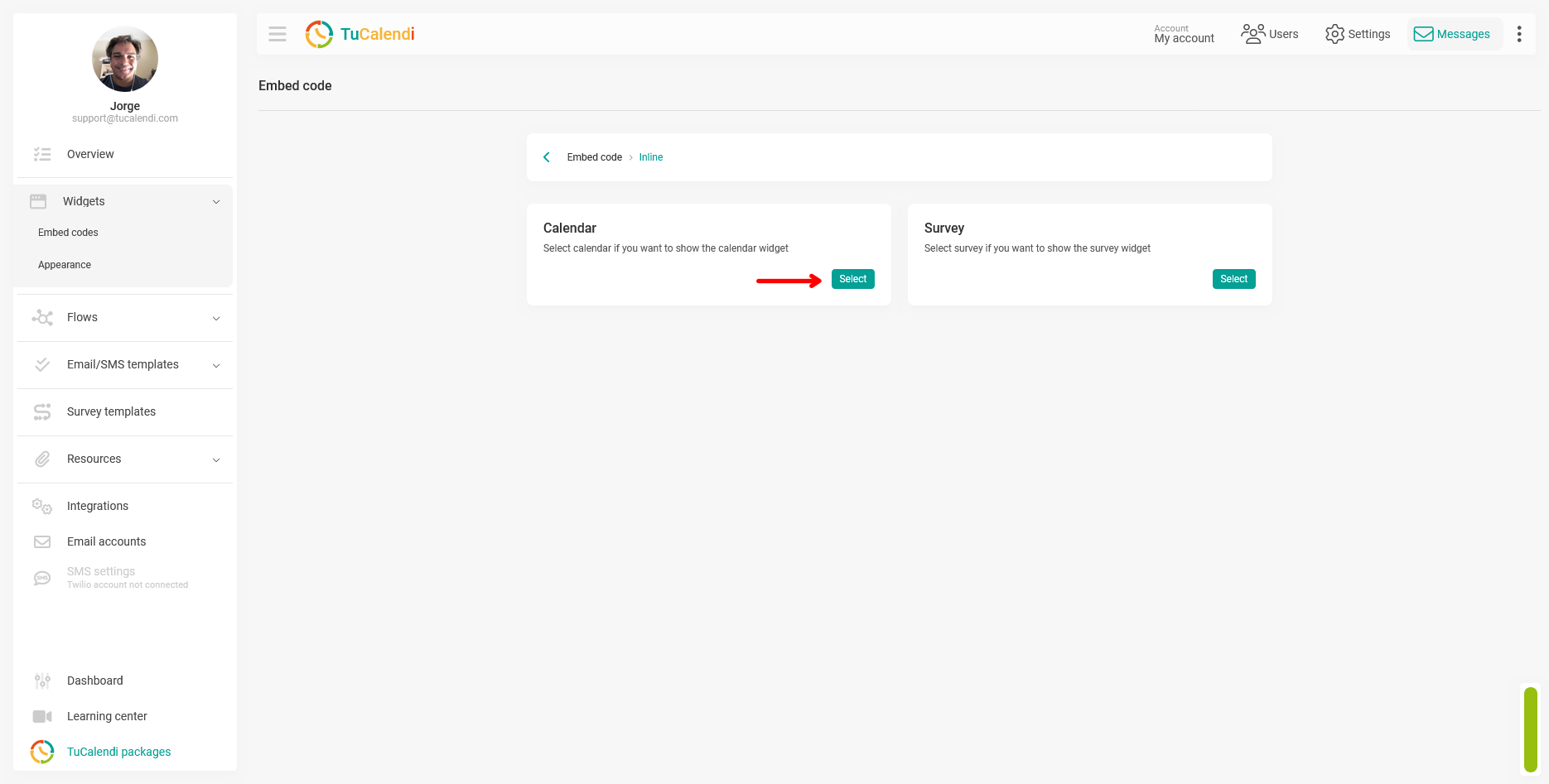
Next, TuCalendi asks you what type of widget you want to embed: Calendar or Form/Survey. Select "Calendar" if you want to display the appointment booking widget. Select "Survey" if you want to embed a survey with branching.
In this tutorial, we’ll select "Calendar". Click the "Select" button on the Calendar card.
Step 4. Select the Event
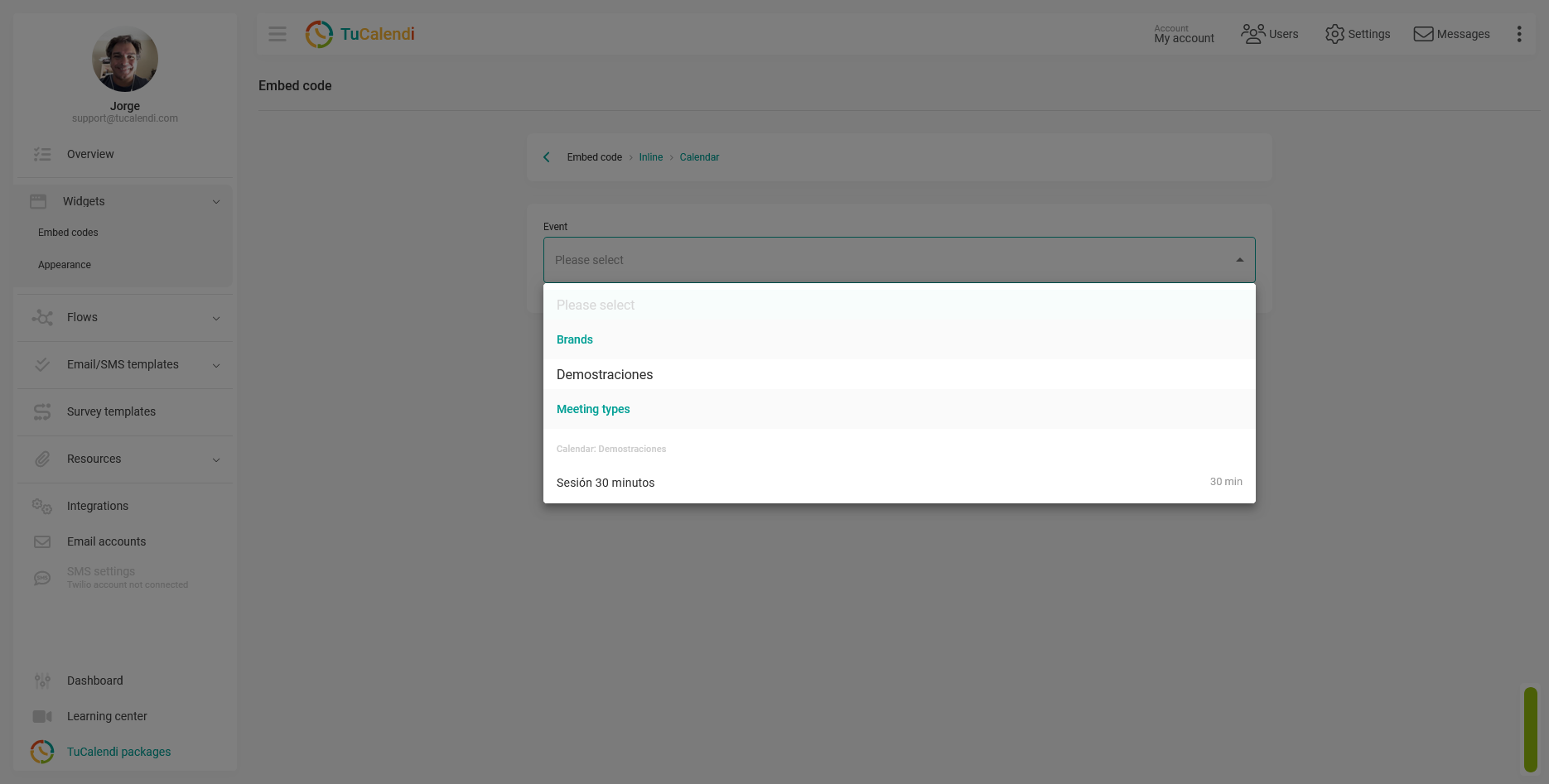
On the next screen, you’ll see the "Event" field. Click it to open the menu and select the individual event or calendar with multiple events for which you want to generate the embed code.
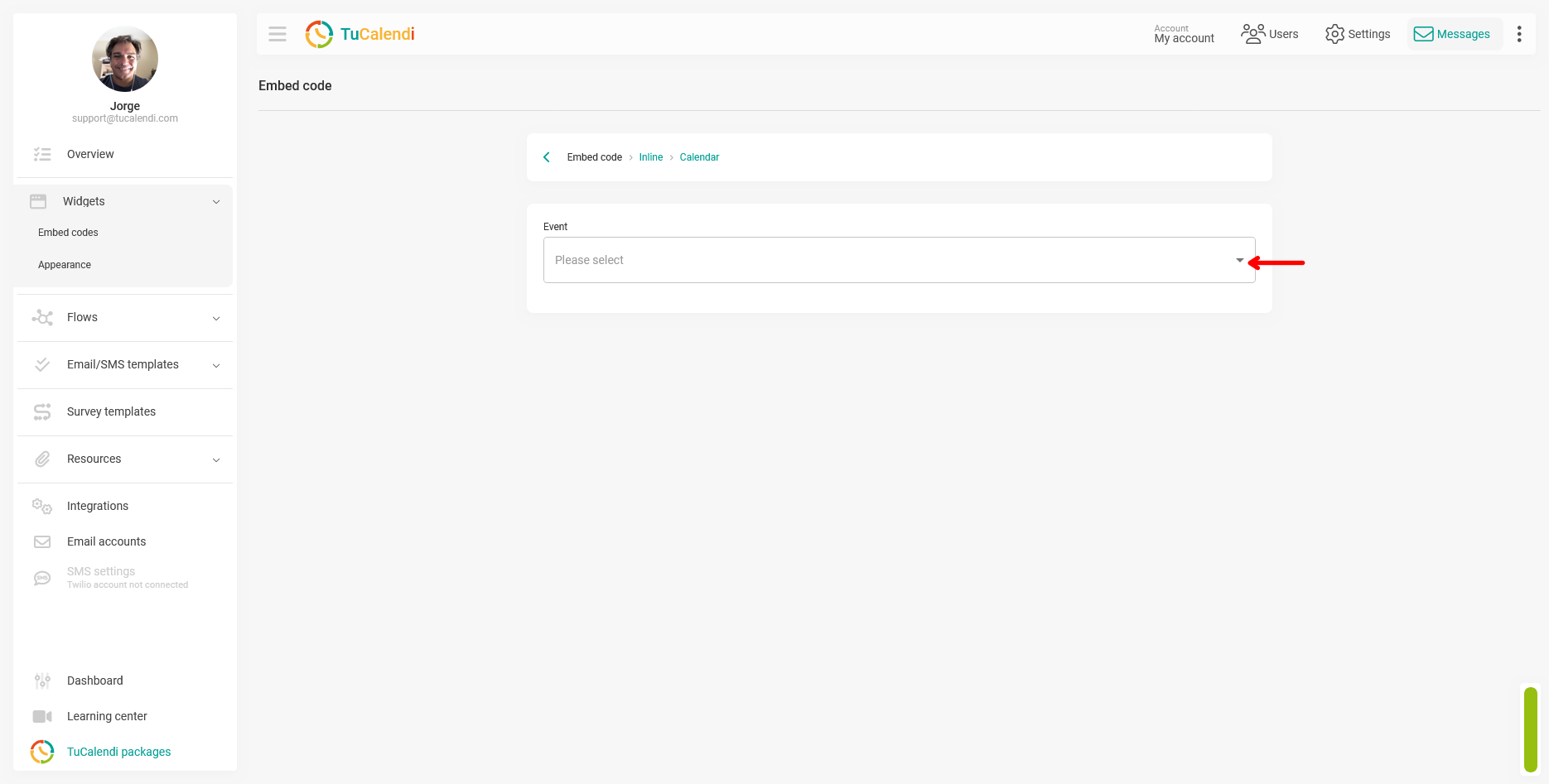
The menu displays the calendars and events available in your account, organized by category.
Step 5. Copy the embed code
Once you’ve selected the event, TuCalendi automatically generates the embed code and displays it in the box in the Embed Code section. Click the "copy icon" in the upper-right corner of the box to copy the code to the clipboard.
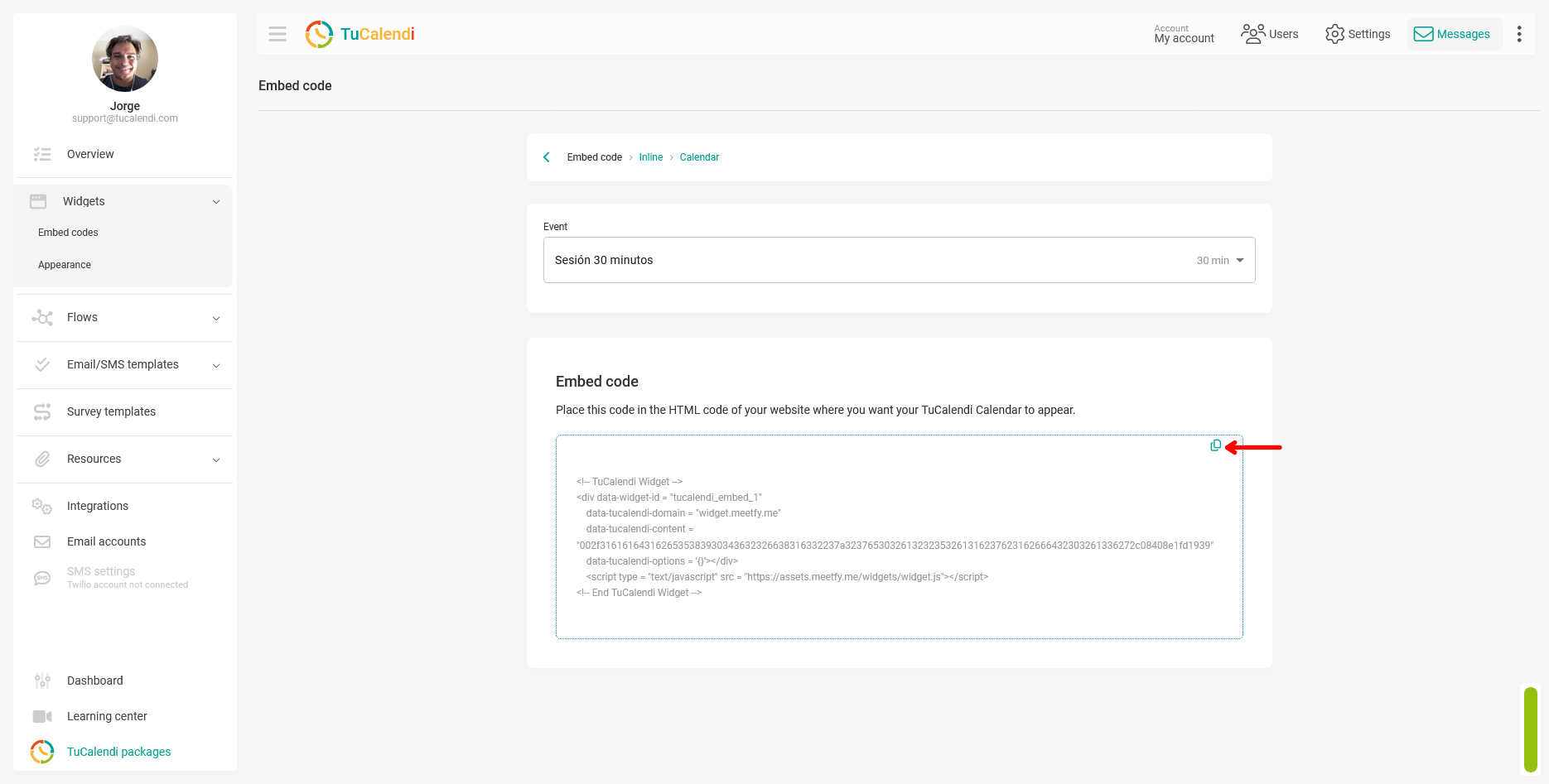
The code is now ready to be pasted onto your website.
Process Overview
To obtain the embed code for the TuCalendi widget, go to "Widget Embed Codes", select the "Online" type, and choose "Calendar" or "Survey" Next, select the desired event or calendar in the "Event" field. TuCalendi will automatically generate the code. Click the "copy icon" to copy it to the clipboard and paste it onto your website.