How to Add a Favicon to Your Meetfy.me Domain
The favicon is the small icon that appears in the browser tab when someone visits your booking page. Customizing the favicon with your brand image reinforces your visual identity and makes your page easily recognizable among the open browser tabs.
The "Favicon" option under "Domains and Branding" lets you easily upload this image, just as you would with the logo in the Branding section.
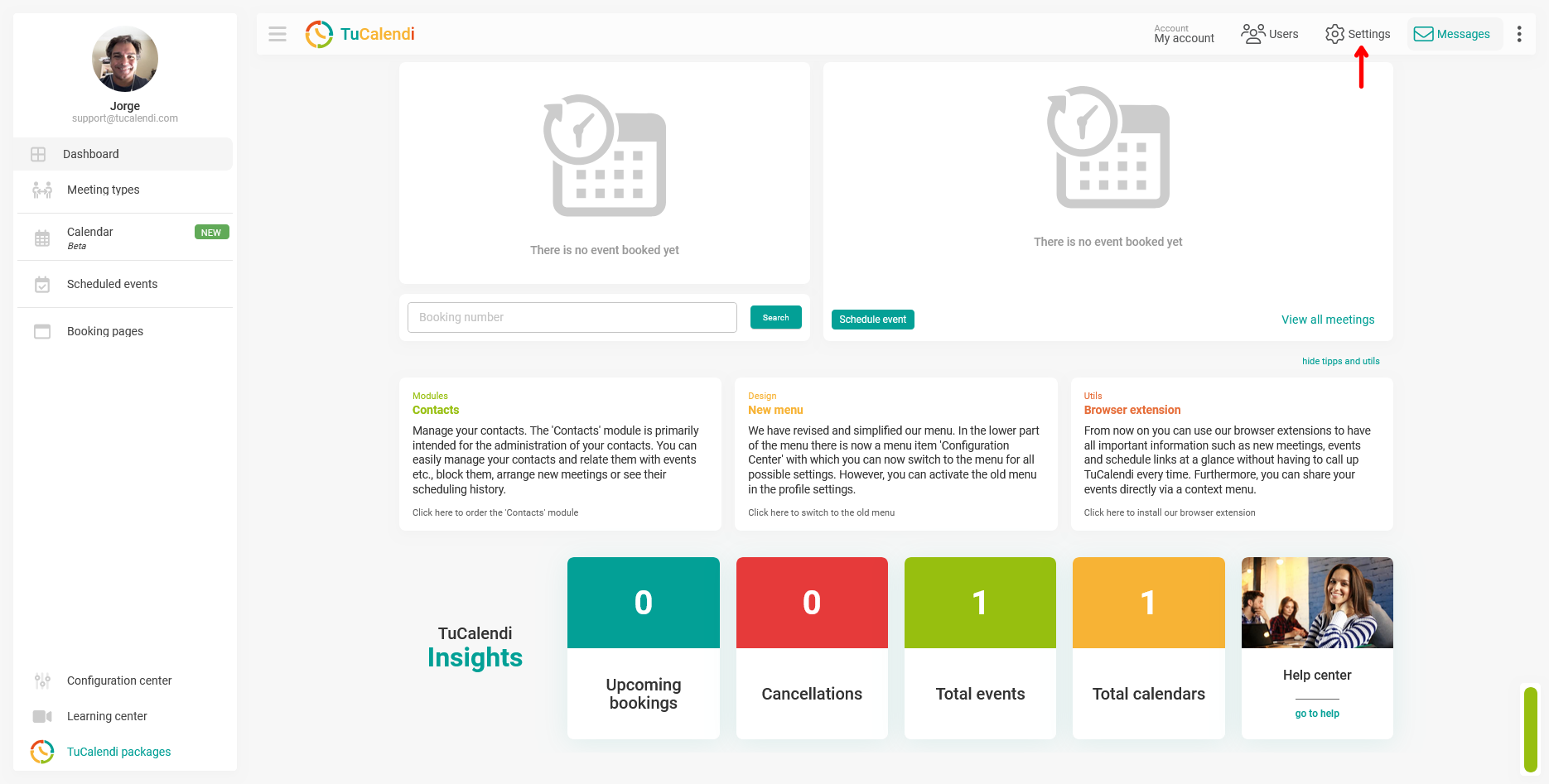
Step 1. Go to Settings
Click "Settings" in the top navigation bar of TuCalendi.
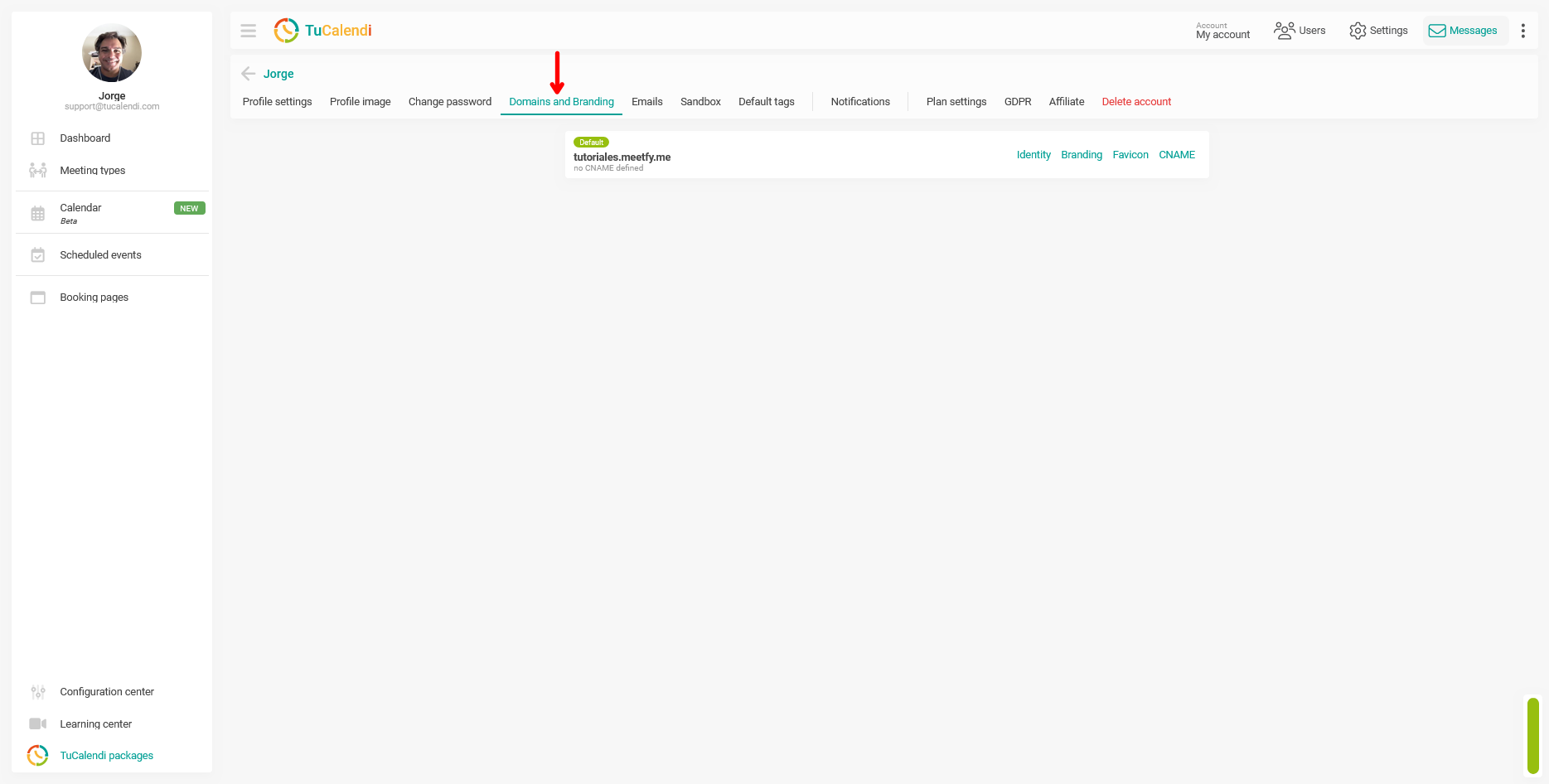
Step 2. Select "Domains and Branding"
In the horizontal menu of options that appears at the top of the screen, click "Domains and Branding".
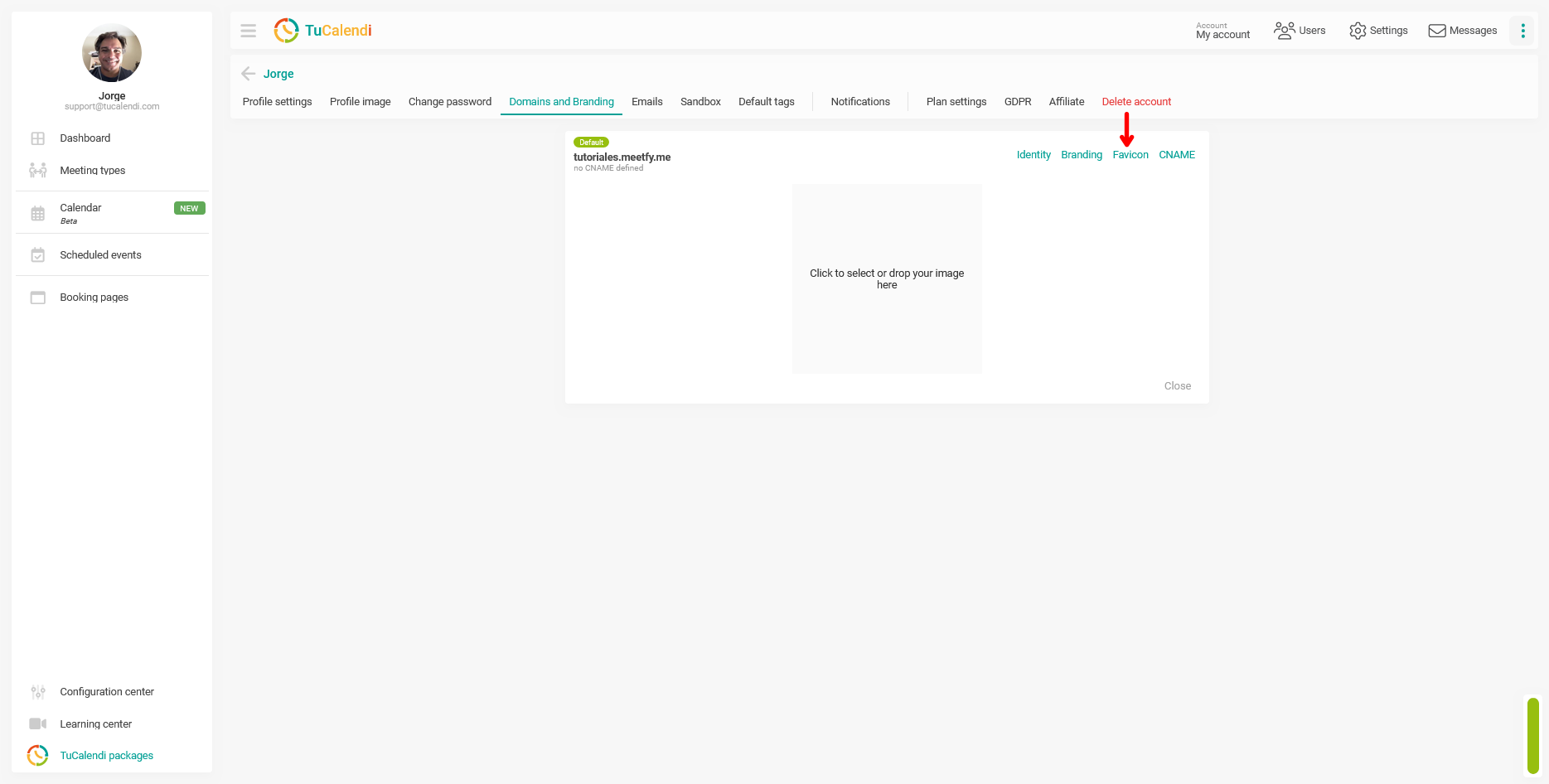
Step 3. Open the "Favicon" option
On the "Domains and Branding" screen, locate your active domain and click the "Favicon" link on the right.
A box will open with the image upload area and the message "Click to select or drag and drop the image here".
Step 4. Select and upload the favicon image
Click the upload area to open your device’s file selector and choose the image you want to use as your favicon. You can also drag the file directly onto the area and drop it there.
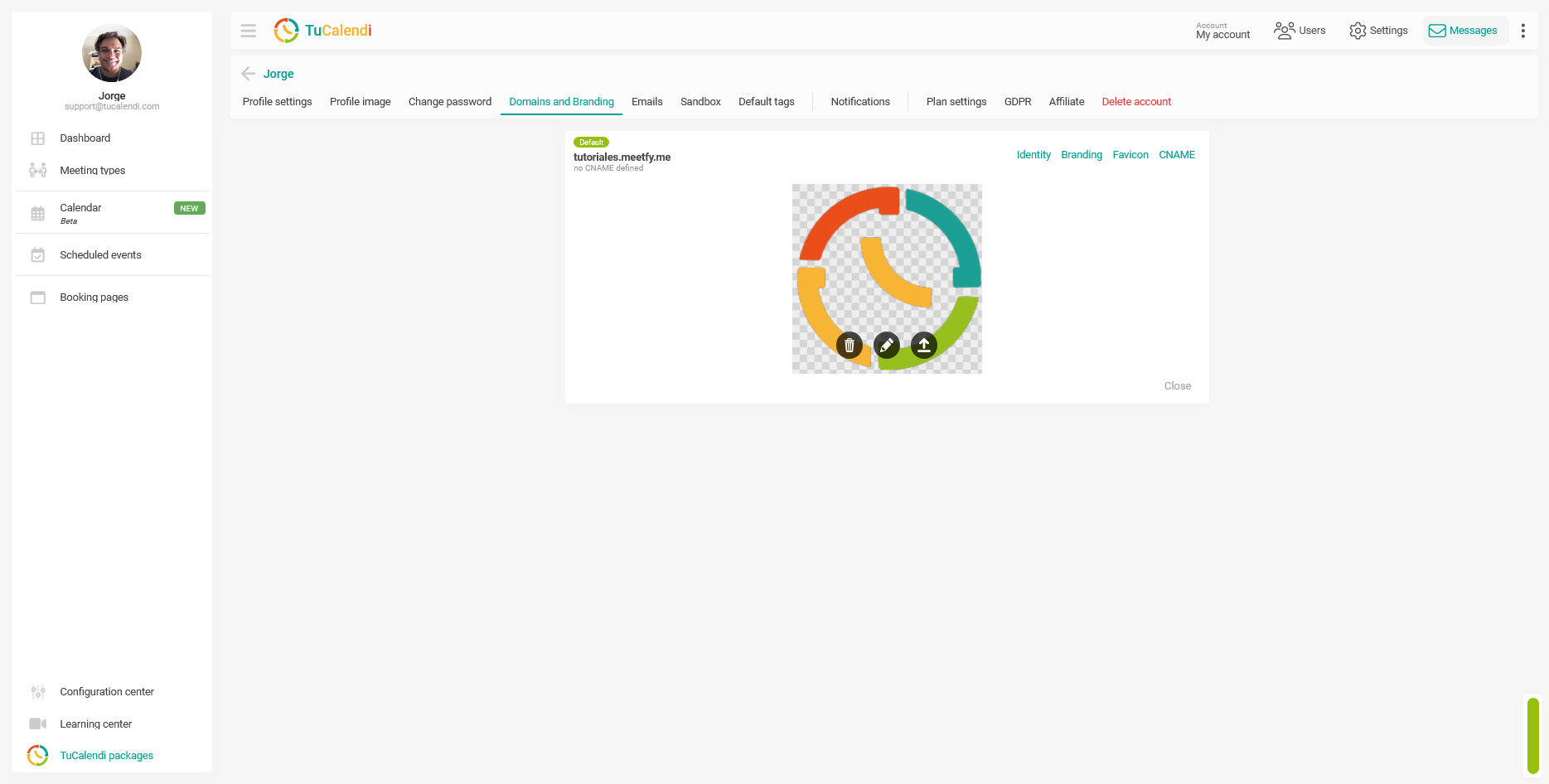
Once selected, the image will upload automatically and appear in the box. Three action icons will appear above the image:
- Trash can: Delete the uploaded image.
- Pencil: Edit or crop the image.
- Up arrow: Upload the selected image
Step 4. Close the panel
Once the image is uploaded, click "Close" to return to the Domains screen and check the box.
Process Summary
To add your company’s favicon to your Meetfy.me domain, go to "Settings" from the top bar, select "Domains and Branding" from the horizontal menu, and click "Favicon" next to your active domain. Click the upload area or drag your image directly onto it. Once uploaded, you can delete, edit, or replace it using the icons that appear above the image. Click "Close" to return to "Domains and Branding".