How to Display disabled Times in the Widget
We'll explain how to configure the Show disabled Time Slots option in the TuCalendi widget. This option determines whether the widget shows or hides time slots that are already booked or have been disabled.
When this option is set to “Yes, ” users viewing the widget will also see times that are unavailable, which can help them understand the calendar’s full availability. When it’s set to “No, ” only available times are shown, which simplifies the view and makes selection easier.
Before You Begin
To follow this tutorial, you must go to the widget’s “Appearance” section and have an appearance template created that you can edit. The complete process for creating and assigning templates is explained in the general tutorial on how to create and assign a widget appearance template.
Step 1. Access the widget’s appearance
From the TuCalendi side menu, go to the “Widgets” section and select the “Appearance” option.
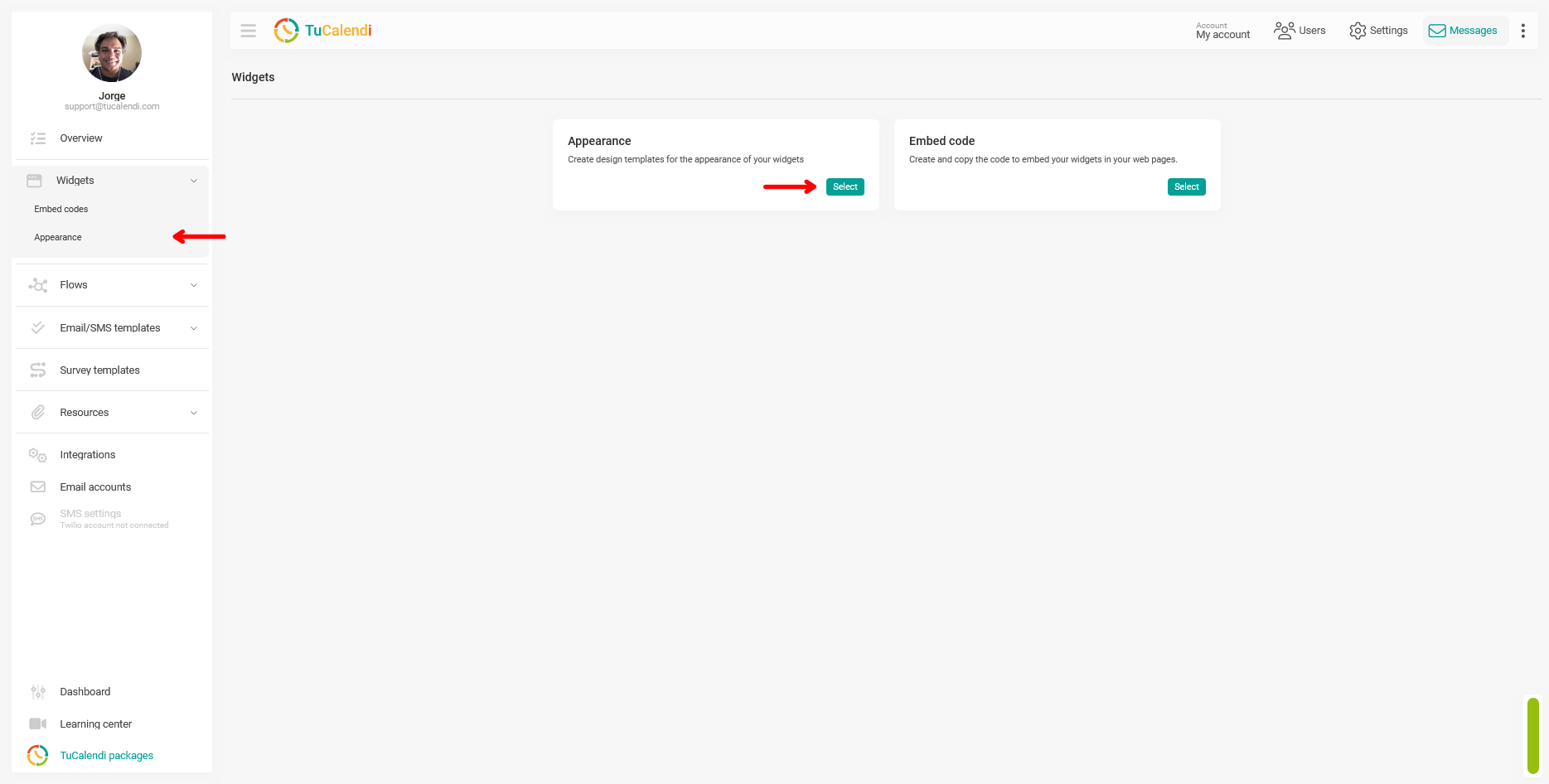
Step 2. Create or edit a widget appearance template
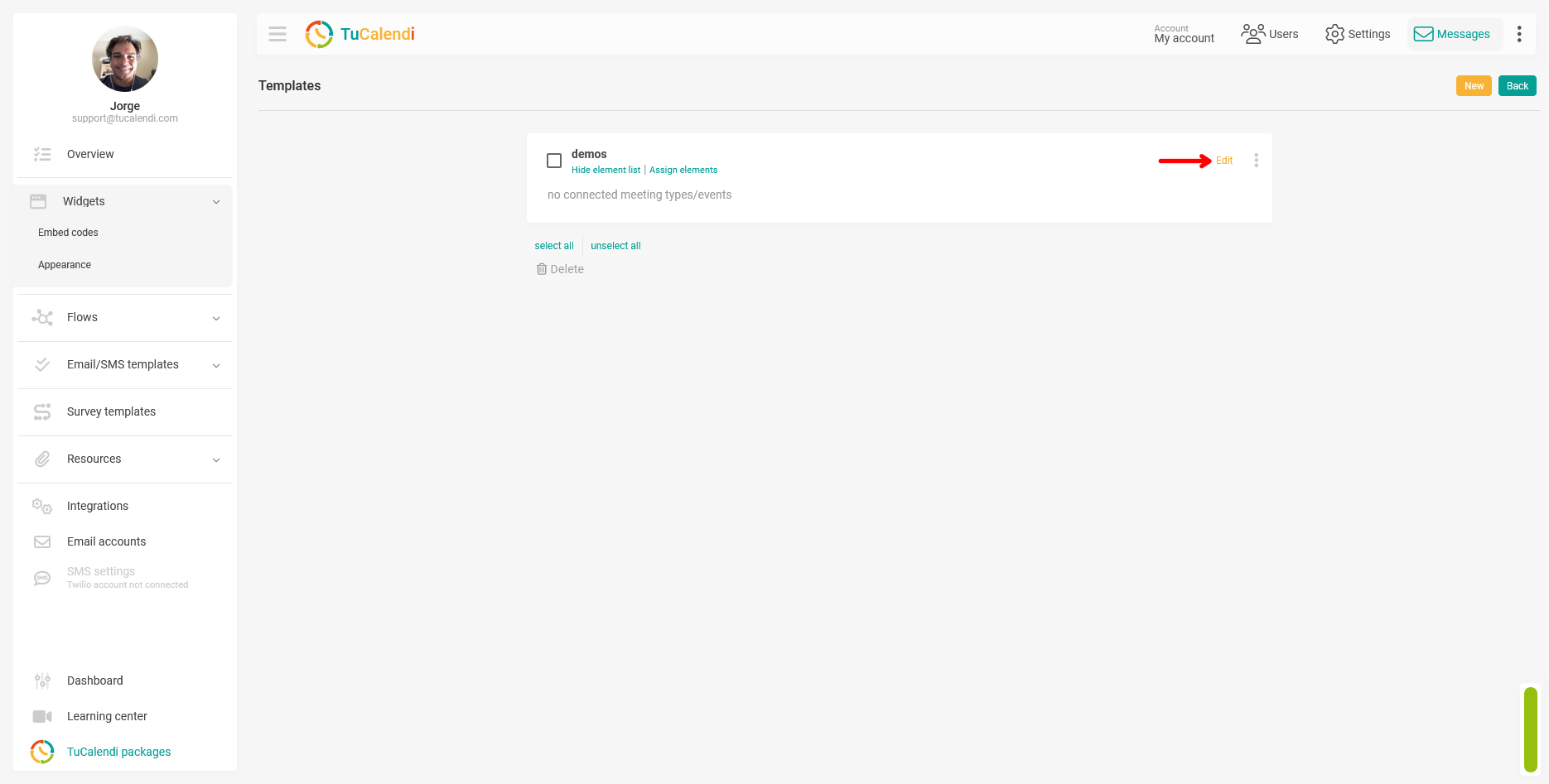
Within the Appearance section, create a new template or edit an existing one by clicking “Edit.”
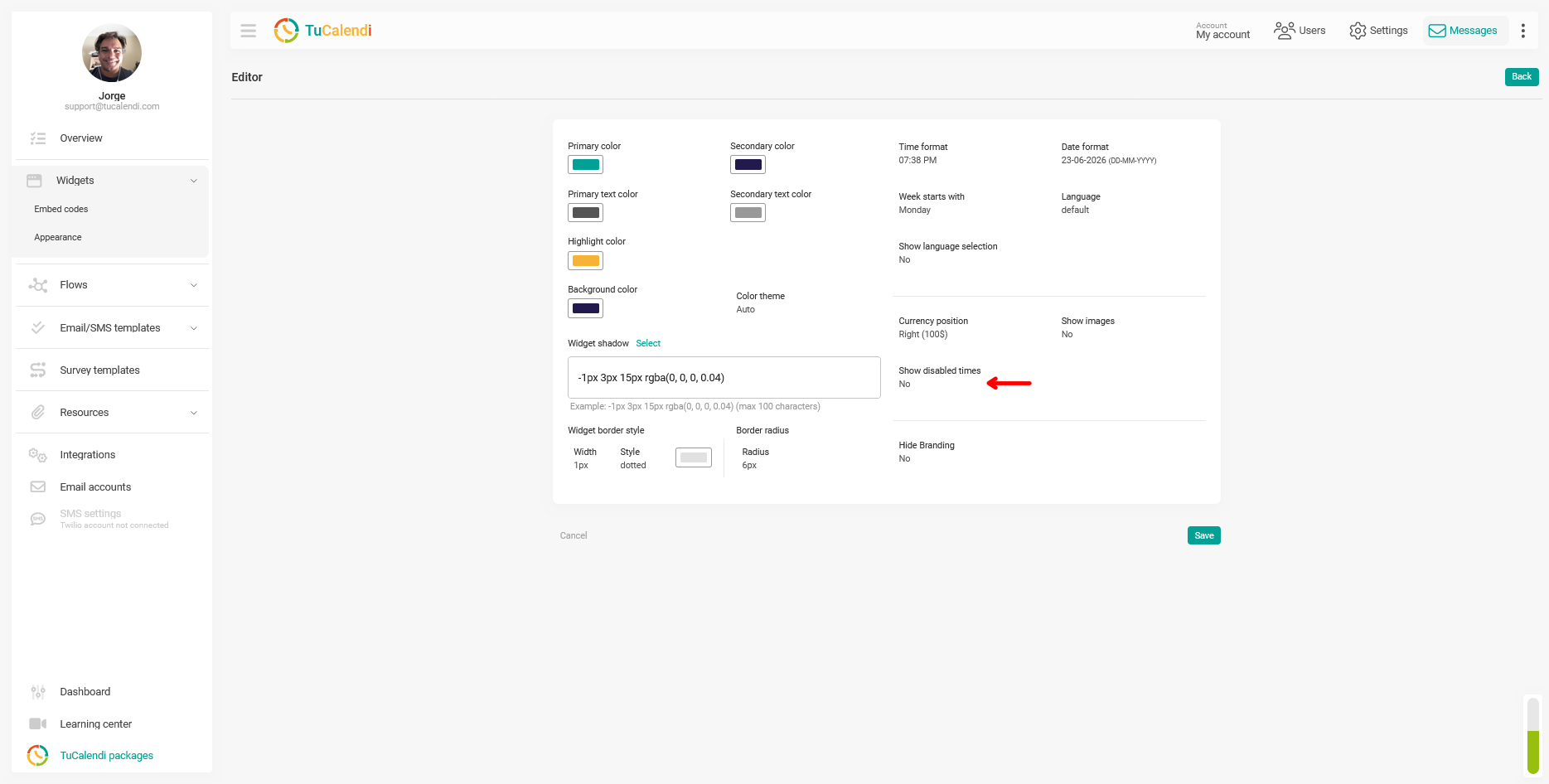
Step 3. Locate and configure the “Show disabled Times” option
In the template editor, locate the “Show disabled times” field. This field is in the right-hand column of the customization panel, just below the “Show Images” option.
Click the field to select the desired value: “Yes” to display booked times in the widget, or “No” to hide them.
Step 4. Save the changes
After configuring the option, click “Save” to apply the change to the theme template.
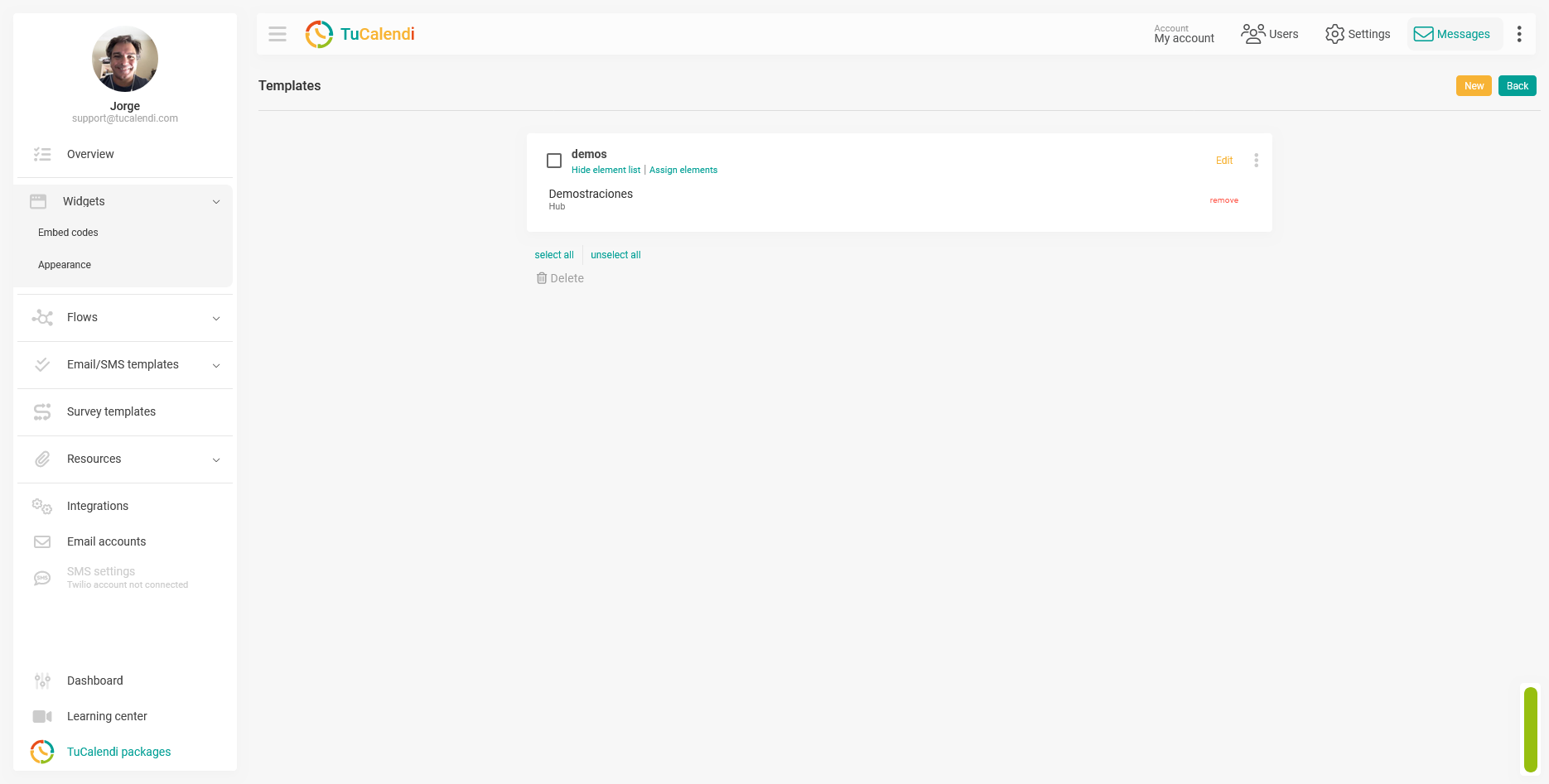
Step 5. Check the element assignment
Once the template is saved, verify that it is assigned to the corresponding hub or routed survey. If the template is not assigned to any item, the change will not be reflected in any widget.
Process Summary
To configure whether the widget displays already booked time slots, go to "Widget Appearance, " create or edit a template, and locate the "Show disabled Times" field. Select “Yes” so that users can also see booked time slots, or “No” to show only available time slots. Click “Save” and verify that the template is assigned to the corresponding hub or survey.