How to migrate your account to TuCalendi 3.0
If your account is ready to migrate to TuCalendi 3.0, you’ll see a migration option right on your dashboard. From there, you can start the process and update your account to the new version.
Before continuing, we recommend checking whether you use booking links, embedded widgets, polls, or custom domains outside of TuCalendi. If you’ve already checked, you can start the migration by following the steps in this tutorial.
1. Log in to your dashboard
Log in to your TuCalendi account as you normally would. If your account is eligible for migration, you’ll see an informational block on the dashboard titled “Migration.”
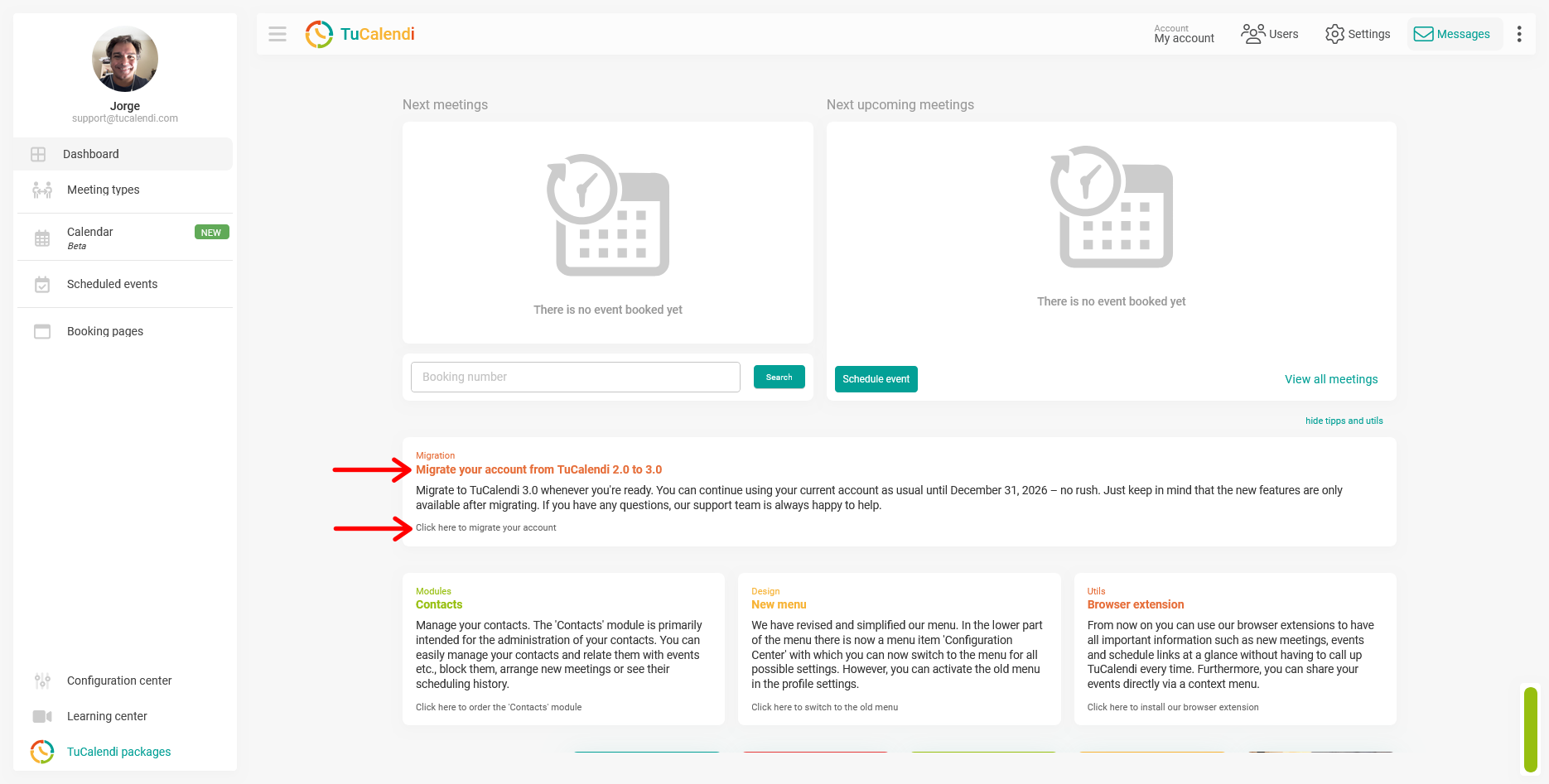
This block will indicate that you can migrate your TuCalendi 2.0 account to TuCalendi 3.0. It will also remind you that you can continue using your current account until you decide to migrate.
2. Click the migration option
Within the migration block, click the option to start the process. Doing so will open the migration screen from TuCalendi 2.0 to TuCalendi 3.0.
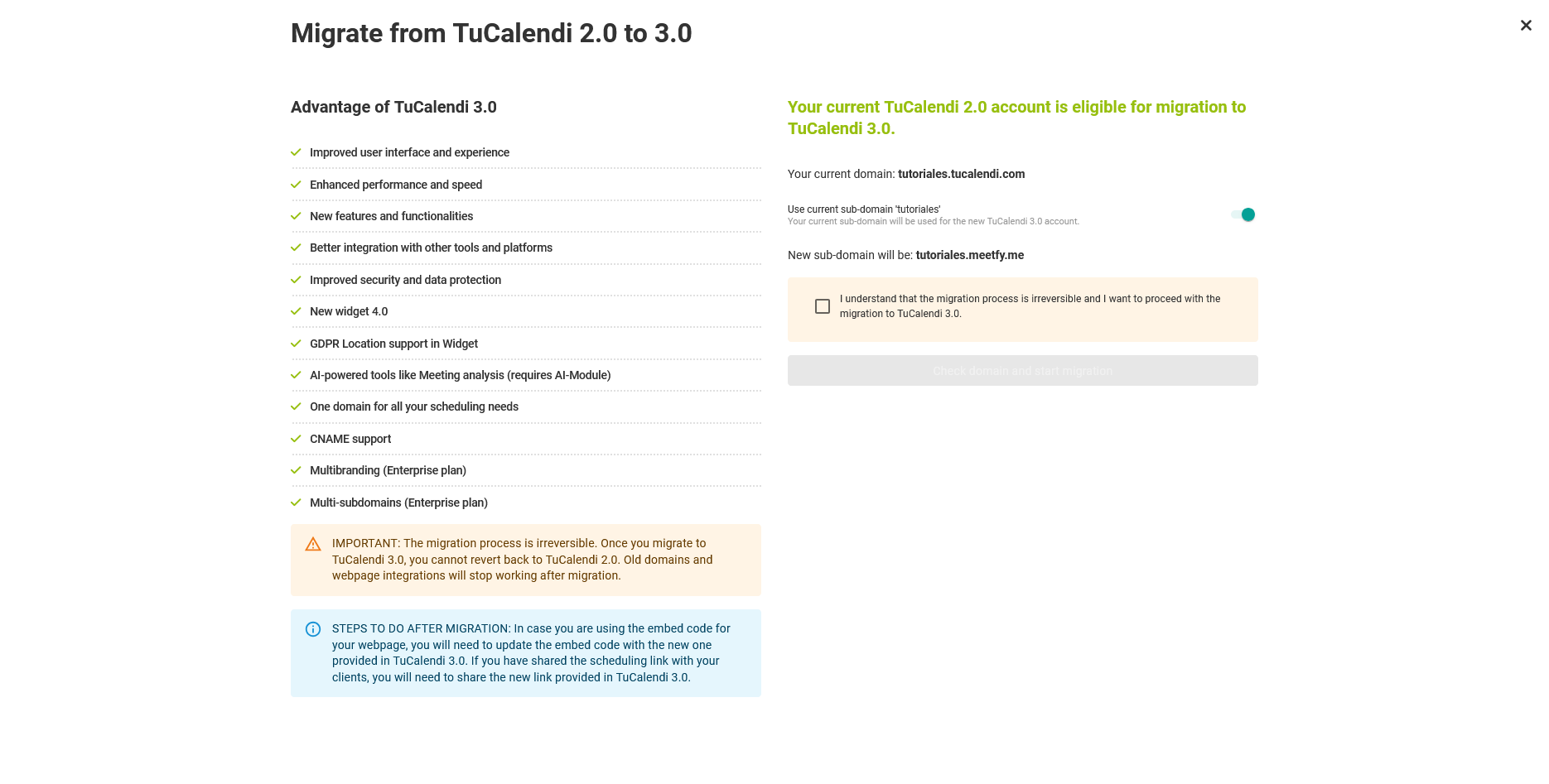
On this screen, you can review the main advantages of the new version and see what your new public subdomain under meetfy.me will look like.
3. Review your new subdomain
Before starting the process, you’ll see your current domain and the new subdomain that will be used in TuCalendi 3.0.
For example, in our case, the current domain is:
tutoriales.tucalendi.com
After migration, your new subdomain will be:
tutoriales.meetfy.me
This new subdomain will be the main address associated with your public resources in TuCalendi 3.0, such as booking pages, widgets, and surveys with routing.
4. Review the benefits of TuCalendi 3.0
On the migration screen, you’ll also see a summary of the improvements included in the new version. Among these benefits, you’ll find enhancements in performance, security, user experience, a new widget, CNAME support, and new features.
You don’t need to configure all these options during migration. Some will be available after you update your account, and you can review them later from your control panel.
5. Confirm that you understand the process
Before clicking the final migration button, you must check the confirmation box. This box indicates that you understand the migration process is irreversible and that you want to proceed with the update to TuCalendi 3.0.
6. Start the migration
Once the confirmation checkbox is checked, the button to migrate your account will become available. Click the button to start the migration to TuCalendi 3.0.
The system will update your account to the new version. When the process is complete, you’ll be able to access the new features and use the new structure based on meetfy.me.
After Migrating
After completing the migration, review your public links and update any you’ve shared on your website, in emails, on social media, in campaigns, or in documents. If you were using the TuCalendi widget on your website, you’ll also need to copy the new embed code from TuCalendi 3.0.
If you didn’t have any published links, embedded widgets, polls, or custom domains outside of TuCalendi, you likely won’t need to make any significant additional changes after migrating.